How to Verify a SHA-256 Checksum on Windows, Mac and Linux
Check a download's SHA-256 checksum on Windows, macOS or Linux with built-in commands or in Chrome, and learn what a match does and doesn't prove.
Reading time
6 min
Many download pages list a long string of letters and numbers next to each file, labelled "SHA-256" or "checksum". It takes less than a minute to check, and it tells you whether the file on your disk is exactly the file the publisher described. This guide shows how to do it on Windows, macOS and Linux with tools that are already installed, how to do it in the browser, and what a match actually proves.
What a SHA-256 checksum is
SHA-256 is a hash function. It reads every byte of a file and produces a fixed 64-character fingerprint written in hexadecimal (0–9 and a–f). Change a single byte and the fingerprint changes completely. The file name is not part of the calculation, so renaming a file doesn't change its hash.
When a publisher lists a SHA-256 value next to a download, they are saying: "the file we released has this fingerprint." If you compute the fingerprint of your copy and get the same 64 characters, your copy is identical to that file.
Step 1: Find the published checksum
Before you run any command, find the right value to compare against:
- Use the publisher's own page. That is the official download page, release notes or a GitHub release, not a mirror or a forum post.
- Match the exact file. Projects often list one hash per platform, version and file format. A hash for the
.exeinstaller won't match the.msi. - Check the algorithm. SHA-256 values are 64 characters long. A 128-character value is probably SHA-512, and a 32-character value is probably MD5. If you're not sure what you're looking at, see how to identify a hash type.
- Look for a checksum file. Larger projects publish a file such as
SHA256SUMSthat lists the hash of every download in one place.
Step 2: Compute the hash on your system
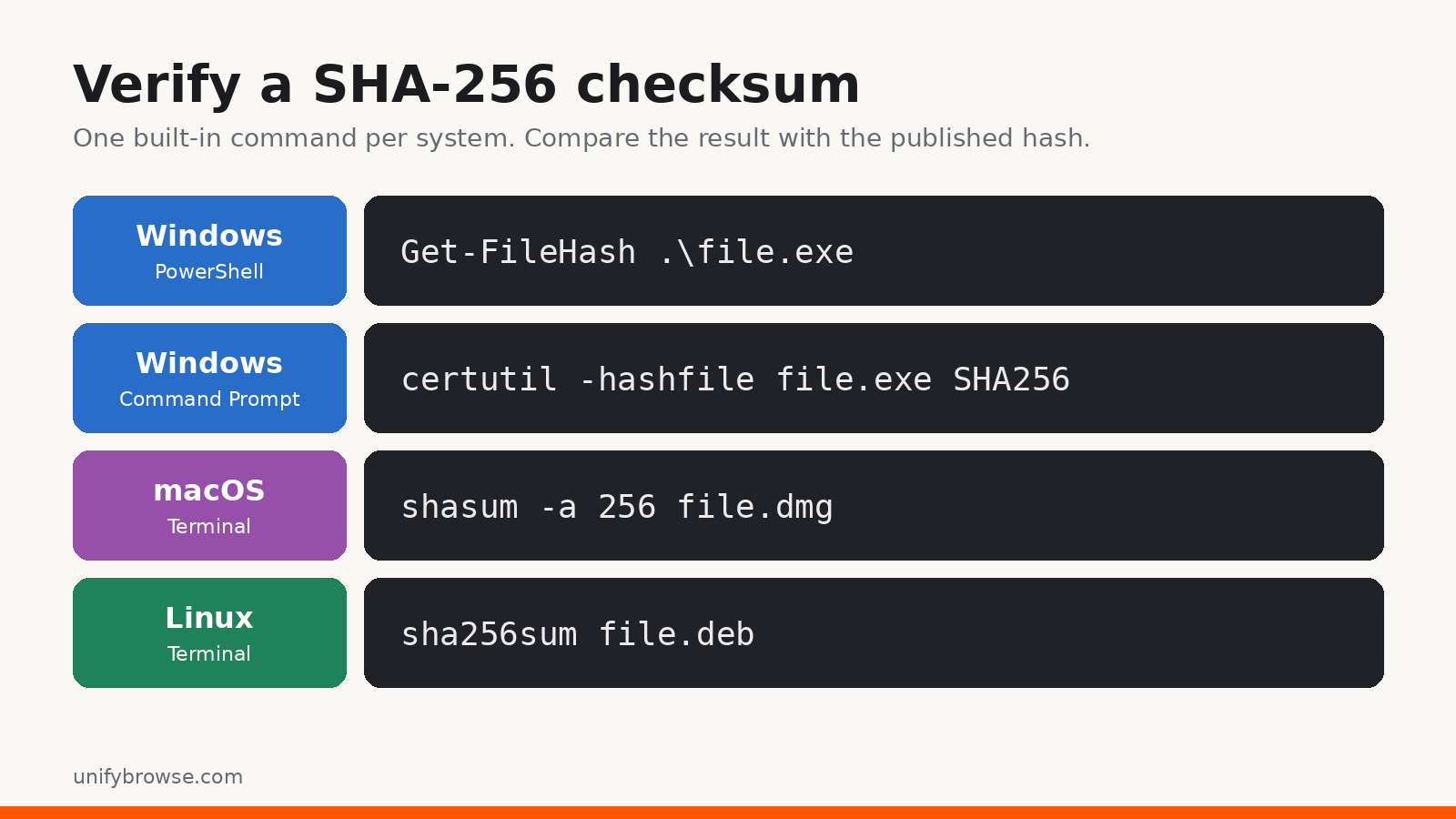
Windows (PowerShell)
Open PowerShell in the folder that holds the download and run:
Get-FileHash .\file.exe
Get-FileHash uses SHA-256 by default and prints the hash in upper case. To have PowerShell do the comparison for you, paste the published value between the quotes:
(Get-FileHash .\file.exe -Algorithm SHA256).Hash -eq "paste-the-published-hash-here"
It prints True if they match and False if they don't. The -eq comparison ignores letter case, so an upper-case result still matches a lower-case published hash.
Windows (Command Prompt)
certutil is built into Windows and works in Command Prompt:
certutil -hashfile file.exe SHA256
Compare the hash on the second line of the output with the published value.
macOS
Open Terminal and run:
shasum -a 256 file.dmg
Don't leave out -a 256. Without it, shasum uses SHA-1 and you'll get a 40-character value that will never match a SHA-256 hash. To let the tool compare for you, pipe the published hash and the file name (separated by two spaces) into check mode:
echo "paste-the-published-hash-here file.dmg" | shasum -a 256 -c
It prints file.dmg: OK when the file matches.
Linux
Most distributions include sha256sum:
sha256sum file.deb
If the project publishes a SHA256SUMS file, download it into the same folder and let sha256sum check everything at once:
sha256sum -c SHA256SUMS --ignore-missing
--ignore-missing skips entries for files you didn't download, so you only see results for the files you have.
A worked example
Todofy, our task and focus app, lists a SHA-256 value for every build on its download page. For the Linux .deb package of version 1.14.0, the published value is:
7fbef4f04a816c18218335a50870b81d004440977f0ebdff39bf4071d31dee71
After downloading the file, running sha256sum on it gives:
$ sha256sum todofy_1.14.0_amd64.deb
7fbef4f04a816c18218335a50870b81d004440977f0ebdff39bf4071d31dee71  todofy_1.14.0_amd64.deb
The two values are identical, so the download is complete and unchanged. Using check mode gives the same answer in one line:
$ echo "7fbef4f04a816c18218335a50870b81d004440977f0ebdff39bf4071d31dee71  todofy_1.14.0_amd64.deb" | sha256sum -c
todofy_1.14.0_amd64.deb: OK
If even one character of the published value were different, the same command would print FAILED and a warning that the computed checksum did not match.
Comparing by eye is where most mistakes happen. If you compare manually, check the whole string, not just the first and last few characters, or paste both values into a search box or text editor so the computer does the comparison.
Verify a checksum in the browser with HashLens
If you'd rather not use a terminal, HashLens, our free Chrome extension, has a file verifier built in. Click Verify File Integrity in the extension popup and it opens the File Hash Verifier in its own tab. Then:
- Drop the file onto the page, or click to choose it.
- Pick the algorithm: MD5, SHA-1, SHA-256 or SHA-512.
- Paste the published checksum.
The verifier shows Hashes match or Hash mismatch. Letter case in the pasted value doesn't matter, and spaces before or after it are ignored. The verifier screen states that it accepts any file type up to 2 GB and processes the file in your browser. Because it runs in a full tab rather than the popup, the check keeps running even if you click elsewhere while a large file is being hashed.
HashLens can also identify an unknown hash and generate hashes from text. You can add HashLens to Chrome from the Chrome Web Store.
What a match proves, and what it doesn't

A matching SHA-256 checksum proves integrity: your file wasn't truncated, corrupted in transit or swapped somewhere between the server and your disk.
It proves authenticity only as far as you trust the source of the hash. If an attacker can change both the download and the checksum shown next to it, the two will still match. In February 2016, for example, attackers broke into the Linux Mint website and pointed its download link at a backdoored ISO. Kaspersky's analysis of the incident made the same point: if a project's website is compromised, the attacker can change the checksums listed there too.
That is why some projects also sign their checksum lists. Ubuntu, for example, publishes SHA256SUMS together with a GPG signature file (SHA256SUMS.gpg). Checking that signature with the project's public key confirms that the hash list came from the project, and the checksum then confirms that your file matches it. For everyday downloads, a checksum from the official page is a sensible check. For operating system images and security tools, verify the signature as well when one is offered.
The algorithm matters too. MD5 and SHA-1 still catch accidental corruption, but practical collision attacks exist for both. When a publisher offers SHA-256 or SHA-512, use that.
If the checksum doesn't match
Don't open or install the file. Then work through the likely causes:
- Wrong file or version. Compare the file name, version number and platform with the line the hash belongs to.
- Wrong algorithm. Make sure you computed SHA-256 and not SHA-1 or SHA-512. On macOS, check that you included
-a 256. - Incomplete download. Delete the file and download it again from the official page, not from a mirror or a cached copy.
- Still different? Report it to the publisher. An unexpected mismatch on a fresh download from the official source is worth telling them about.
FAQ
Does upper or lower case matter?
No. Hexadecimal hashes are case-insensitive. Get-FileHash prints upper case and most other tools print lower case, but they describe the same value.
Does renaming the file change its SHA-256 hash? No. The hash is calculated from the file's contents only.
Is SHA-256 the same as a "checksum"? A checksum is any value used to check that data is unchanged. SHA-256 is one way to calculate it and is a common choice on download pages.
Do I need to install anything? No. Windows, macOS and most Linux distributions include a SHA-256 tool. A browser extension such as HashLens is an option if you prefer not to use a terminal.
Why does my result have 40 characters instead of 64?
You computed SHA-1. On macOS this happens when you run shasum without -a 256.
More about the extension: HashLens.
Filed undersha-256checksumfile integrityhashlenssecurity
● More from the journal
- 01
Pocket Alternatives in 2026: 5 Read-Later Apps by How You Read
Pocket is gone. Compare Instapaper, Raindrop.io, Readwise Reader, wallabag and Cairn by where your library lives, sync, highlights and Pocket imports.
GuideOctober 31, 2026 - 02
How to Download SoundCloud Cover Art in Full Size
Save SoundCloud cover art at the largest size that really exists: find the artwork URL, swap the size suffix for -original, and spot enlarged copies.
GuideOctober 28, 2026 - 03
Best SoundCloud Extensions for Chrome and Firefox (2026)
Six SoundCloud extensions for Chrome and Firefox, picked by job: feed filters, dark theme, popup players, downloads with tags, and history. Checked Oct 2026.
ListicleOctober 28, 2026