
Short answer: to hash a file, use Get-FileHash or certutil on Windows, shasum -a 256 on macOS, or sha256sum on Linux. To hash text, pipe its bytes to shasum or sha256sum with printf, or use the PowerShell byte-array example below. A trailing newline changes the digest. If you'd rather not use a terminal, HashLens generates hashes from text in Chrome and computes file digests in its File Hash Verifier tab.
This guide is about producing a SHA-256 value. If you already have a publisher's checksum and want to check a download against it, use How to Verify a SHA-256 Checksum instead. If you have an unknown string and need to guess which algorithm made it, see How to Identify a Hash Type.
What generating a SHA-256 hash means
SHA-256 reads every byte of an input and returns a fixed 64-character hexadecimal fingerprint (0–9 and a–f). Change one byte and the fingerprint changes completely. The file name is not part of the calculation, so renaming a file does not change its hash.
People generate SHA-256 hashes to:
- Publish a checksum next to a download so others can check integrity later.
- Fingerprint a configuration file, export or archive before sharing it.
- Confirm that two copies of the same bytes produce the same digest.
A hash is not encryption. Anyone with the same input can produce the same digest. Plain SHA-256 is also not a password-storage scheme: password hashes need a purpose-built construction (for example bcrypt or Argon2) with a salt and a work factor. This guide does not cover password cracking or recovery.
Hash a file with the operating system
These commands work without a network connection. They use tools that ship with the OS (or with coreutils on most Linux distributions).
Windows (PowerShell)
Open PowerShell in the folder that holds the file:
Get-FileHash .\report.pdf -Algorithm SHA256Get-FileHash uses SHA-256 by default, so -Algorithm SHA256 is optional here, but naming it keeps the intent obvious. The hash is printed in upper case. Hexadecimal digests are case-insensitive: an upper-case result describes the same value as a lower-case one.
Windows (Command Prompt)
certutil -hashfile report.pdf SHA256The digest appears on the second line of the output.
macOS
shasum -a 256 report.pdfDon't leave out -a 256. Without it, shasum defaults to SHA-1 and you get a 40-character value instead of a 64-character SHA-256 digest.
Linux
sha256sum report.pdf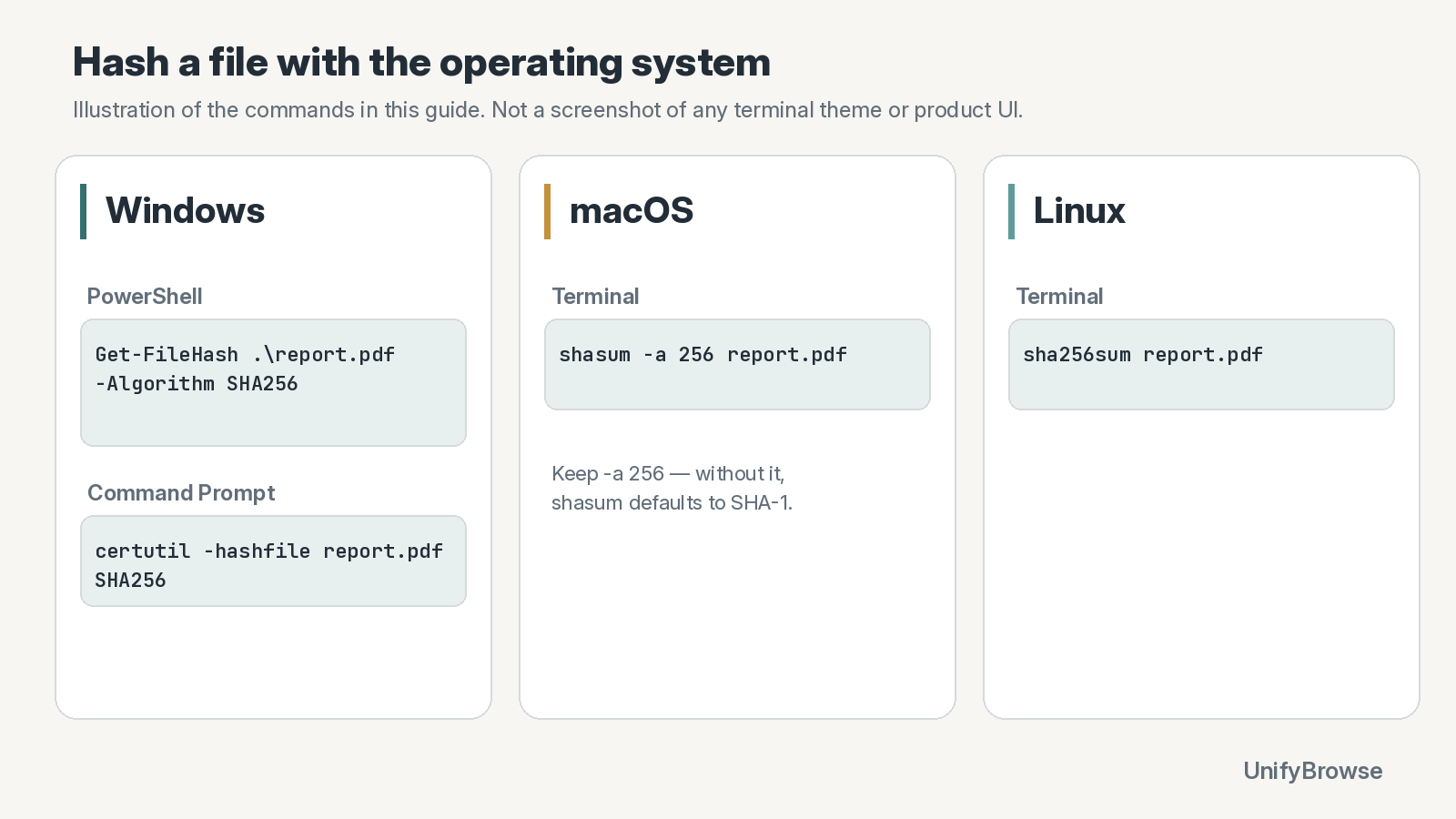
Illustration of the OS file-hash commands in this guide — not a screenshot of a terminal or extension UI.
Hash a text string (and the newline pitfall)
File tools hash the bytes you give them. For a short string, that means you must control whether a newline is included.
On Linux (and on macOS if sha256sum is installed via coreutils), hash the exact characters with no trailing newline:
printf '%s' 'abc' | sha256sumOn macOS with the built-in tool:
printf '%s' 'abc' | shasum -a 256echo usually appends a newline. That is a different input, so it produces a different digest. NIST's published SHA-256 example for the three-byte string abc is:
ba7816bf8f01cfea414140de5dae2223b00361a396177a9cb410ff61f20015ad(FIPS 180-4 / NIST examples.) If your command prints something else for abc, you almost certainly included a newline or used a different encoding.
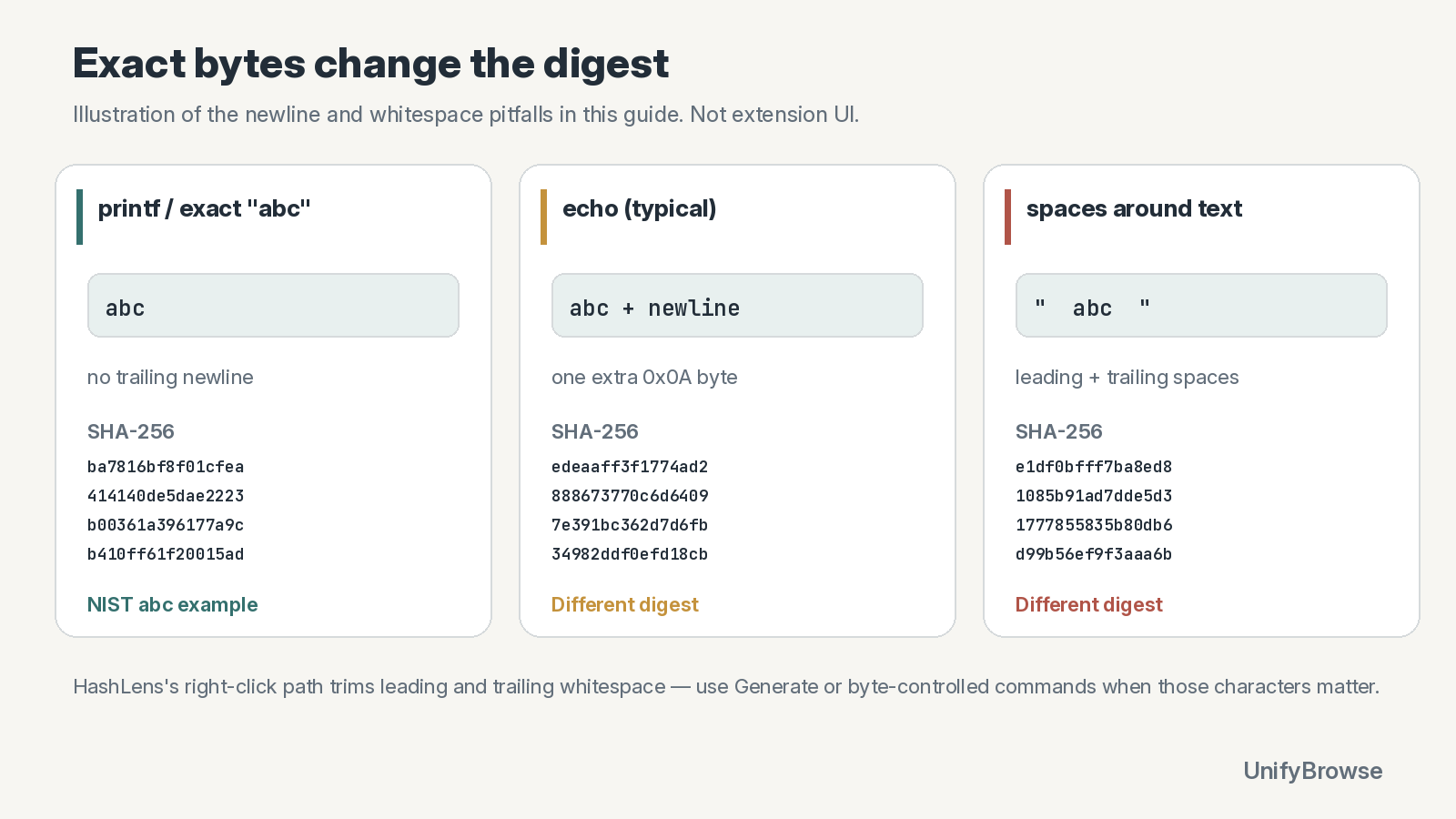
Illustration of how a trailing newline or surrounding whitespace changes the SHA-256 digest — not a screenshot of the extension UI.
PowerShell text strings
Get-FileHash hashes files, not arbitrary strings in memory. For a text string in PowerShell, hash the UTF-8 bytes with .NET, then format the result as hex:
$bytes = [System.Text.Encoding]::UTF8.GetBytes('abc')
$hash  = [System.Security.Cryptography.SHA256]::Create().ComputeHash($bytes)
([System.BitConverter]::ToString($hash) -replace '-', '').ToLowerInvariant()
That path is not the same as Get-FileHash on a file you wrote with Set-Content, because Set-Content may add encoding marks or a newline depending on the cmdlet and PowerShell version. Prefer hashing the exact byte array you intend, or write the file with a tool that documents its encoding and then run Get-FileHash on that file.
Generate hashes in Chrome with HashLens
HashLens is a free Chrome extension for identifying unknown hashes, generating hashes from text, and checking file checksums. According to the product page and its Chrome Web Store listing, generation and verification run in the browser.
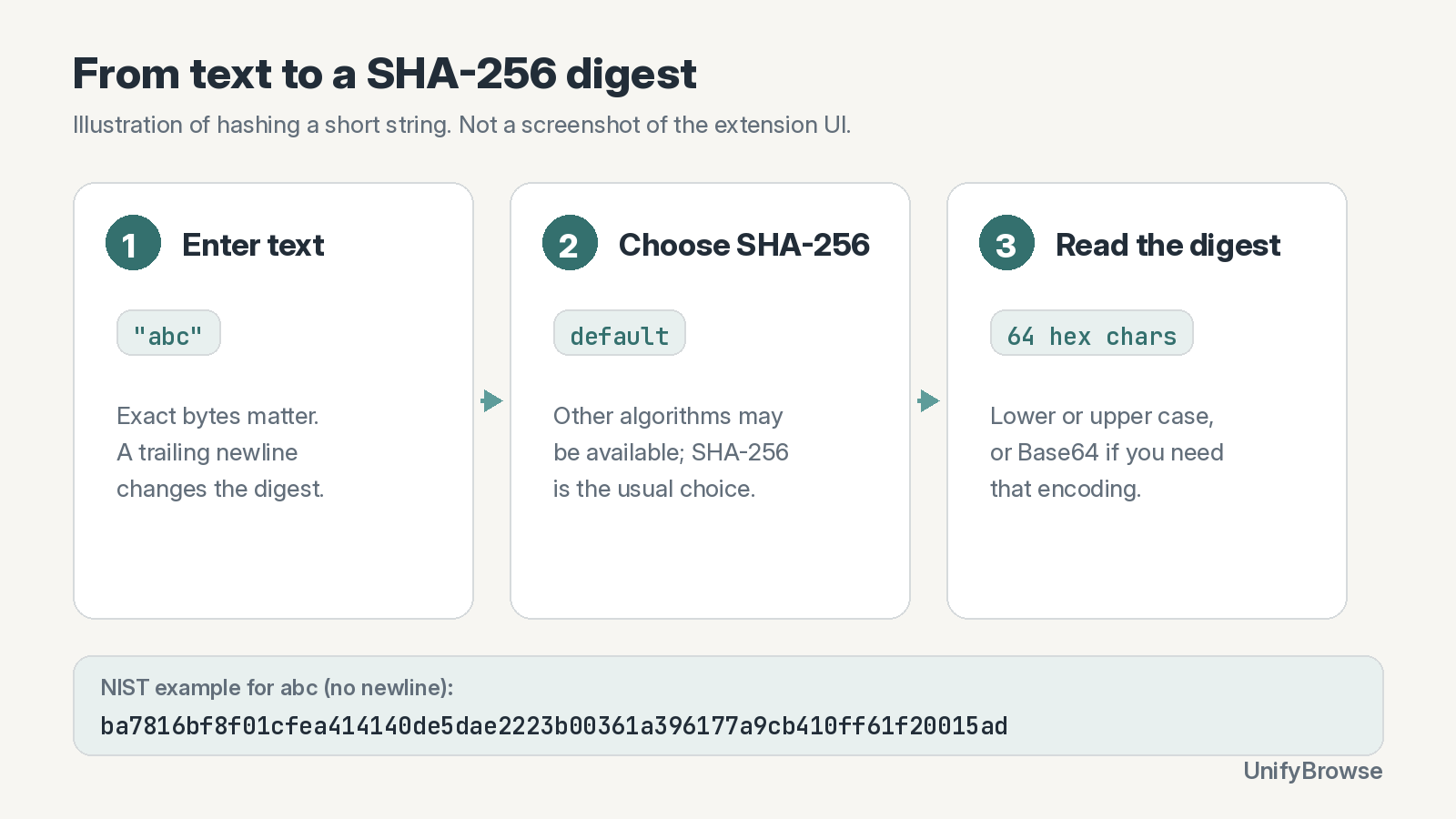
Illustration of hashing text to a SHA-256 digest — not a screenshot of the extension UI.
Generate from text
- Open the HashLens popup and go to the Generate view (labelled for generating hashes from text on the product page).
- Type or paste the text you want to hash.
- Read the SHA-256 row (and any other algorithms shown at the same time).
- Choose the output encoding you need: hexadecimal (lower or upper case) or Base64, as described on the product page and store listing.
Generate supports SHA-256 and lets you select additional algorithms. You can display results in lowercase hexadecimal, uppercase hexadecimal or Base64. SHA-256 is selected by default.
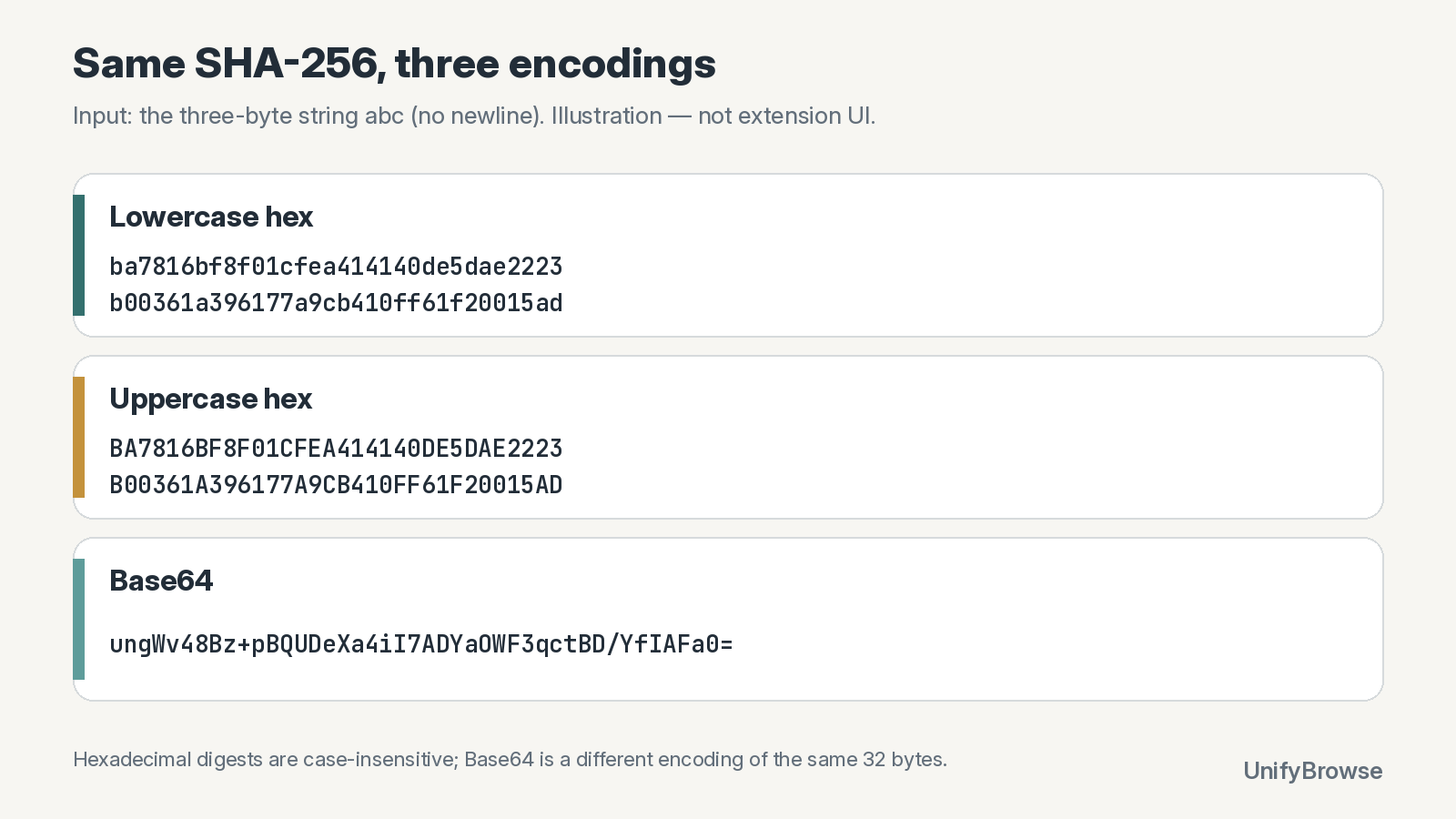
Illustration of the same SHA-256 digest for abc shown as lowercase hex, uppercase hex and Base64 — not a screenshot of the extension UI.
Text and file hashing are performed in the browser. Separately, the extension opens UnifyBrowse welcome, update and uninstall pages whose URLs include an installation identifier.
HashLens also has a right-click option for selected text, but that path trims leading and trailing whitespace. Use the Generate input or the byte-controlled examples above when those characters matter.
Hash a file in the File Hash Verifier
For files, the product page describes a File Hash Verifier that opens in a dedicated tab (so a long hash is less likely to be interrupted if the popup closes). The live verify guide documents the verifier flow as:
- Click Verify File Integrity in the popup to open the tab.
- Drop a file onto the page, or click to choose it.
- Pick an algorithm — the verifier screen lists MD5, SHA-1, SHA-256 or SHA-512.
- Read the computed digest. Paste a published checksum only if you also want to compare it.
MD5 and SHA-1 are available for compatibility, but both have practical collision weaknesses. Prefer SHA-256 or SHA-512 when the choice is yours; computing a digest alone does not establish a file's authenticity.
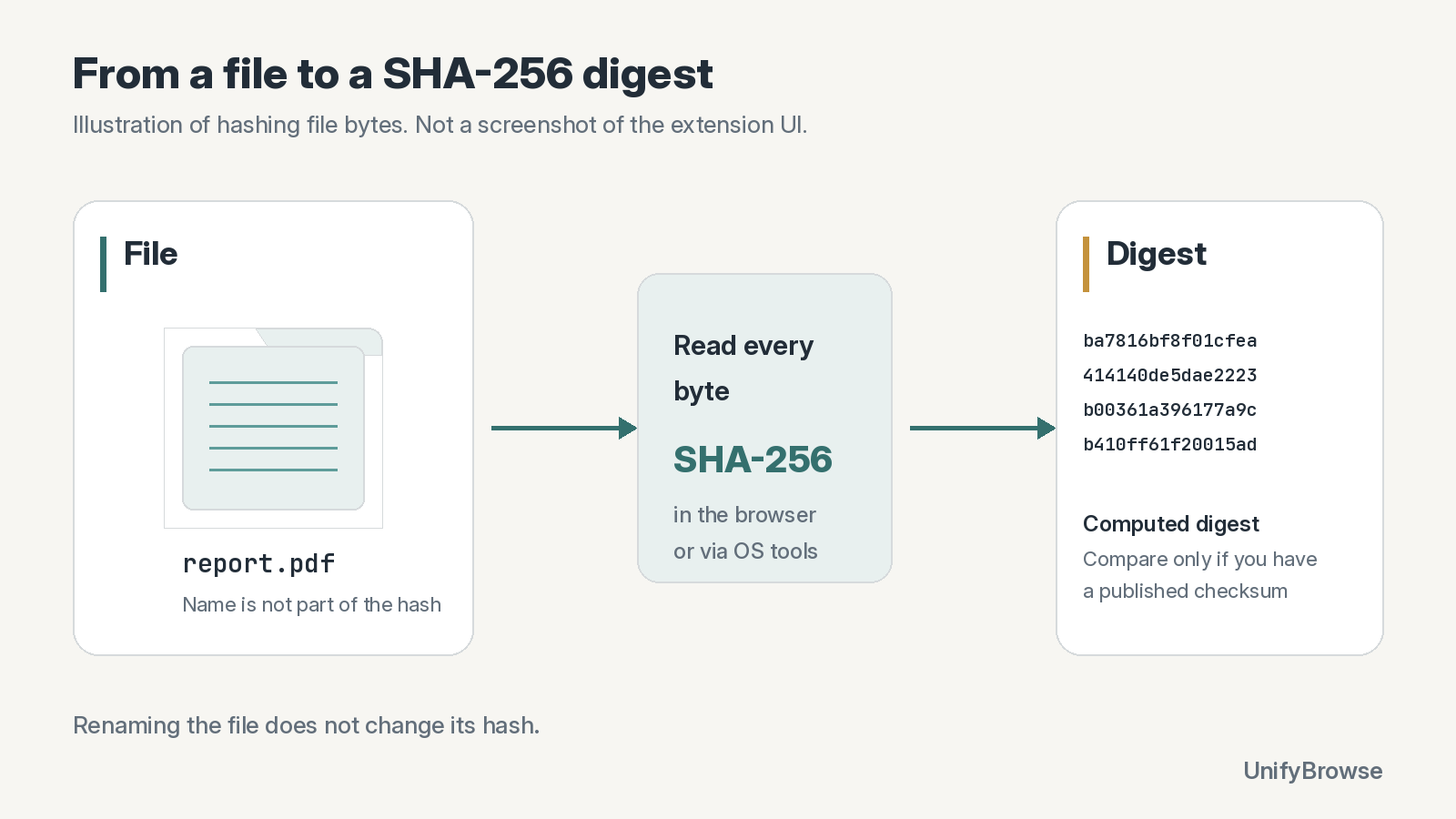
Illustration of hashing a file to a SHA-256 digest — not a screenshot of the extension UI.
Because the verifier runs in a full tab, hashing can continue while you use other tabs. The verify post notes a stated limit of any file type up to 2 GB and that the file is processed in your browser.
If your goal is to match a value a publisher already printed next to a download, follow How to Verify a SHA-256 Checksum for the comparison workflow and for what a match does and does not prove.
Which method to use
| Situation | Practical choice |
|---|---|
| One-off file on a machine with a terminal | OS command (Get-FileHash, certutil, shasum -a 256, sha256sum) |
| Short text string and you care about exact bytes | printf '%s' '…' | … (or the PowerShell .NET snippet) |
| Frequent text hashes, hex/Base64 variants, or no terminal | HashLens Generate |
| File hash in Chrome, especially larger files | HashLens File Hash Verifier |
| Compare a download to a published checksum | Verify SHA-256 checksum |
| Unknown digest, need algorithm candidates | Identify a hash type |
FAQ
Why doesn't my text hash match someone else's?
The usual causes are a trailing newline (echo vs printf), different Unicode normalisation, or a different encoding (UTF-8 vs UTF-16). Agree on the exact bytes, then hash those.
Is the PowerShell hash different from Linux?
Not for the same file bytes. Get-FileHash prints upper-case hex by default; sha256sum usually prints lower case. The digests are the same value. For strings, confirm both sides use the same encoding and newline rules — that is where results diverge.
Can I use SHA-256 to store passwords?
Not by itself. Use a password hashing scheme designed for that job (salted, slow, memory-hard where appropriate). Generating a bare SHA-256 of a password is a common mistake and is outside what this guide recommends.
Does HashLens work on Firefox?
The HashLens product page links only a Chrome Web Store install button. This guide treats the extension as Chrome-only.
How is this different from verifying a checksum?
Generating creates a digest from your input. Verifying compares your digest to a value someone else published. The commands overlap; the intent does not. Use the verify guide when comparison is the job.
To generate and check hashes from Chrome, add HashLens to Chrome. It's free.
More about the extension: HashLens.