Short answer: Grand Theft Auto VI came out on 19 November 2026 for PlayStation 5 and Xbox Series X|S, and a lot of people are about to try posting 4K screenshots of Vice City. Capture in PNG if you want the best quality to keep, share an SDR copy rather than an HDR one, and before you post, make a 1920 × 1080 JPG or WebP copy. That copy is a fraction of the file size and still looks sharp on phones and in chat apps. Keep the original for wallpapers and edits.
Taking the screenshot
On PS5: press the Create button on the DualSense controller and choose Take Screenshot, as PlayStation's support page describes. To choose a format, go to Settings > Captures and Broadcasts > Captures > Screenshot Format, where you can set the file type and turn HDR on or off. A Seeking Tech walkthrough notes that with HDR on, the file type is locked to Auto, so HDR shots are saved as JPG.
PS5 Pro owners can save 8K screenshots, but only when the game runs in 8K, the console is connected to a compatible 8K screen and 8K Resolution Screenshot is turned on. PlayStation also notes that 8K screenshots uploaded to its Cloud Media Gallery are uploaded at a lower resolution.
On Xbox Series X|S: press the Share button on the controller once to take a screenshot; holding it records a clip (PCMag's guide also covers capture settings and how to copy captures to a USB drive). Microsoft's developer documentation says a game running in HDR produces two files, one HDR and one SDR. For sharing, use the SDR copy.
Why the SDR copy? HDR images carry brightness information that most phones, browsers and chat apps don't display the same way, so they can look washed out or oddly dark once posted. An SDR file looks the way most people will see it.
PNG or JPG?
PNG is lossless: what you saved is exactly what the console rendered. JPG throws away detail you mostly can't see in exchange for a much smaller file. For screenshots you want to keep, edit or print, PNG is the better master copy. For posting, a JPG or WebP made from that PNG is usually all you need.
To show the gap, we generated a detailed 3840 × 2160 test scene with fine grain and lots of small lit windows (it's a synthetic image, not a game capture) and saved it a few ways:

| Version | File size |
|---|---|
| 4K PNG | 13.62 MB |
| 4K JPG, quality 90 | 1.43 MB |
| 4K JPG, quality 80 | 0.82 MB |
| 1920 × 1080 JPG, quality 85 | 0.28 MB |
| 1920 × 1080 WebP, quality 80 | 0.09 MB |
Your own screenshots will differ. Night scenes with rain, neon and foliage compress less well than a clear sky. The pattern holds, though: the lossless 4K file is many times bigger than a good-quality 1080p copy.
Where the size limits bite
Discord. According to Discord's File Attachments FAQ, the free upload limit is 20 MB per file (up from 10 MB in August 2026), with 50 MB on Nitro Basic and up to 1 GB on Nitro. Discord now checks the size before any compression, on desktop and mobile alike. A single 4K PNG can fit, but a batch of them in one message adds up quickly, and phones on mobile data load them slowly.
Social apps. X, Instagram, Reddit and the rest each set their own file-size and dimension rules, and most recompress what you upload. Uploading a sensible 1920 × 1080 or 2560 × 1440 JPG gives the app less to crunch, so what people see stays closer to what you made. Check each platform's help pages for its current limits, because they change.
Spoilers. Story moments are fair game for spoilers in launch week. Discord lets you mark an attachment as a spoiler before you send it, so people choose whether to look.
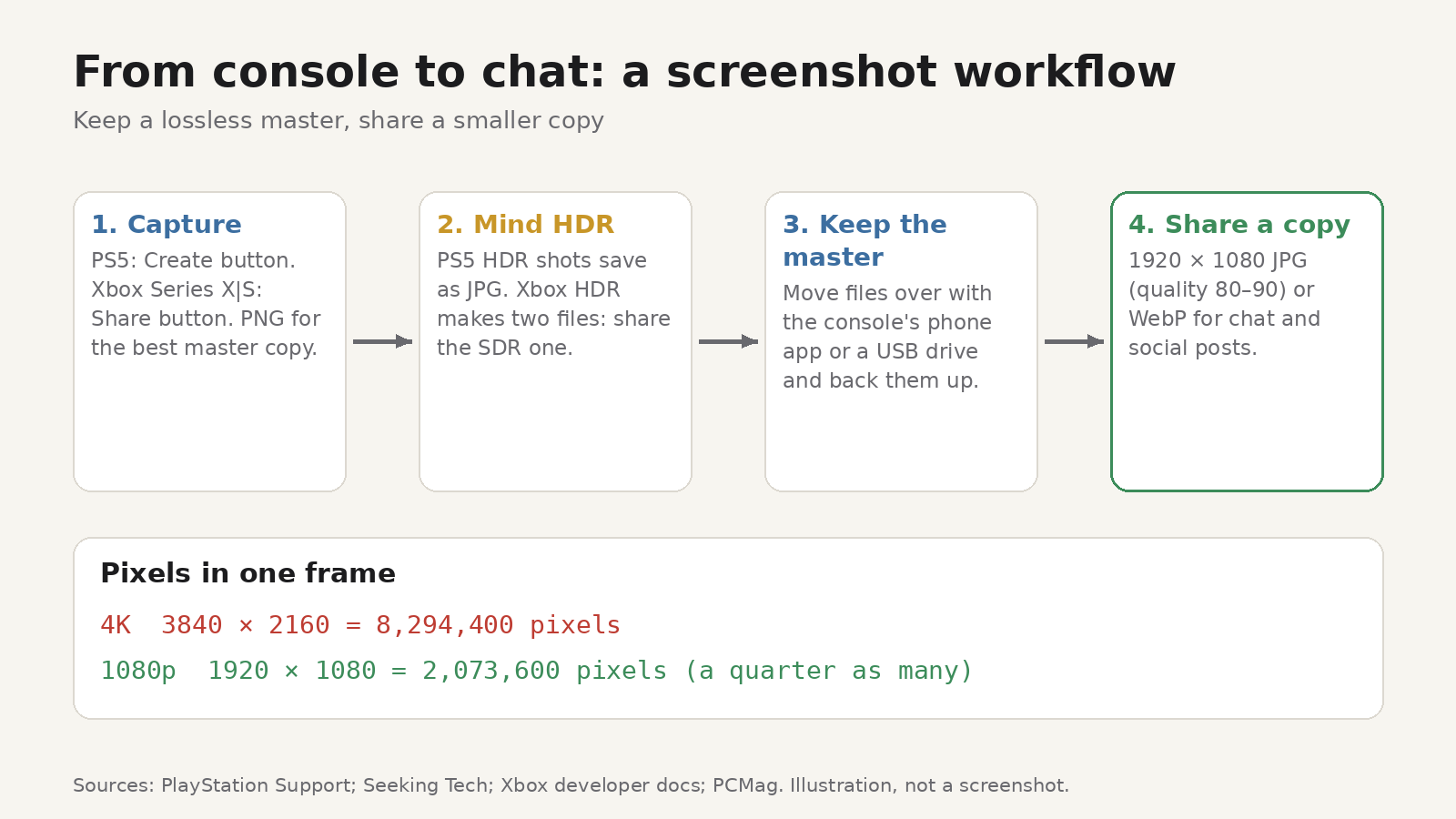
A simple recipe for launch week
- Capture in PNG, with HDR off if you mostly share, or keep HDR and share the SDR copy on Xbox.
- Get the files to your computer, using the PlayStation App or Xbox app, or a USB drive.
- Keep the originals in a folder you back up. They're your master copies.
- Make sharing copies:
- Chat and social posts: 1920 × 1080, JPG at quality 80 to 90, or WebP.
- Phone wallpaper: crop to a tall portrait shape that matches your phone's screen, with the subject in the middle.
- Profile pictures and banners: crop to the platform's shape first, then resize.
- Check before you post. Open the copy at full size and look at text, neon signs and fine edges. If they smear, raise the quality a little.
Doing it in your browser with Image Resizer
Image Resizer is a browser extension for Chrome and Firefox, made by UnifyBrowse, that resizes, converts and compresses images in the browser. Its features line up with the recipe above:
- 22 presets for Instagram, Facebook, X, LinkedIn, YouTube and WhatsApp, or custom dimensions up to 16000 × 16000 pixels.
- Stretch, Fit and Crop modes, with a focal-point control so Jason and Lucia stay in frame when you crop a wide shot for a phone.
- Aim for a file size: enter a limit and the extension lowers the quality to try to reach it. The target isn't guaranteed, so check the final file size.
- Convert between JPG, PNG and WebP.
- Batch up to 5 images per run on the Free plan, and download one file or a whole run as a ZIP.
- A built-in editor in version 1.1, according to its store listings: drag-crop, rotate, flip and straighten, brightness, contrast and saturation, plus arrows, boxes, ovals, freehand and a highlighter for pointing at a collectible or a hidden detail.
Image processing happens on your device, so your screenshots aren't uploaded for resizing. Pro, a one-time €7.99 purchase, removes the 5-image limit, keeps up to 20 profiles, adds multi-preset export packs, text labels and redaction (handy for blurring a gamertag), and activates on multiple browsers. The pricing page has the details, and the 1.0.0 release notes explain which features use the network, such as Pro license checks.
For more on sizing, see our guides to resizing an image to a specific file size and resizing images for social media.
FAQ
Why does my GTA VI screenshot look washed out after I post it?
It's probably an HDR capture being shown on a screen or app that doesn't handle HDR. Share the SDR copy (Xbox) or take the shot with HDR turned off (PS5).
Does resizing to 1080p lose detail?
Some, yes: a 4K image has four times as many pixels. On a phone screen or in a chat window, the difference is hard to see. Keep the 4K original for anything you'll view large.
JPG or WebP for sharing?
Both work. WebP was smaller in our test at similar visual quality, but a few older apps and sites still handle JPG more reliably. If a platform rejects WebP, use JPG.
Can I use Rockstar's official screenshots?
Rockstar's Grand Theft Auto VI page has a Media & Artwork section for downloading and sharing official images. Your own captures are the more interesting ones, though.