How to Highlight Web Pages in Chrome and Firefox (and Keep the Highlights)
Highlight text on web pages in Chrome and Firefox: link-to-highlight, PDF highlighting, and saving highlights in a read-later extension so they last.
Reading time
7 min
You read a long article, find the two sentences that matter, and a week later you can't find them again. On paper you would grab a highlighter. In a browser it is less obvious, because neither Chrome nor Firefox has a highlighter that paints on a page and remembers it next time.
You still have good options. Some are built into the browser and are great for sharing one passage. Others keep your highlights so you can come back to them. This guide covers both, explains what each one actually keeps, and helps you pick the right one for how you read.
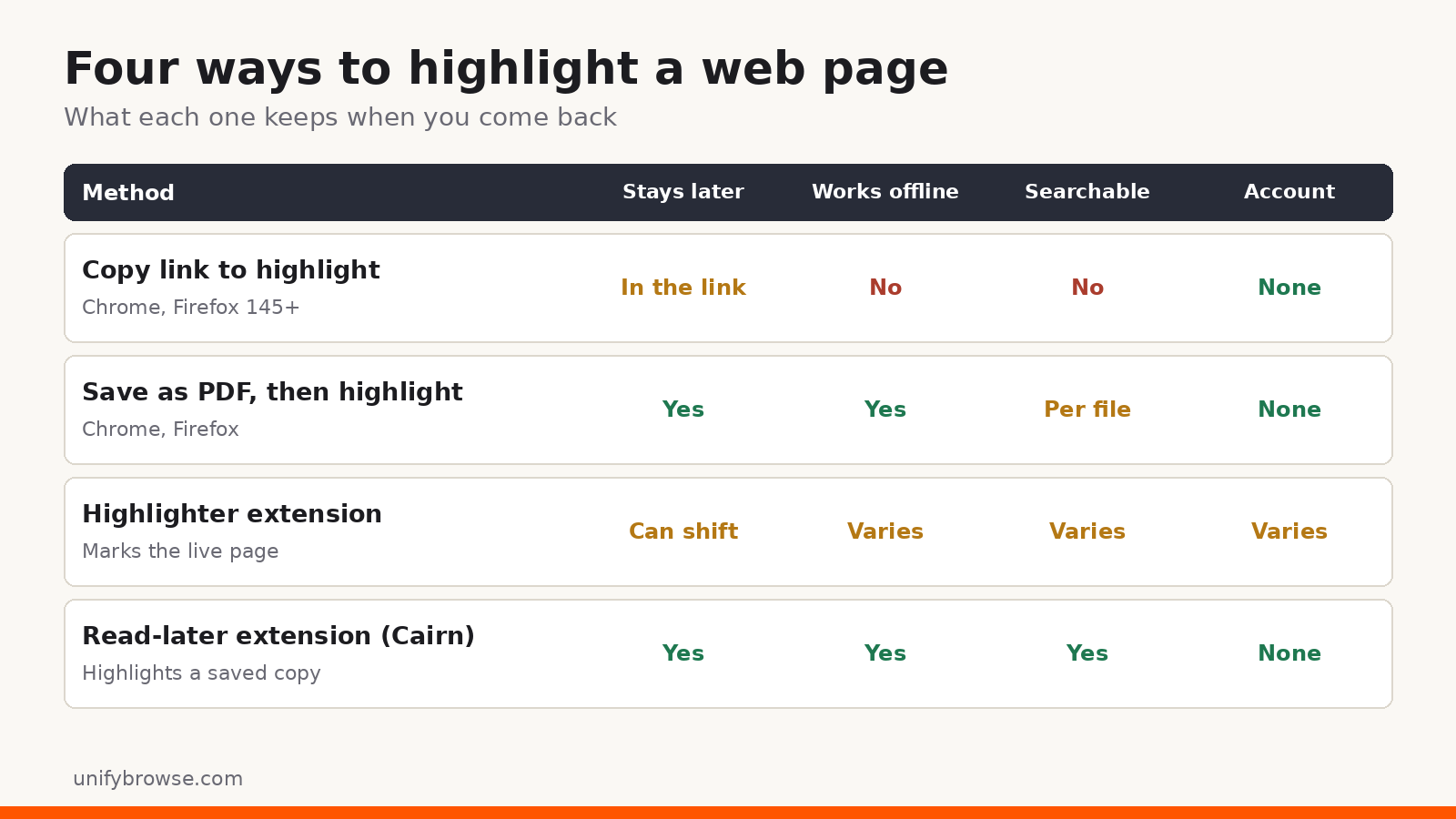
The short answer
- To point someone to one passage: select the text, right-click, and choose Copy link to highlight. It works in Chrome and in current Firefox.
- To mark up a document you will keep: save the page as a PDF and highlight it in the browser's PDF viewer or any PDF app.
- To build up highlights you can search later: save the article to a read-later extension that supports highlights, such as Cairn, and highlight it there.
Method 1: Copy link to highlight (Chrome and Firefox)
This is the quickest built-in option, and it is often all you need.
- Select the text you want with your mouse.
- Right-click the selection.
- Choose Copy link to highlight.
- Paste the link into a message, a note or a document.
When someone opens the link, the browser scrolls to that passage and highlights it. Chrome has had this for years. Firefox added the same menu item in version 145, so make sure Firefox is up to date if you don't see it.
What it doesn't do matters just as much:
- Nothing is saved in your browser. The highlight lives inside the link. Lose the link and the highlight is gone.
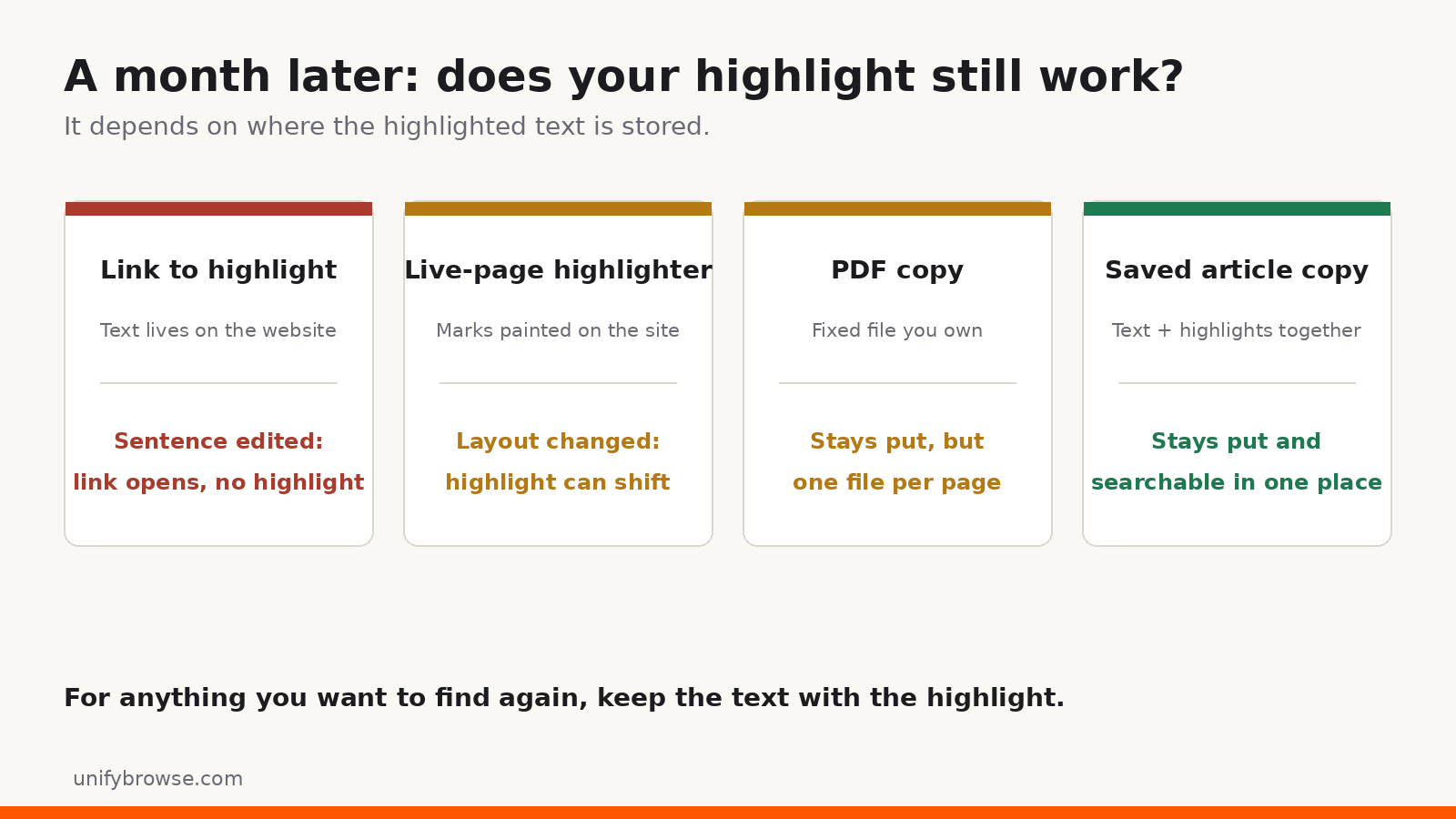
- It breaks when the page changes. The link finds the passage by its exact text. If the author edits that sentence, the link opens the page without the highlight.
- It needs the live page. The link points to the website, so it only works online and only while the page exists.
- It doesn't always appear. Some pages and some kinds of selected content don't support it. Chrome's help page says so plainly: if you can't select the option, it may not work for that content.
Use it for sharing, not as your only copy of something important.
Method 2: Save as PDF, then highlight
A PDF gives you a fixed copy of the page that you can mark up and keep, even if the original disappears.
- Open the page. If it is cluttered, switch to a reader view first (Firefox has a Reader View icon in the address bar).
- Open the print dialog with Ctrl+P (Windows, Linux) or Cmd+P (Mac).
- Pick Save as PDF in Chrome or Save to PDF in Firefox, then save the file.
- Open the PDF and highlight it. In Firefox's built-in PDF viewer, select the text and click Highlight, or pick the Highlight tool in the toolbar. Most desktop PDF apps have a similar tool. Then save the PDF again (click Save in the viewer's toolbar), because the highlights are kept only in the file you save.
The strengths are clear: the copy is yours, it works offline, and it doesn't depend on the website. The weak spots are that you end up with a folder of separate files, and searching across all your highlights at once depends on the PDF app you use.
It suits a handful of important documents, such as a contract or a paper you will cite.
Method 3: Highlighter extensions that mark the live page
Search "highlight text firefox extension" or "highlight web pages chrome extension" and you will find many add-ons that paint highlights directly on the website and try to restore them each time you come back.
They feel closest to a paper highlighter, but they work on a page that someone else controls. When the site changes its layout or edits the text, restored highlights can shift or vanish. Some of these tools also sync your highlights to their own servers and ask for an account, while others keep everything in your browser.
Before you install one, check three things:
- Site access. A tool that marks every page usually needs permission to read and change data on all websites. Our guide on what data browser extensions can see explains what that permission covers.
- Where your highlights are stored. On your device, on the developer's servers, or both.
- How you get them out. Look for an export, so a discontinued tool doesn't take your notes with it.
Method 4: Save the article, then highlight your copy
A read-later extension takes a different approach. Instead of marking the live website, it saves a clean copy of the article and you highlight that copy. Because the text is stored with your highlights, they don't break when the original page changes.
Here is how it works in Cairn, our read-later extension for Chrome and Firefox:
- On the article, right-click and choose Save this page to Cairn, or click Save in the Cairn popup. In Chrome you can also use the default shortcut Ctrl+Shift+S (Cmd+Shift+S on a Mac).
- Cairn saves the readable article text along with the title and link. Pages without a clear article are still saved, with their title and link.
- Open the article from your Cairn library to read the clean copy.
- Select a sentence and click the Highlight button that appears.
- Your highlights are listed at the top of the article, and you can remove one at any time.
If you only want a quote, select it on the page and choose Save selection to Cairn from the right-click menu. The snippet is saved as its own item, tied to the page it came from.
Since your saved article text and highlights are stored in your browser, you can read and review them without a connection. You can also organise saves with collections and tags, add notes, and search across titles, notes, tags and article text. Cairn picks up where you stopped reading, too.
The trade-offs are worth knowing before you start:
- Text, not the full page. The saved copy is the article text. Images, videos and embedded content are left out.
- One browser, no sync yet. Your library lives in the browser profile where you saved it. Cairn mobile and desktop apps are coming soon. Until then, export a JSON backup now and then, because clearing that profile without a backup deletes the library.
- Usage data. Cairn sends usage data by default, tied to a random install ID. Your saved pages, article text and highlights stay in your browser.
- No account. You don't need to sign up to use it.
- Coming from Pocket? A Pocket importer for Cairn is coming soon. For now, re-save the articles you still want. If you are still choosing a tool, our Pocket alternatives guide compares the main options.
Which method should you use?
| You want to… | Best method |
|---|---|
| Send one passage to a colleague | Copy link to highlight |
| Keep a marked-up copy of a key document | Save as PDF, then highlight |
| See highlights on the original site | A highlighter extension (check its permissions and export) |
| Build a searchable collection of highlights from your reading | A read-later extension with highlights, such as Cairn |
Many people use two: links for sharing, and one saved library for everything they want to find again.
Tips for highlights you will actually use
- Highlight less. One or two sentences per article are easier to review than whole paragraphs.
- Add a note when you highlight. A few words on why it mattered will save you rereading the article later.
- Tag by project, not by topic. "Trip planning" or "Q4 report" is easier to find later than a long list of topic tags.
- Back up. Whatever tool you pick, export your highlights from time to time.
Frequently asked questions
Does Chrome have a built-in highlighter?
Not one that saves highlights on the page. Chrome's Copy link to highlight creates a link that highlights a passage when opened, but nothing is stored in the browser. To keep highlights, use a PDF or an extension.
Can I highlight text in Firefox without an add-on?
Yes, in two ways. Current Firefox versions have Copy Link to Highlight in the right-click menu, and Firefox's PDF viewer can highlight text in PDFs, including pages you saved with Save to PDF. Save the PDF again afterwards to keep the highlights.
Do highlights from a link work in every browser?
They work in browsers that support links to text fragments, which includes Chrome, Edge and current Firefox. In a browser that doesn't, the link still opens the page, just without the highlight.
Will my highlights survive if the article is deleted?
Not with links or live-page highlighters, because both depend on the original page. A PDF or a saved article copy keeps your highlights, because the text is stored with them.
Start with your next article
Pick the method that matches what you need: links for sharing, PDFs for a few key documents, and a saved library for everything you want to search later. If you'd like to try the saved-library approach without creating an account, get Cairn for Chrome or Firefox, save the next article you read, and highlight the one sentence you want to remember.
Filed underhighlight web pageschromefirefoxread latercairn
● More from the journal
- 01
SoundCloud Enhanced Pro 3.2.1: M4A and MP3 Downloads
SoundCloud Enhanced Pro 3.2.1: M4A stays the free default, and Lifetime users can now pick MP3 on the download panel or save both files in one go.
AnnouncementNovember 2, 2026 - 02
How to Save Web Pages for Offline Reading in Chrome and Firefox
Save web pages for offline reading in Chrome or Firefox as a single file, a PDF or in a read-later extension, and test that the copy opens offline.
GuideNovember 2, 2026 - 03
Image Resizer 1.0.0: HEIC Support and a Pro Plan
Image Resizer 1.0.0 opens HEIC and HEIF photos, keeps every preset and resize mode free, and adds a one-time €7.99 Pro for export packs and bigger batches.
AnnouncementNovember 2, 2026