How to Save Web Pages for Offline Reading in Chrome and Firefox
Save web pages for offline reading in Chrome or Firefox as a single file, a PDF or in a read-later extension, and test that the copy opens offline.
Reading time
7 min
A flight, a train through tunnels or a café with bad Wi-Fi: sooner or later you want to read a page with no connection. For that, a copy of the page has to be on your computer before the connection drops. Chrome and Firefox can both make that copy. The real question is which kind of copy, because each method keeps different things.
This guide covers four built-in methods and one extension-based method, what each one keeps, and how to check that your copy works before you need it.
The short answer
- One article, exactly as it looks, in Chrome: Save page as Webpage, Single File.
- One article in Firefox, or something you want to keep for years: Print to PDF.
- Lots of articles you want to search, tag and highlight: a read-later extension that stores the article text on your computer.
- Don't count on Chrome's reading list for offline reading on a computer. More on that below.
Method 1: Save the page as a file in Chrome
- Open the page and wait until it has fully loaded. On long articles, scroll to the end first so sections that load late are on the page.
- Press Ctrl+S (Windows, Linux, ChromeOS) or Cmd+S (Mac). You can also open the three-dot menu and choose Cast, save, and share, then Save page as.
- Pick a format and a folder, then click Save.
Chrome gives you three formats:
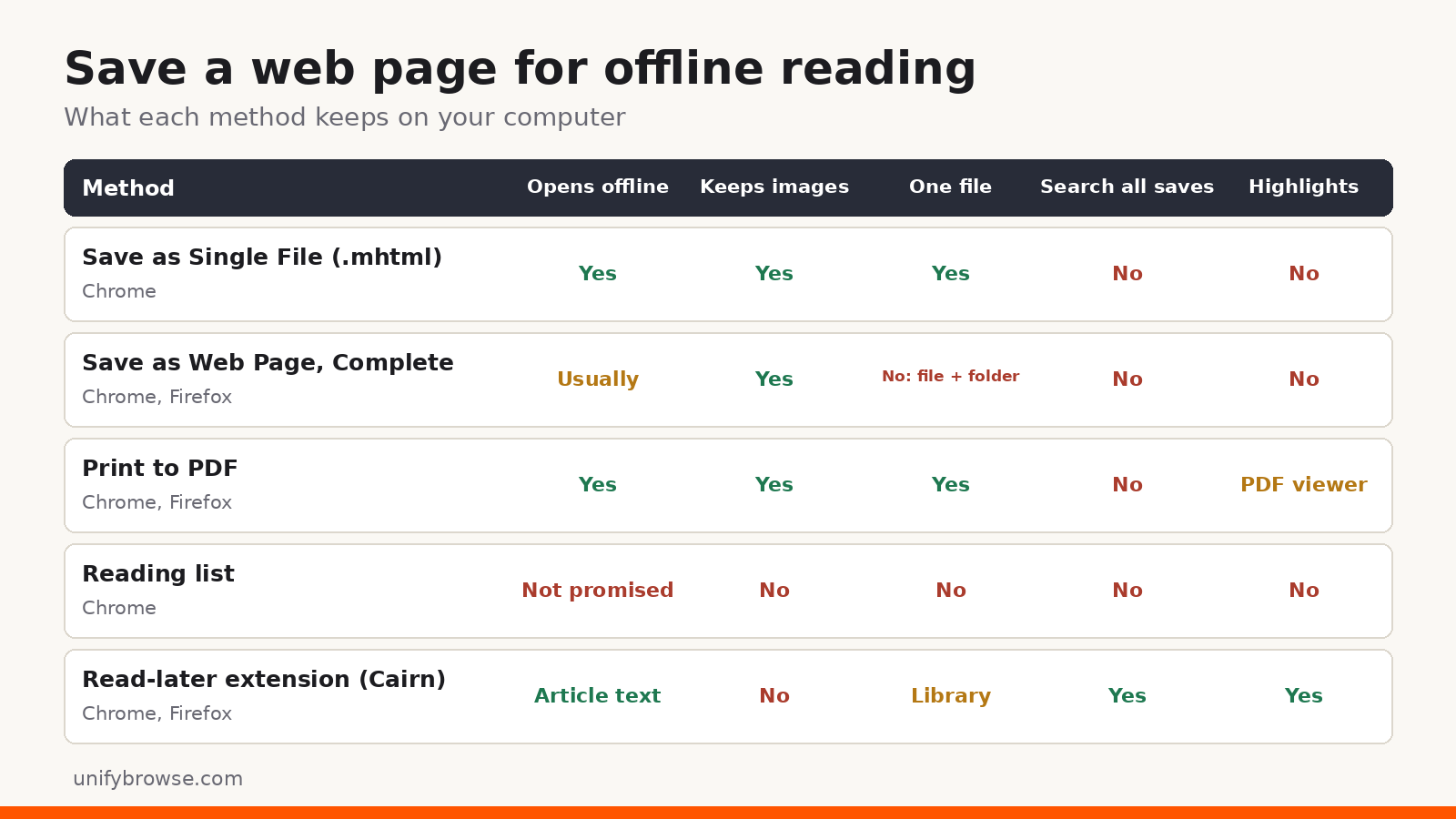
- Webpage, Single File saves one
.mhtmlfile with the text, images and styles bundled inside. This is usually the best choice for reading offline. It opens in Chrome and other Chromium browsers such as Edge, but Firefox and Safari can't open it. - Webpage, Complete saves an
.htmlfile plus a folder with the same name that holds images, styles and scripts. Keep the file and folder together, or the page loses its images. Some modern pages rely on scripts that try to load content from the internet, so a "complete" copy can open half empty when you're offline. - Webpage, HTML Only saves the page code without images or styles.
To read the page later, open the file from your computer. Google's help page notes that you must be online when you save, and that you delete a saved page by deleting the file.
Method 2: Save the page as a file in Firefox
- Press Ctrl+S (Windows, Linux) or Cmd+S (Mac), or open the menu and choose Save page as.
- Choose a format: Web Page, complete (an
.htmlfile plus a folder of images and other files), Web Page, HTML only (no images) or Text Files (plain text). - Click Save.
Firefox doesn't save single-file .mhtml pages. Web Page, complete works well for simple articles. For pages that are heavy on scripts, Print to PDF is more reliable.
Method 3: Print to PDF (Chrome and Firefox)
A PDF is a fixed snapshot. It opens in any browser, on any phone and in any PDF reader, which makes it the most portable choice and a good one for things you want to keep for a long time.
- Press Ctrl+P (or Cmd+P on a Mac).
- Set the destination to Save as PDF in Chrome or Save to PDF in Firefox.
- Under more settings, turn on background graphics (Chrome) or print backgrounds (Firefox) if you need coloured boxes, and turn off headers and footers if you don't want the URL on every page.
- Click Save.
A tip for cleaner PDFs in Firefox: open Reader View first (the page icon in the address bar on most articles), then print. Menus, ads and pop-ups are gone, and the text reflows into a clean column.
The trade-off: links still work while you're online, but videos and interactive parts become still images or disappear, and you get one file per page with nothing tying your PDFs together.
Method 4: Chrome's reading list (and why it isn't enough offline)
Chrome's reading list (three-dot menu, then Bookmarks and lists, then Reading list) is a quick way to mark a page for later. But Google's help page on reading pages later and offline separates the two jobs: the reading list is for reading later, and to read pages offline on a computer it tells you to download them with Save page as. Treat the reading list as a list of links. If you'll actually be offline, save a file or use a tool that keeps the text.
Firefox has no built-in reading list, and Pocket, which used to be built into Firefox, shut down in July 2025. Our guide to Pocket alternatives compares five replacements.
Method 5: A read-later extension that keeps the article text
Saving files works for one or two articles. Once you save several a week, you end up with a downloads folder full of .mhtml files and PDFs with long names and no way to search across them. A read-later extension solves that by keeping the readable text of each article in a library inside your browser.
Here's how it works with Cairn, our free read-later extension for Chrome and Firefox:
- On the article, right-click and choose Save this page to Cairn, or click Save in the Cairn popup. In Chrome you can also use the default shortcut Ctrl+Shift+S (Cmd+Shift+S on a Mac).
- When the page has enough readable article text, Cairn saves a clean copy of that text along with the title, author and site name. Pages without a clear article are still saved, with their title and link.
- Open the article later from your Cairn library. The text comes from your browser's local storage, so it opens without a connection.
Because every article sits in one library, you can do things a folder of files can't:
- Search across everything: titles, URLs, notes, tags and the article text itself.
- Highlight passages and pick up where you left off in long reads.
- Organize with nested collections, tags, notes, favorites and an archive.
- Back up the whole library to a JSON file and import it again later.
No account is needed. Your library is stored in your browser's IndexedDB storage, not on our servers.
What to know before you rely on it:
- Text only. The saved copy is the article text. Images, videos and embedded content are left out of the reader copy, so for an article that depends on diagrams, also save a PDF or a single-file copy.
- One browser, no sync. The library lives in the browser profile where you saved it. There's no automatic sync yet. Cairn mobile and desktop apps are coming soon. Until then, export a JSON backup regularly, because clearing that profile without a backup deletes the library.
- Usage data. Cairn sends usage data by default, tied to a random install ID, so not everything stays on your computer. Your saved pages, article text and highlights stay in your browser. Our guide on what data browser extensions can see shows how to check any extension's permissions.
- Coming from Pocket? A Pocket importer for Cairn is coming soon. For now, re-save the links you still want.
For a closer comparison with a cloud-based bookmark manager, see Cairn vs. Raindrop.io after Pocket.
Test your offline copy before you need it
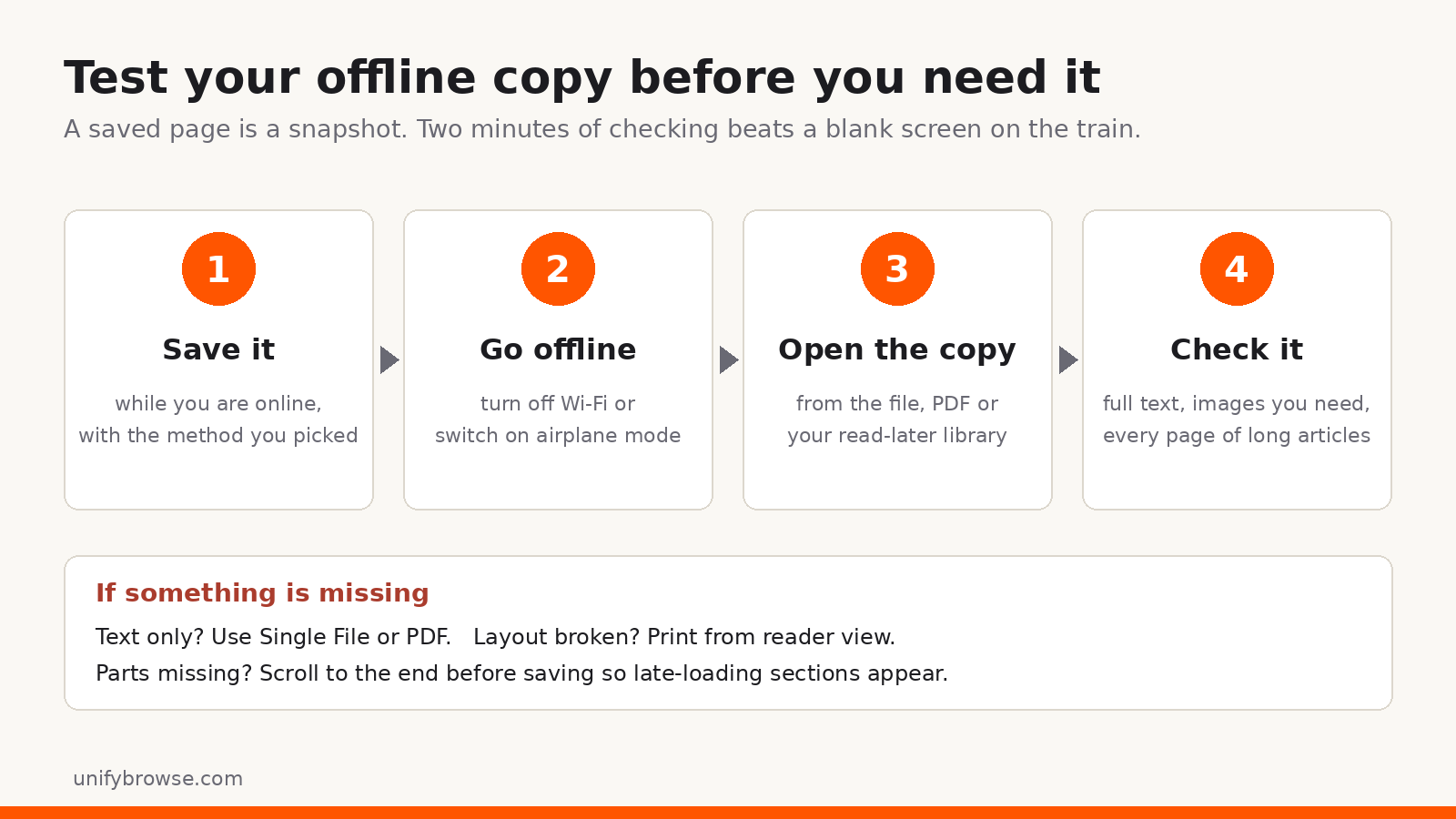
Whatever method you choose, test it once before the trip:
- Save two or three pages the way you plan to.
- Turn off Wi-Fi or switch on airplane mode.
- Open each copy and scroll to the end. Check that the full text is there, the images you need have loaded, and long articles aren't cut off.
- Fix what's missing while you're still online. A "complete" page that opens half empty is a sign to switch to Single File or PDF. Missing sections at the end usually mean the page loads them as you scroll, so scroll to the bottom before saving.
Frequently asked questions
Can I save a whole website for offline reading?
Not with these methods: they all work one page at a time. Copying an entire site needs dedicated mirroring software and may go against the site's terms, so check those first.
Do saved pages update when the original changes?
No. Every method here takes a snapshot of the page as it was when you saved it. If an article gets corrected or updated, save it again.
Can I read saved pages on my phone?
A PDF is the easiest copy to move to a phone. Cairn's library stays in the browser profile where you saved it, because there's no sync yet.
Pick one and test it today
For one important article, save a single file in Chrome or a PDF in either browser. For a reading habit, use a library that keeps the text and lets you search it. If you'd like to try that without creating an account, get Cairn for Chrome or Firefox, save tomorrow's reading tonight, and switch off Wi-Fi once to check it's all there.
Filed underoffline readingsave web pageread laterchromefirefoxcairn
● More from the journal
- 01
How to Highlight Web Pages in Chrome and Firefox (and Keep the Highlights)
Highlight text on web pages in Chrome and Firefox: link-to-highlight, PDF highlighting, and saving highlights in a read-later extension so they last.
GuideNovember 3, 2026 - 02
SoundCloud Enhanced Pro 3.2.1: M4A and MP3 Downloads
SoundCloud Enhanced Pro 3.2.1: M4A stays the free default, and Lifetime users can now pick MP3 on the download panel or save both files in one go.
AnnouncementNovember 2, 2026 - 03
Image Resizer 1.0.0: HEIC Support and a Pro Plan
Image Resizer 1.0.0 opens HEIC and HEIF photos, keeps every preset and resize mode free, and adds a one-time €7.99 Pro for export packs and bigger batches.
AnnouncementNovember 2, 2026