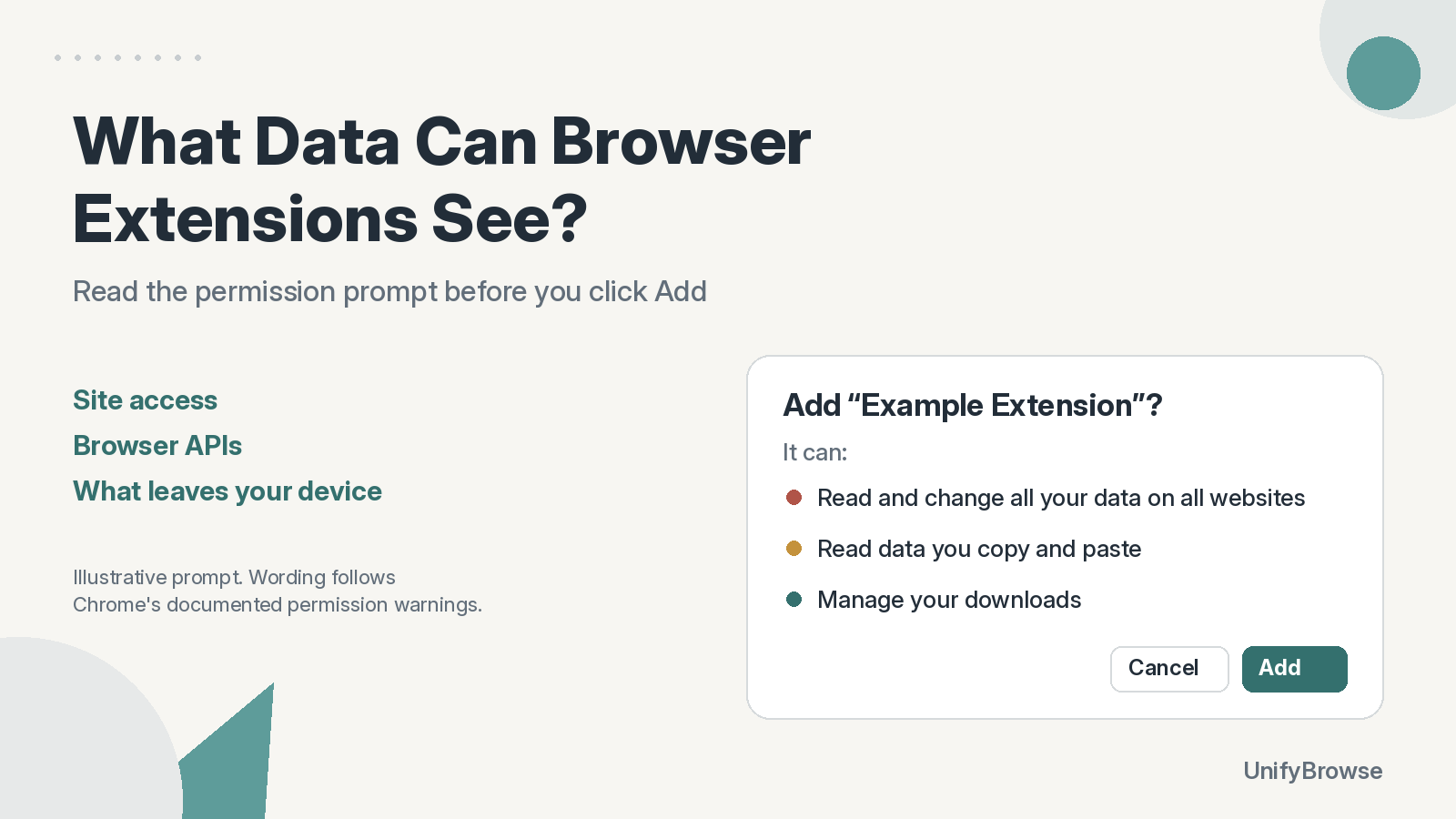
A browser extension can see only what its permissions allow, but some permissions allow a lot. An extension with access to "all websites" can read and change every page you open, including what you type into forms. An extension with no site access can work only with what you hand it, like text you paste into its popup or a file you pick.
The good news is that you can check this before you install, and change some of it afterwards. This guide explains the three things that decide what an extension can see, how to read the install prompt in Chrome and Firefox, and how to limit access you're not comfortable with.
The three things that decide what an extension can see
- Site access (host permissions): which websites the extension can read and change.
- Browser APIs (API permissions): which parts of the browser it can use, such as tabs, downloads, bookmarks, history or the clipboard.
- Network requests: what the extension sends to its developer's servers or anywhere else.
Permissions describe the first two. They tell you what an extension can access. They don't tell you what it sends. For that, you need the extension's privacy policy and the data disclosures on its store listing.
Site access, from narrowest to broadest
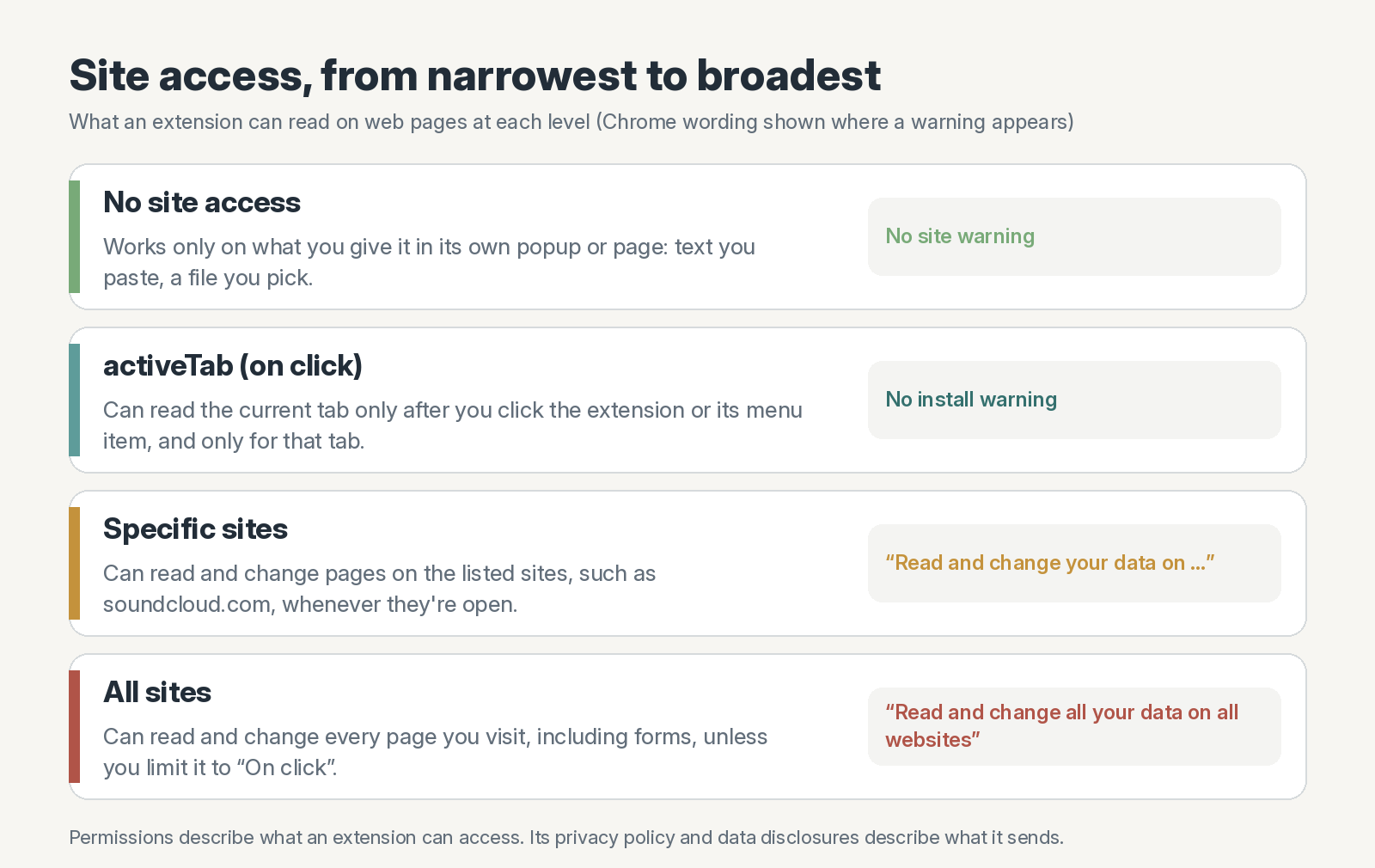
No site access. The extension works only inside its own popup or page. A hash calculator or a number converter can work this way: you paste text in, and it shows the result. It can't read the pages you visit.
activeTab (on click). The extension can read the current tab, but only after you click its toolbar button or one of its menu items, and only for that tab. Chrome doesn't show an install warning for this, because nothing happens until you act.
Specific sites. The extension can read and change pages on a named list of sites whenever they're open. Chrome shows a warning such as "Read and change your data on soundcloud.com". A tool that adds features to one website usually needs this, and the list should match what the extension does.
All sites. The extension can read and change every page you visit. That includes page content, form fields and anything you type or autofill on those pages. Chrome shows "Read and change all your data on all websites". Ad blockers, password managers and translation tools often need this level, but a tool that works on one site shouldn't.
Browser APIs: the other half of the prompt
Beyond websites, extensions can ask for access to parts of the browser itself. These are common ones, with the warning Chrome shows for each:
| What the extension asks for | Chrome's install warning | What it allows |
|---|---|---|
| Tabs | "Read your browsing history" | See the address and title of your open tabs |
| History | "Read and change your browsing history on all signed-in devices" | Read and delete entries in your history |
| Bookmarks | "Read and change your bookmarks" | Read, add and remove bookmarks |
| Downloads | "Manage your downloads" | Start downloads and see your download list |
| Clipboard read | "Read data you copy and paste" | Read what you've copied |
| Clipboard write | "Modify data you copy and paste" | Put text on your clipboard |
| Notifications | "Display notifications" | Show system notifications |
| Native messaging | "Communicate with cooperating native applications" | Talk to a program installed on your computer |
Some permissions show no warning at all, because they don't expose your data on their own. Storage (to save the extension's settings), context menus (to add right-click items) and alarms (for timers) are common examples.
The warning texts above come from Google's list of Chrome permission warnings and Mozilla's permission request messages, checked October 27, 2026.
Firefox uses its own wording. For example, it shows "Access your data for all websites" for all-site access, and "Access browser tabs" for the tabs permission. The meaning is the same.
What permissions don't tell you
A permission prompt is a list of capabilities, not a promise about behavior. Two things are worth checking separately.
Network requests. An extension doesn't need site access to connect to its developer's own servers. Even a tool that does all its main work on your device may still contact a server to open a welcome page after install, show release notes after an update, check a license, or count installs. None of that appears in the permission prompt. The privacy policy should say what is sent and why.
Updates. Extensions update automatically. If an update asks for a new permission that adds a warning, Chrome disables the extension until you approve it, and Firefox asks you before it applies the update. Read those prompts too. A sudden request for all-site access in a tool that never needed it is worth questioning.
How to check an extension before you install it
- Read the install prompt. Does each permission match what the extension is for? A SoundCloud tool asking for access to soundcloud.com makes sense. A calculator asking for all your data on all websites doesn't.
- Open the store listing's privacy section. The Chrome Web Store has a "Privacy practices" section where the developer declares what data it collects and how it's used. Firefox Add-ons listings link to the developer's privacy policy.
- Read the privacy policy. Look for what is sent, to whom, how long it's kept, and whether analytics can be turned off.
- Check the publisher. Look at the developer name, website and support contact, and whether the listing is updated and answers reviews.
- Prefer narrow access. If two tools do the same job, pick the one that asks for less.
How to limit what an installed extension can see
In Chrome:
- Open
chrome://extensionsand click Details on the extension. - Under Site access, choose On click, On specific sites or On all sites.
- Under Permissions, review what the extension was granted.
Setting site access to On click is a good default for tools you use only now and then. The extension then works only on the tab where you clicked it.
In Firefox:
- Open
about:addonsand select the extension. - Open the Permissions tab.
- Turn off optional permissions you don't want. For many extensions, you can also choose which sites they're allowed to access.
If an extension no longer works the way you expect, or you don't recognize it, remove it. You can always reinstall it later.
How we handle this in our own extensions
We build browser extensions at UnifyBrowse, so here's how this applies to them.
- HashLens and BitLens don't ask for site access. Their main work, like identifying a hash type or reading an IEEE 754 float, happens in the extension's own popup. HashLens also asks to read your clipboard ("Read data you copy and paste"), so it can check a hash you've copied.
- Image Resizer does its main work, like resizing an image to a target size in KB, in the extension. Its right-click Resize this image option downloads that one image from the site that hosts it, then resizes it in the extension; it doesn't ask for site access.
- These tools still open a few of our own pages: a welcome page after install, a page after some updates, and a page when you uninstall. Those page addresses include a random ID the extension creates at install, plus the version number.
- SoundCloud Enhanced Pro needs access to SoundCloud pages, because it adds its features to SoundCloud itself. It can also connect to SoundCloud's audio servers and to UnifyBrowse's own servers.
- Cairn saves your library in your browser rather than in a UnifyBrowse account; our privacy page lists its permissions. It does connect to our servers: it opens our welcome, update and uninstall pages with a random install ID, sends usage events (such as that an item was saved, never what it was) with that ID, and looks up weather only if you turn that feature on.
Our post on why we build local-first extensions explains the reasoning behind these choices.
Frequently asked questions
Can a browser extension see my passwords? An extension with access to a site can read what you type into that site's forms, including a password field, while the page is open. It can't open your browser's list of saved passwords, but it can read a password once it's filled into a page it has access to. That's one reason to limit all-site access to extensions you trust.
Can an extension see my browsing history? Only if it has the history permission, or the tabs permission, which shows the addresses of open tabs. Chrome warns you about both at install.
Can an extension see what I do in incognito or private windows? Not by default. In Chrome, you have to turn on Allow in Incognito for each extension. In Firefox, you have to allow it to run in private windows.
Does "no site access" mean an extension sends no data? No. It means the extension can't read the websites you visit. It can still connect to its own servers. Check the privacy policy to see what it sends.
Is an extension with all-site access unsafe? Not necessarily. Some tools need it to do their job. But it's the broadest access an extension can have, so install those only from developers you trust, and set others to On click where you can.
For a deeper dive on keeping personal data under your control, read local-first vs cloud-first personal notes.