Short answer: Open your browser's search settings and check which search engine is the default. If it isn't the one you chose, look for a note that says an extension is controlling the setting, then remove that extension, set your search engine back, and check that the change sticks after a restart.
Search hijacking is in the news again. On October 29, 2026, the security company Socket published research on 319 browser extensions, installed by about 13.4 million users, that take over the browser's default search engine and route searches through their operators' servers before passing them to Yahoo or Bing. On November 10, TechRadar reported that Planet Search, an extension with about 2 million users that it had analysed, was removed from the Chrome Web Store after its story ran.
You don't need to read either report to protect yourself. You need about five minutes and the steps below.
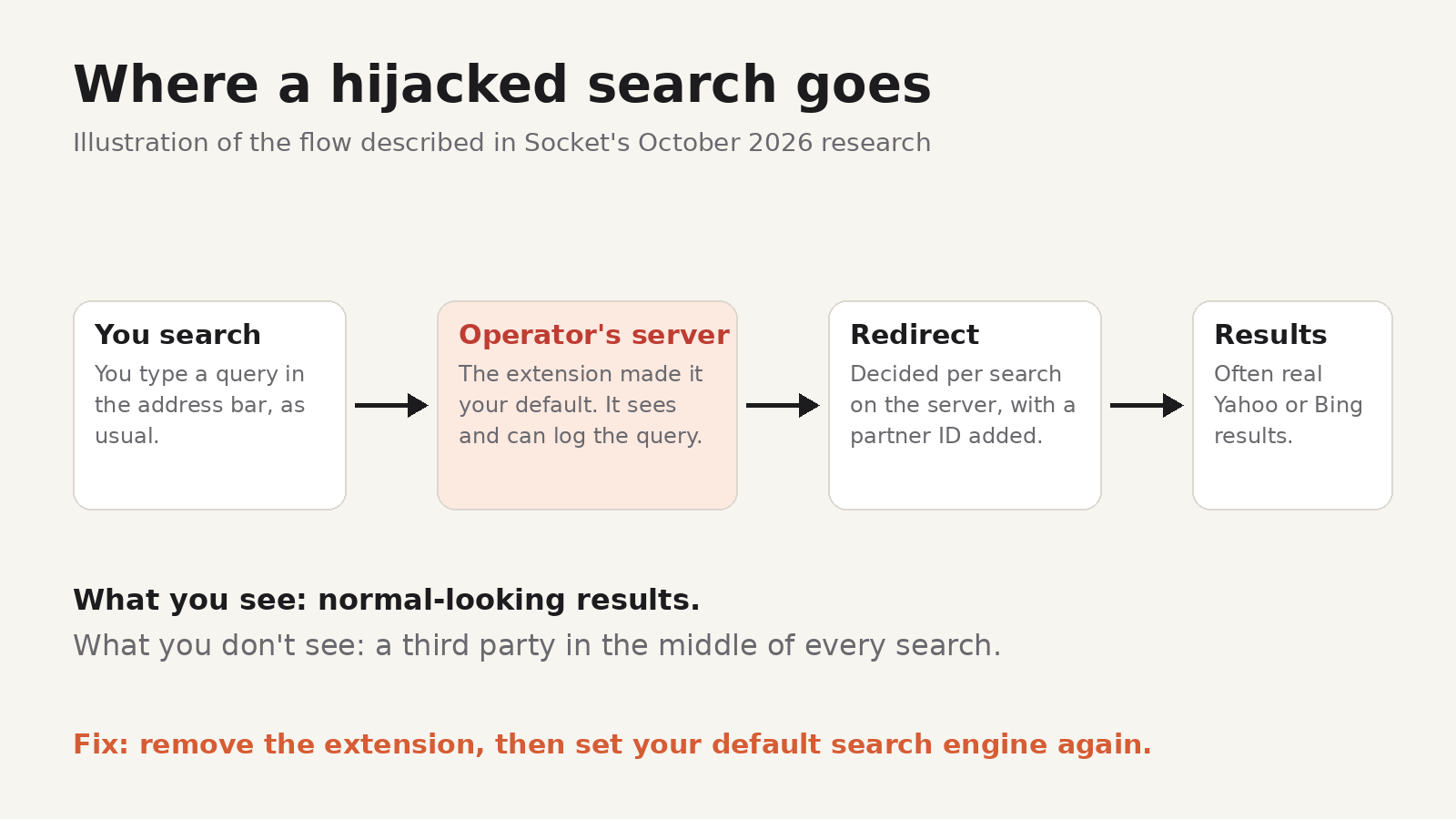
How an extension takes over your search
Chrome and Firefox let an extension offer a new default search engine. It's a normal feature: it's how legitimate search providers ship their own extensions. In Chrome, it's a single entry in the extension's manifest file. Socket points out that some of the hijackers it found contain nothing else: no permissions, no background code, no toolbar button. Their only job is to change where your searches go.
Once the setting is changed, every search you type in the address bar goes to the address the extension chose. In the cases Socket describes, that address is a server run by the extension's operator, which records the query and then redirects you to real results with a partner ID attached, so the operator earns a share of the ad revenue. Socket also found that the redirect is decided on the server for each search, so the destination can change at any time without the extension being updated.
Socket notes that Chrome shows a prompt during installation when an extension changes the default search provider, but the prompt doesn't make clear where your searches will end up.
Signs your search has been hijacked
- Searches from the address bar open a results page you don't recognise, or briefly pass through an unfamiliar address before landing on Yahoo or Bing.
- Your default search engine changed and you don't remember changing it.
- You change it back, and it returns after you restart the browser.
- A new tab page or home page changed at the same time.
- You recently installed a "PDF converter", "manual finder", "safe search" or similar tool from an ad or a pop-up. Socket says many of the extensions it found were promoted this way and were unlisted, so they don't show up in normal Chrome Web Store searches.
Fix it in Chrome
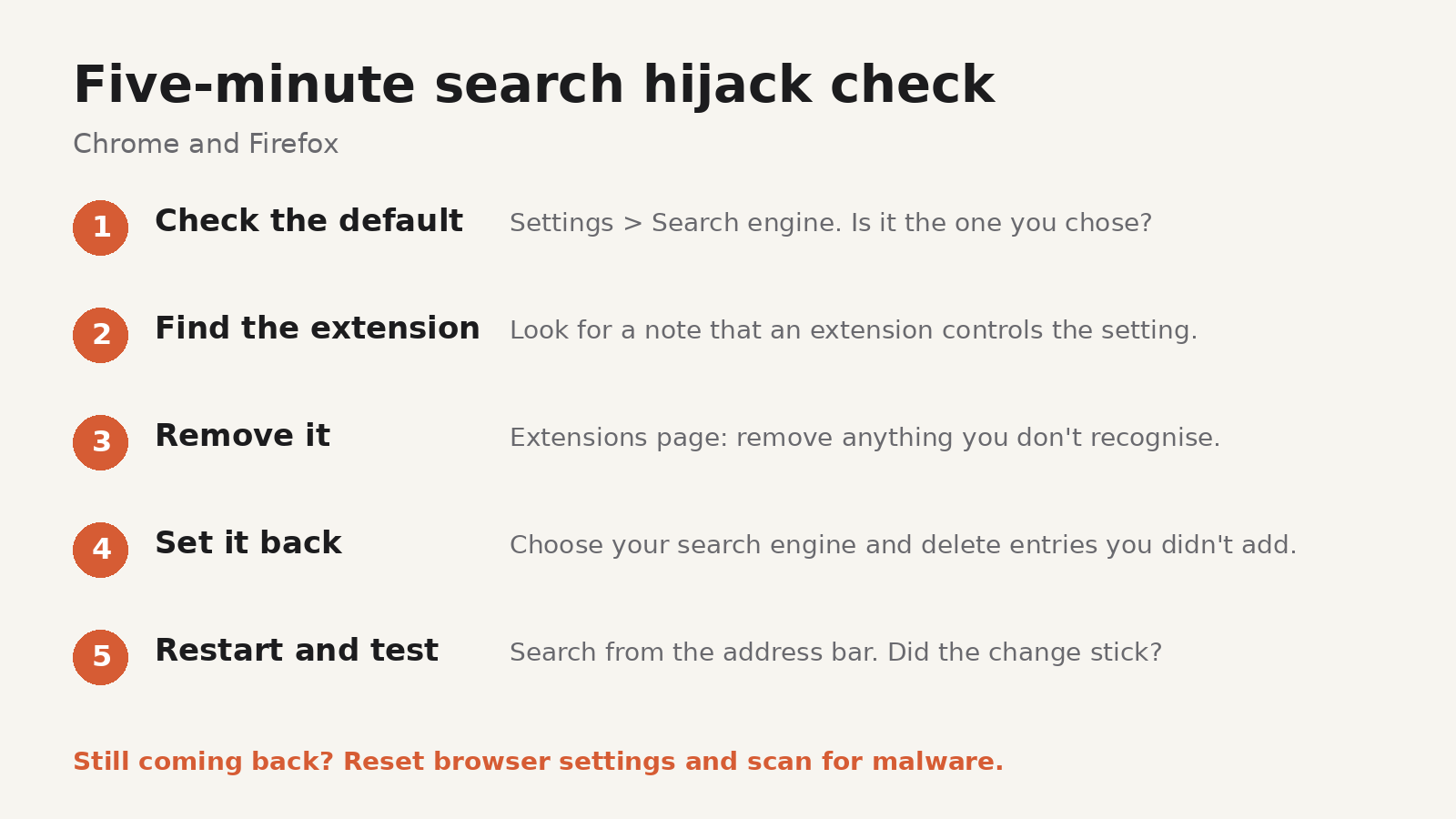
- Open Settings and select Search engine. Check which search engine is the default. If an extension controls this setting, Chrome may show a note naming the extension, with a button to turn it off.
- Open Extensions (type
chrome://extensionsin the address bar). Look for anything you don't recognise or no longer use, especially search, PDF, coupon or "safety" tools. Select Remove. - Go back to Settings > Search engine and set your default search engine. Under Manage search engines and site search, delete any entries you didn't add.
- Check On startup and Appearance too, in case the extension also changed your start pages or home page.
- Restart Chrome and run a test search from the address bar.
If the setting keeps coming back, Google's help page on resetting Chrome settings explains how to restore your default search engine, home page, new tab page, pinned tabs, content settings, cookies and site data, and extensions and themes to their defaults. Your bookmarks and saved passwords aren't deleted. Google also says that if your search engine keeps changing after you set it, you may have malware, so run a scan with the security tools on your computer.
If you use Chrome at work or school, your administrator may set the search engine for you. In that case, a setting you can't change isn't necessarily a hijack, so check with them first.
Fix it in Firefox
- Open Settings, select Search and check the Default Search Engine. Remove search engines you didn't add from the list further down the page.
- Open Add-ons and themes (type
about:addons), select Extensions, and remove anything you don't recognise. - Restart Firefox and test a search from the address bar.
If the problem returns, Firefox's Refresh Firefox option (under Help > More troubleshooting information) creates a fresh profile and keeps your bookmarks, history and saved passwords, but it removes your extensions and themes, so you'll need to reinstall the ones you want.
After you remove it
The extension's operator may have a record of what you searched while it was installed. There's nothing you can do to get that back, but you can limit the damage:
- Think about what you searched. If you searched for account names, order numbers or anything personal, be extra careful with emails or messages that mention it.
- Don't sign in from a search result you don't trust. If a result page looked odd, go to important sites by typing their address or using a bookmark.
- If you entered a password on a page you reached through the hijacked search, change that password on the real site.
How to avoid the next one
- Install extensions from the store, not from ads. If a pop-up tells you to install a tool to open a PDF or "search safely", close it.
- Read the listing before you install. Check who publishes the extension, whether it has a website and privacy policy you can read, how long it has been around, and what recent reviews say.
- Read the install prompt. If an extension you installed for something else says it will change your search settings, cancel.
- Look for lookalikes. Fake extensions sometimes copy the name and icon of a well-known one. If you're installing something important, such as a crypto wallet, start from the developer's own website and follow its link to the store.
- Review your extensions every few months. Remove the ones you don't use. An extension you've forgotten about can still be updated by whoever owns it now.
We make browser extensions ourselves, and the same advice applies to ours: check the listing, read what it asks for, and remove it if you stop using it. For a closer look at what an extension can access once installed, see what data browser extensions can see.
FAQ
Can an extension change my search engine without asking?
When an extension sets itself as the default search provider, Chrome shows a prompt during installation. That prompt is easy to click through, and Socket notes it doesn't make clear where your searches end up.
Is it only "search" extensions that do this?
No. The extensions in Socket's report used names such as PDF tools, manual finders, maps, weather and "safe search" tools. The name rarely tells you that the main function is changing your search engine.
Will resetting my browser delete my bookmarks?
According to Google, resetting Chrome settings doesn't delete or change your saved bookmarks and passwords. Firefox's Refresh option keeps bookmarks, history and saved passwords but removes extensions and themes.
How do I know which extension changed my search engine?
In Chrome, the search engine settings usually name the extension that controls them. If not, disable your extensions one at a time and check whether the default search engine changes back.