Short answer: On November 15, 2026, the uBlock Origin project published a security advisory for a flaw that let a malicious website add its own "trusted" filters to the extension after a single click, and use them to run code on other websites. uBlock Origin 1.75.2 and earlier are affected, and 1.75.4 fixes it. If automatic updates are on, you very likely have the fix already, but it takes a minute to check: open your browser's extensions page, look at the version, and run a manual update if it's old.
uBlock Origin is one of the most widely used extensions there is, so this is a good moment to check every extension you have, not just this one.
What happened
The issue was reported to the uBlock Origin developer by Smitty van Bodegom (credited as syvb in the advisory), who wrote it up on November 15 after the fix shipped. The project's GitHub advisory rates it High and lists the affected and patched versions.
It involved uBlock Origin's element picker, the tool you open from the right-click menu to block a specific part of a page. The picker is a small page inside the extension that can tell uBlock Origin to add a filter.
In simple terms, the attack worked like this:
- A malicious website found the internal address of the element picker. On Firefox, that address includes a random ID for each installation, and the researcher showed a way for the page to read that ID through one of uBlock Origin's own default filter rules.
- The website loaded the picker inside an invisible frame on its own page.
- It sent the picker messages to fill in a filter of its choosing, including a kind of filter that can inject scripts into other websites.
- It waited for the visitor to click anywhere on the page, which pressed the invisible "Create" button.
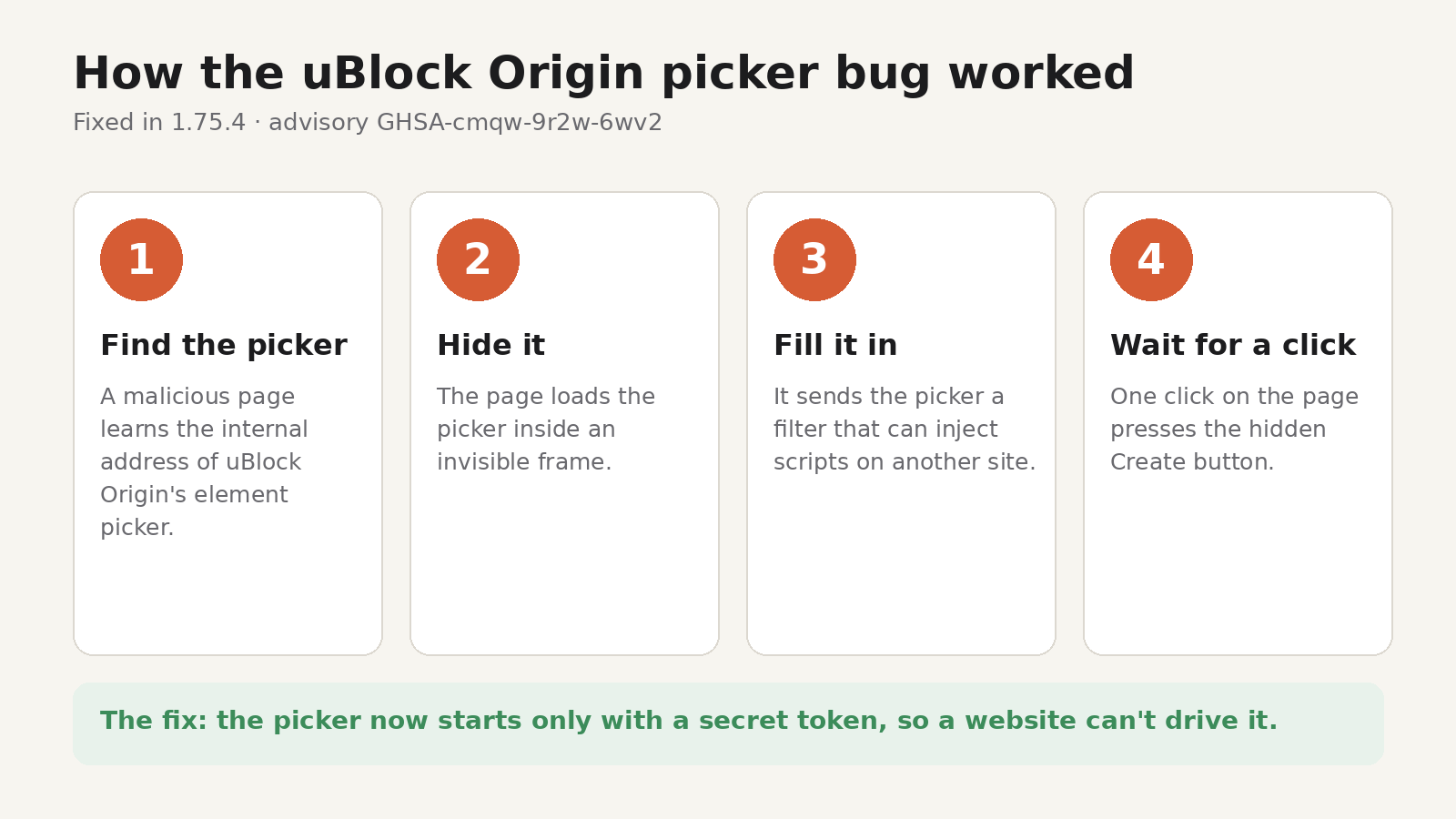
Filters created through the picker were treated as trusted, so the website could add a filter that ran its own JavaScript on another site, such as a site you're logged in to. That's what "universal XSS" means: a script from one site running in the context of any other site.
The researcher says the main issue was in the Firefox version (the Manifest V2 build), and that a similar but less serious issue affected uBlock Origin Lite, the Manifest V3 version.
Which versions are fixed
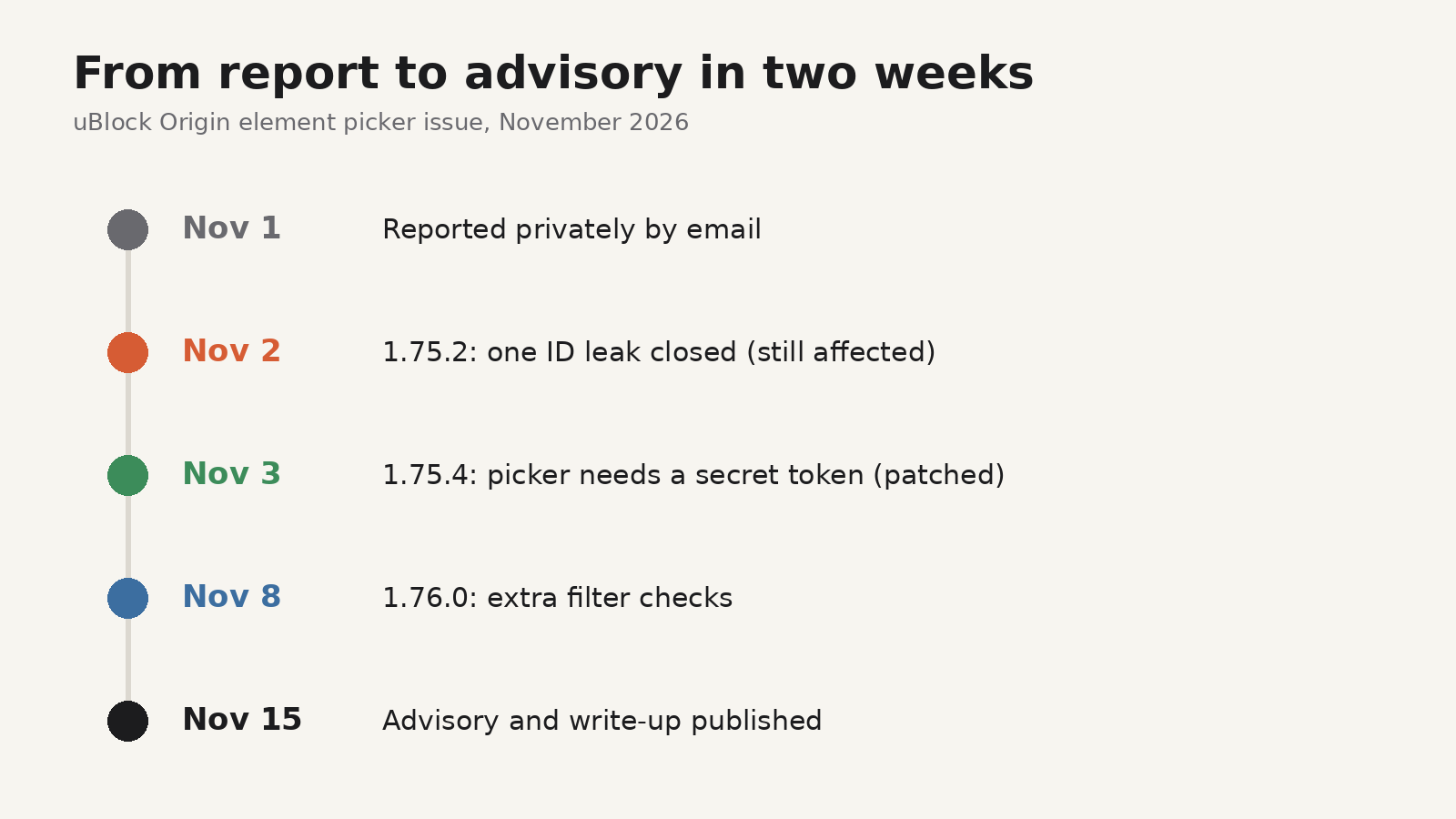
According to the advisory, the bug was reported by email on November 1, 2026, and fixed in several steps:
- 1.75.2 (November 2) stopped one way of leaking the extension's internal ID. It's still listed as affected.
- 1.75.4 (November 3) made the element picker start only with a secret token, so a website can no longer drive it. This is the patched version.
- 1.76.0 (November 8) added more checks on filters created in the picker and temporarily blocked a related filter type.
So if you see 1.75.4 or later, you have the fix. Neither the advisory nor the write-up mentions attacks in the wild, and the details were published only after the fixed versions were out.
How to check an extension's version and update it
Browsers update extensions automatically in the background, but the check runs on a schedule, and a browser that stays closed or offline can fall behind. Here's how to look and force an update.
Chrome, Edge, Brave and other Chromium browsers
- Type
chrome://extensionsin the address bar (in Edge,edge://extensions) and press Enter. - Find the extension and click Details. The Version line shows what you have.
- To update everything now, turn on Developer mode (top-right in Chrome, in the left sidebar in Edge), then click Update in the bar that appears.
- Turn Developer mode off again when you're done.
Firefox
- Type
about:addonsin the address bar and press Enter, then choose Extensions. - Click the extension's name. The version is listed on its details page.
- To update, click the gear icon at the top of the page and choose Check for Updates.
- If an update needs new permissions, Firefox asks you before applying it.
A five-minute extension check
While you're on that page, it's worth doing a quick review of everything else installed. Every extension you keep is software running in your browser, and the data an extension can see depends on its permissions.
- Remove what you don't use. An extension you installed for one task two years ago still has its permissions today.
- Check site access. In Chrome, the Details page lets you limit an extension to specific sites or to "On click". In Firefox, the Permissions tab on the details page shows what it can access.
- Keep automatic updates on. This bug is a good example of why. The patched version was out for almost two weeks before the details were public.
- Pay attention to permission prompts. If an update asks for new access, read what it wants before you accept. An unexpected new permission is worth a second look.
- Install from the official stores. The Chrome Web Store and addons.mozilla.org review extensions and can push removals. Sideloaded files skip that.
If a browser setting has already changed without your say, such as your search engine, our guide to finding the extension that changed your search engine walks through it.
Should you stop using uBlock Origin?
No reasonable reading of this advisory suggests that. The bug was reported privately, fixed within two days, hardened further a week later, and documented in public with the full email exchange. That's what good security handling looks like. The lesson is a general one: popular, well-maintained extensions still have bugs, so updates matter.
As a team that builds browser extensions ourselves, we think the same rule applies to ours: keep them updated, and give them only the access they need.
FAQ
I use uBlock Origin Lite in Chrome. Am I affected?
The researcher says a similar but less problematic issue affected uBlock Origin Lite, and the advisory itself covers uBlock Origin. Updating through the steps above gets you whatever fix the store has published.
Do I need to do anything besides updating?
The advisory doesn't ask users to take other steps. If you want to be thorough, open uBlock Origin's dashboard and look at the "My filters" tab for any rules you don't recognize.
How often do browsers check for extension updates?
Chrome's documentation says it checks on startup and every few hours, and Firefox checks once a day by default. A manual check, as shown above, runs it right away.