Short answer: Most "VPN" browser extensions are proxies. They route the traffic of the browser they're installed in through someone else's server, and nothing else on your device. That can be fine for changing the country a website sees, but it doesn't protect your other apps, and a bad extension sits in the perfect place to watch everything you browse. Before installing one, check who publishes it, which permissions it asks for, and whether it comes from a provider you could name without the store's search results.
On November 16, 2026, TechRadar reported that Google had removed all but seven of 369 suspicious VPN extensions that TechRadar had flagged a month earlier. The extensions targeted Russian users and had more than 200,000 users combined. Many used throwaway personal developer emails, had thin privacy policies, and copied the names of well-known brands. TechRadar also found similar extensions still live in the store.
You don't need to be in Russia for this to matter. VPN extensions are popular everywhere, and the same warning signs apply to any of them.
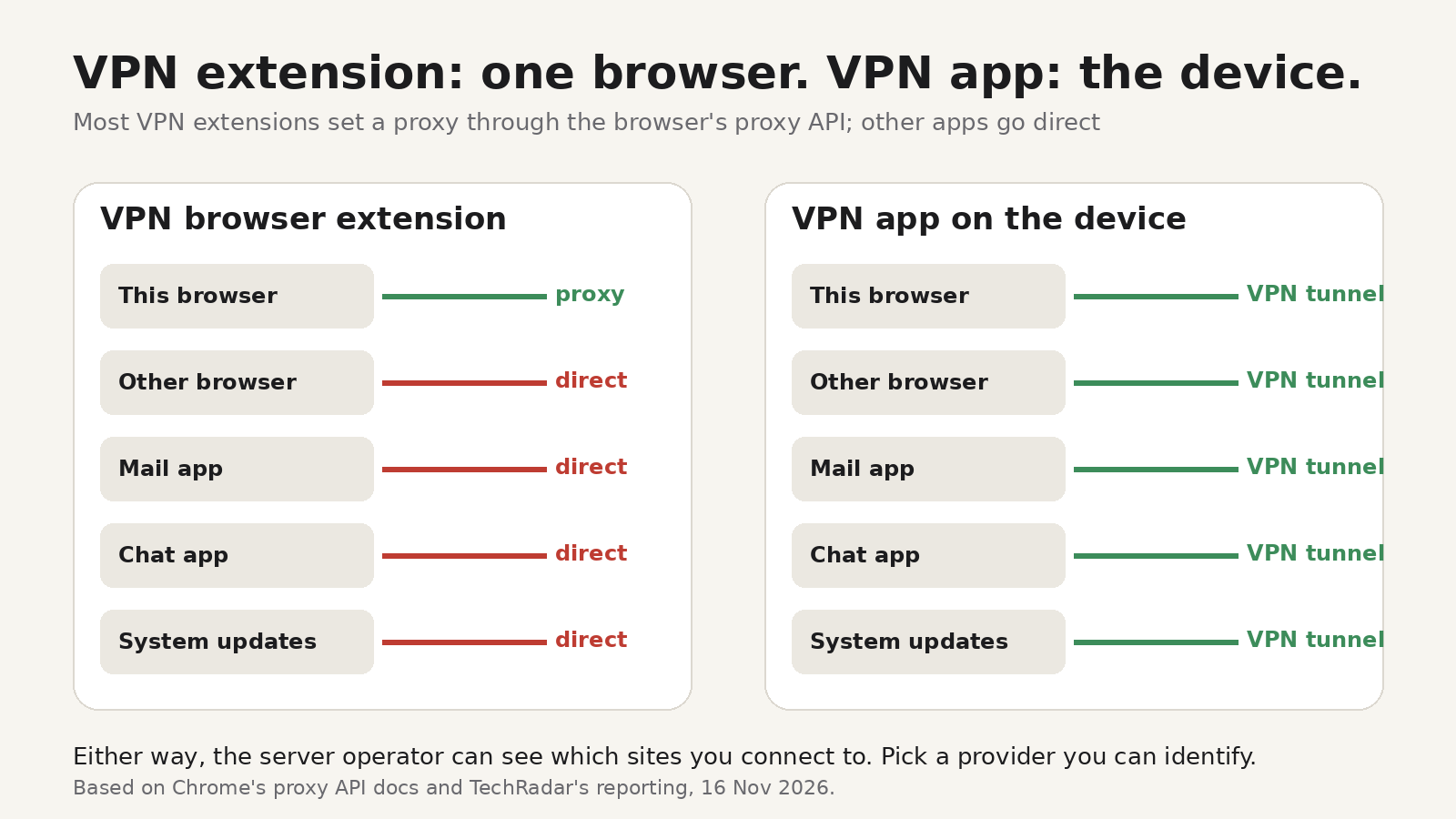
What a VPN extension actually does
A full VPN app creates an encrypted tunnel for your whole device. Your browser, mail app, chat apps, game launchers and background updates all go through it.
A browser extension can't do that. Extensions run inside the browser, so the most they can change is how the browser connects. In Chrome, an extension that wants to send your browsing through another server uses the proxy API, which needs the proxy permission and lets it point the browser at an HTTP, HTTPS or SOCKS proxy server. Firefox has a similar API.
A senior technical expert at the Russian digital security group RKS Global put it plainly to TechRadar: "A Chrome extension is not a VPN in the technical sense. It does not create a tunnel; it uses the browser's API to configure a proxy: HTTP, HTTPS or SOCKS." TechRadar adds the consequence: anything running outside the browser, such as messaging and email apps, isn't covered.
That doesn't make every VPN extension useless. Some well-known VPN providers ship an extension as a companion to their app, or as a light option for people who only care about one browser. The extension is fine for what it is. It just isn't the same product as the app.
What it covers, and what it doesn't
| VPN browser extension | VPN app on your device | |
|---|---|---|
| Traffic from the browser it's installed in | Yes | Yes |
| Other browsers on the same device | No | Yes |
| Mail, chat, games and other apps | No | Yes |
| Background system traffic and updates | No | Yes |
| Can see which sites you visit | The extension's server, plus the extension itself if it has site access | The VPN server |
The last row is the one people forget. Any proxy server can see which sites you connect to. With HTTPS, it can't read the page content, but it still learns where you go and when. The extension itself also runs inside your browser with whatever permissions you granted it. If those include "read and change all your data on all websites", the extension's code can see the pages you open, regardless of the proxy. You're trusting both the code and the company running the server.
Warning signs before you install
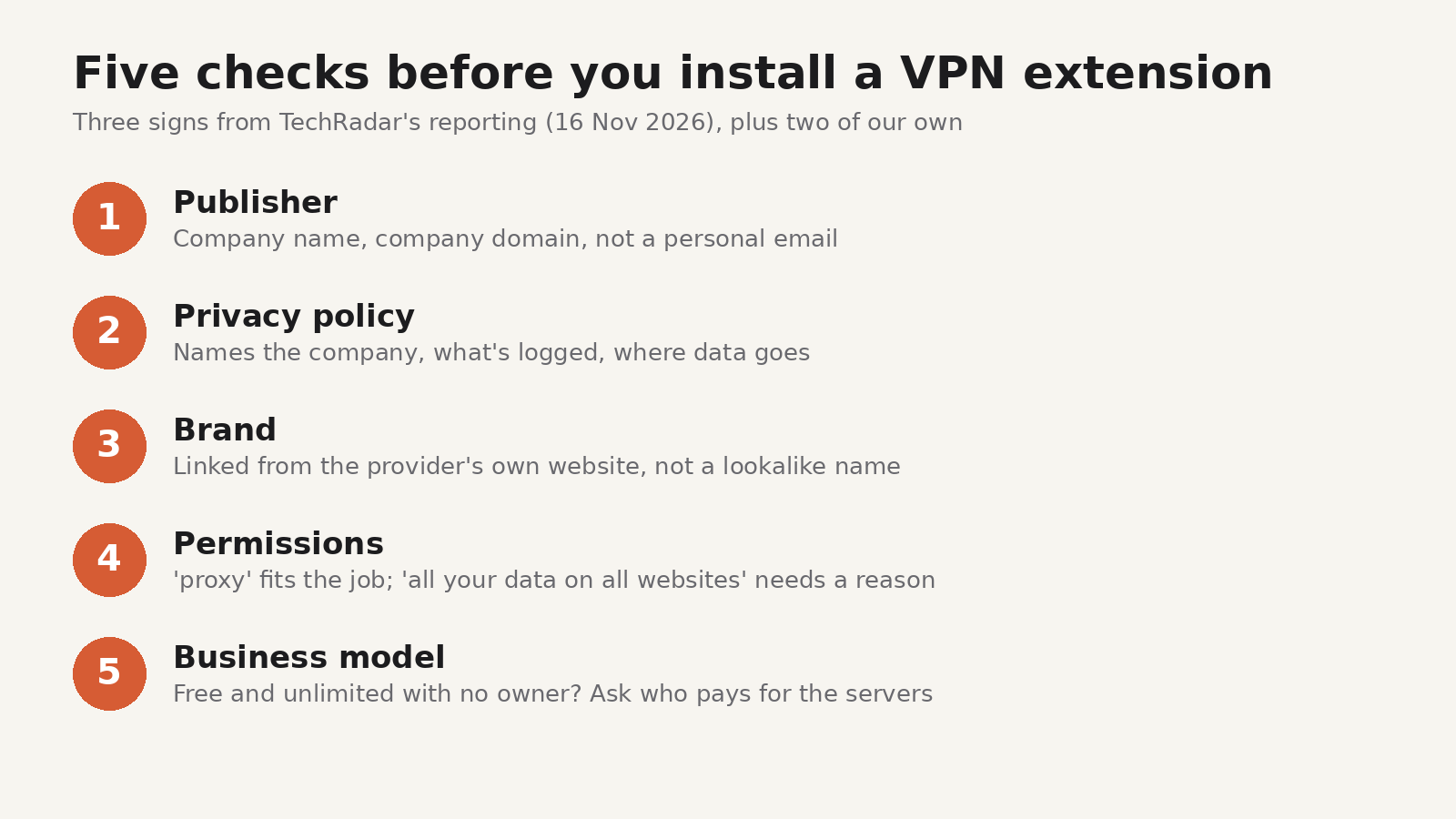
TechRadar's reporting names three patterns the removed extensions shared: throwaway developer emails, weak privacy policies and copied brand names. The last two checks below are our own additions. You can run all five before you click install:
- A personal or throwaway contact email. Open the store listing and scroll to the developer details. An established VPN company publishes under its company name, and any contact address shown uses its own domain.
- A privacy policy that's missing, vague, or hosted on a free page builder. TechRadar mentions policies on anonymous sites.google.com pages. A real policy names the company, says what's logged, and says where data goes.
- A familiar brand name with a twist. "Nord" or "Express" in a name doesn't mean the extension is from that company. Check the provider's own website for a link to its extension.
- Permissions that go beyond the job. A proxy extension needs
proxy. Be wary if it also asks to read and change data on all websites, manage your downloads, or read your browsing history, and the description doesn't explain why. - "Free, unlimited, no account". Servers cost money. If there's no price and no clear business model, ask how the operator pays for the bandwidth.
TechRadar's own advice is to avoid store search results and install a VPN extension through a direct link on a trusted provider's website. That simple habit sidesteps copycats, because a copycat isn't linked from the real company's site.
Check the VPN extensions you already have
If you installed a VPN or proxy extension a while ago, it's worth five minutes:
In Chrome:
- Open
chrome://extensionsand find the extension. - Click Details and read the permissions and site access.
- Click View in Chrome Web Store and check the developer name, contact email and privacy policy link.
- Open
chrome://settings/system. If an extension is controlling your proxy settings, Chrome names it there.
In Firefox:
- Open
about:addonsand select the add-on. - Open the Permissions tab to see what it can access.
- Go to Settings, then General, then Network Settings. If an add-on is controlling how Firefox connects to the internet, Firefox says so there.
If you don't recognise the publisher, can't find a real privacy policy, or no longer use it, remove it. Removing an extension stops its code and its proxy settings straight away. If you entered any passwords while it was installed and you have doubts about the publisher, change those passwords, starting with email and banking.
When an extension is enough, and when you need more
A reputable VPN extension can be a reasonable choice when you only need one browser to appear in another country, or you're on a work laptop where you can't install apps. It's not enough when you want every app on the device protected, when you're on public Wi-Fi and use apps other than the browser, or when the reason you want a VPN is to keep your activity private from network operators. For those, TechRadar's recommendation is a system-wide VPN app from a provider you trust.
Whichever you choose, the trust question is the same: you're handing your browsing to someone else's server. Pick a company you can identify, with a policy you've read.
For a wider look at what extensions can see once installed, see our guide to what data browser extensions can see, and if an extension has quietly changed your search engine, here's how to find and fix it.
FAQ
Is a VPN extension the same as a VPN?
No. Most VPN extensions set up a proxy for the browser they're installed in. A VPN app creates an encrypted tunnel for the whole device.
Are free VPN extensions safe?
Some are offered by established providers as a limited free tier. Others have no clear owner or business model. Check the publisher, the privacy policy and the permissions before installing.
Does a VPN extension hide my IP address?
It hides it from the websites you visit in that browser, because they see the proxy server's address. Your other apps still connect with your real address, and the proxy operator can see where you browse.
How do I know which extension controls my proxy settings?
In Chrome, open chrome://settings/system. In Firefox, open Settings > General > Network Settings. Both name the extension in control.
What did Google remove?
According to TechRadar, Google removed 362 of the 369 suspicious VPN extensions TechRadar had reported. Google didn't comment on whether the removals were because of the investigation.