Short answer: You can't stop a cloud outage, but you can stop it from wiping out your day. Keep today's task list and key contacts somewhere that doesn't depend on your email service, know where to check the official status, and have a short list of work you can do offline. When the service comes back, check your outbox and calendar before anything else.
On Thursday, November 12, 2026, Microsoft 365 started failing for users around the world. Outlook, Teams, SharePoint and Copilot were all affected to different degrees. Reports of Outlook problems on Downdetector peaked at nearly 140,000 around 18:00 GMT that day, the BBC reported. Microsoft said on Saturday that service had been restored, according to CNBC, and traced the cause to "an issue during an earlier network capacity upgrade". It said there was no sign of malicious activity.
For many people, the hardest part wasn't missing email. It was that their whole day lived inside it: the task list was flagged messages, the plan was the calendar, and the phone numbers were in the address book. When the service went, so did the plan.
Why one outage stops so much work
Most office tools now run as one connected service. Your email, calendar, chat, files and meeting links all sign in through the same account and often run on the same back end. That's convenient on a normal day. On a bad day, a problem in one part, in this case an issue during a network capacity upgrade, can take several of them with it.
You don't need to leave those tools to reduce the risk. You need a small layer of your day that keeps working when they don't.
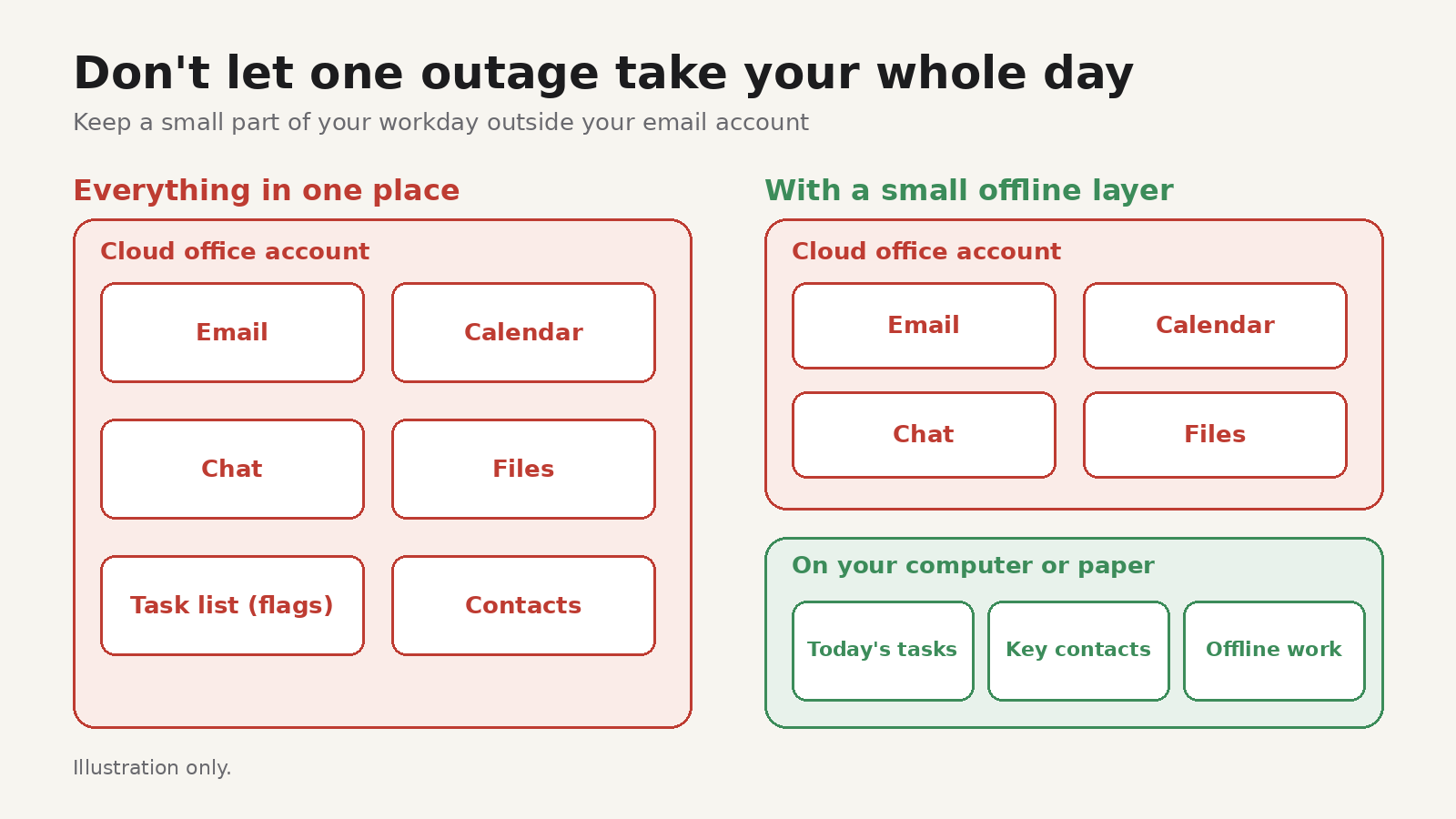
Before the next outage: five things to set up
1. Keep today's tasks outside your inbox
Flagged emails and inbox-zero workflows are fine until the inbox won't load. Keep the list of what you're doing today in a separate tool: a desktop app that stores data on your computer, a text file, or a sheet of paper. If it can open without signing in to your email account, it counts.
2. Know where the official status lives
During this outage, Microsoft posted updates on X through its Microsoft 365 Status account, and admins could see details in the service health page of the Microsoft 365 admin center. Bookmark both. Checking the official source first saves you from restarting your computer, clearing caches and reinstalling apps when nothing on your side is wrong.
3. Save the contacts you'd actually need
Write down how to reach the five to ten people you depend on most, outside email and chat: phone numbers, or another messaging app you both use. Do the same for your manager and anyone you have a meeting with that day.
4. Keep a local copy of mail you can't lose
The classic Outlook desktop app usually keeps a cached copy of your mailbox on your computer (Cached Exchange Mode), so recent mail and calendar items may still open during an outage, even if nothing sends. If you rely on the browser version only, you have nothing to open. If you're not sure how yours is set up, ask your IT team before you need it.
5. Have an offline work list
Some work never needed the network: writing a draft, reviewing a document you already downloaded, planning next week, clearing a backlog of small tasks. Keep a short list of these so an outage becomes a change of plan instead of a lost morning.
During an outage
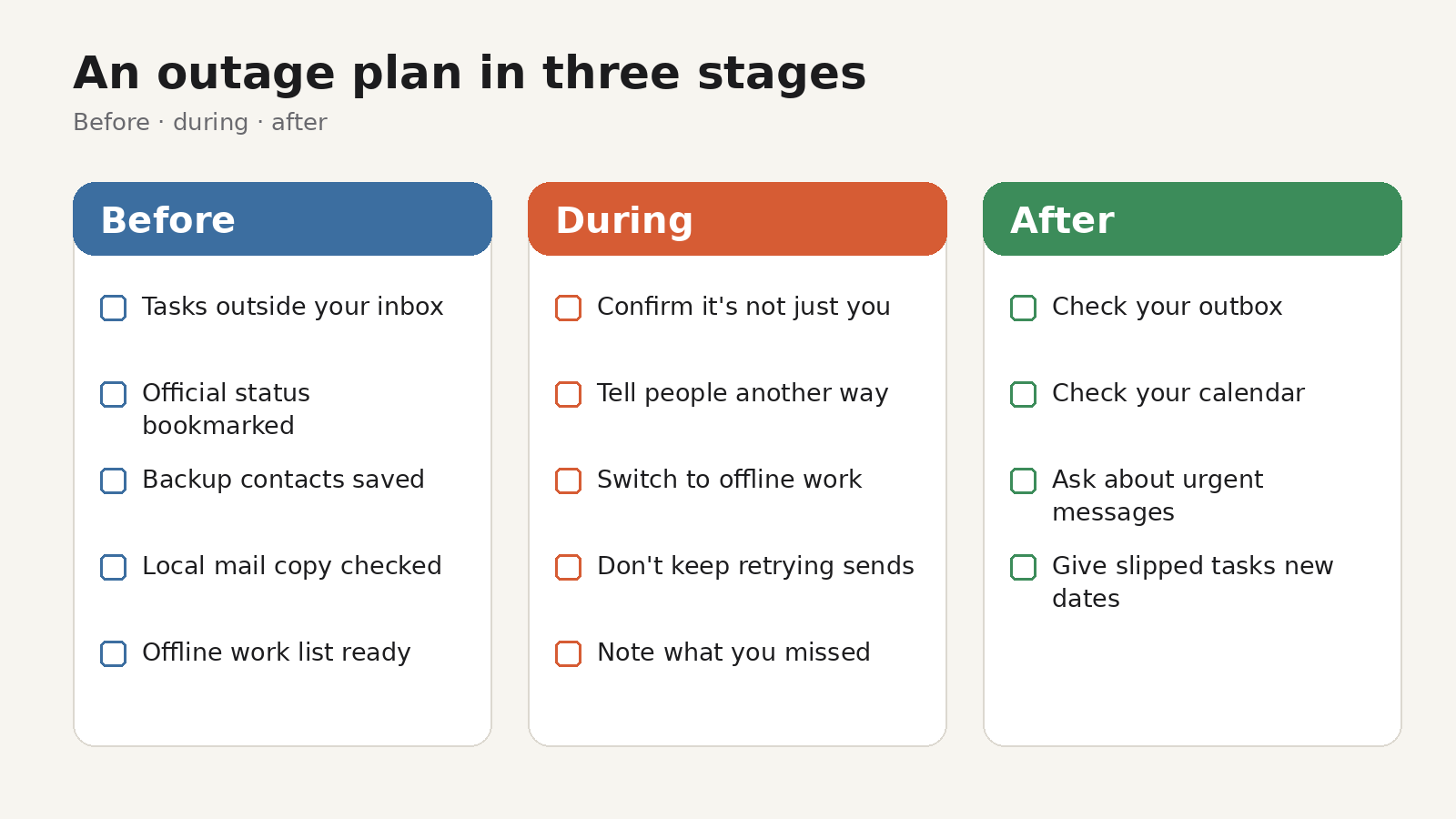
- Confirm it's not just you. Check the official status account or page. If colleagues have the same problem, stop troubleshooting your own setup.
- Tell the people who are waiting on you. Use the backup channel you saved. A short "Our email is down, I'll reply when it's back" prevents a lot of confusion.
- Switch to your offline list. Pick one task from it, and track time against it if that helps you stay with the work.
- Don't keep retrying sends. Repeated attempts can leave duplicate messages in your outbox that all go out at once later.
- Note what you couldn't do. A running list of missed replies and meetings makes the clean-up faster.
After it comes back
- Check your outbox. Messages written during the outage may send on their own when the connection returns, or they may sit there. Make sure the right ones went out, once.
- Check your calendar. Meeting invites, updates and cancellations sent during the outage may arrive late or not at all. Confirm today's and tomorrow's meetings with the organizers if anything looks off.
- Ask about anything important. If you were expecting something urgent, ask the sender whether it went through. Don't assume.
- Move tasks forward. Work that slipped needs a new date, not just a mental note.
Keeping your task list local with Todofy
Todofy is our task and calendar app for Windows, macOS and Linux. It's built around the idea in step 1: your task list lives on your own computer, so it opens whether or not your email service does.
According to its product page:
- Local storage. Tasks are stored in a local SQLite database on your computer, and you can use its local features without an account or internet connection. Account sync and a one-way push to Google Calendar are optional.
- Quick capture. A global quick-add bar (Ctrl+Alt+A) works even from the tray, and it reads dates, priorities and labels as you type.
- Today and Upcoming views with an overdue rollup, so slipped tasks don't disappear.
- Pomodoro and per-task stopwatch that keep running in the tray, plus estimates with a live overrun warning.
- Local calendar with month, week and day views alongside your tasks.
- Reminders from the tray with snooze.
Todofy doesn't read your Outlook mailbox or calendar, so it won't show your meetings. It's a place for the work you've decided to do, which is the part you need most when everything else is down. You can download it for macOS, Windows or Linux from the Todofy product page, which lists a SHA-256 checksum for every download.
If you want to get better at planning the day itself, our guides to estimated vs actual time and making time visible while you work go further.
FAQ
Was the Microsoft 365 outage a cyberattack?
Microsoft said it found no malicious activity and described the cause as a technical issue linked to an earlier network capacity upgrade. It said it would publish a fuller review after its assessment.
Can I still use Outlook when Microsoft 365 is down?
It depends on how it's set up. The classic desktop app often keeps a local copy of recent mail you can read, but sending and receiving needs the service. The web version needs the service for everything.
What's the simplest backup for my to-do list?
Anything that opens without your email account: a local app, a text file, or paper. The important part is that you keep it up to date before you need it.