Short answer: If you often lose track of time, don't rely on feeling it. Put time somewhere you can see it: a timer on the task you're doing, an estimate written next to each task, a warning when you go over, alerts for the moment you need to switch, and buffers between commitments. Then compare what you planned with what happened, so the next plan is closer to reality.
This week an ADHD meme has been going around X: a stove clock reads 2:47, so there's obviously plenty of time before 3. It landed because the experience is common: there's always "plenty of time" until suddenly there isn't. People with ADHD often describe it as time blindness, but plenty of people without a diagnosis recognise it too: you sit down for "a quick look" at something, and an hour has gone.
This guide is about practical habits and tools, not diagnosis or treatment. If time blindness is affecting your work, health or relationships, a doctor or a qualified ADHD specialist is the right person to talk to.
What time blindness is (and isn't)
Time blindness is a shorthand for difficulty sensing how much time has passed and estimating how long things will take. It isn't laziness, and it isn't a failure of willpower. Stanford's Center for Teaching and Learning, in its guide to managing time blindness, describes it as easy to underestimate how long things will take, to overbook a schedule, and to forget the time it takes to move from one activity to the next.
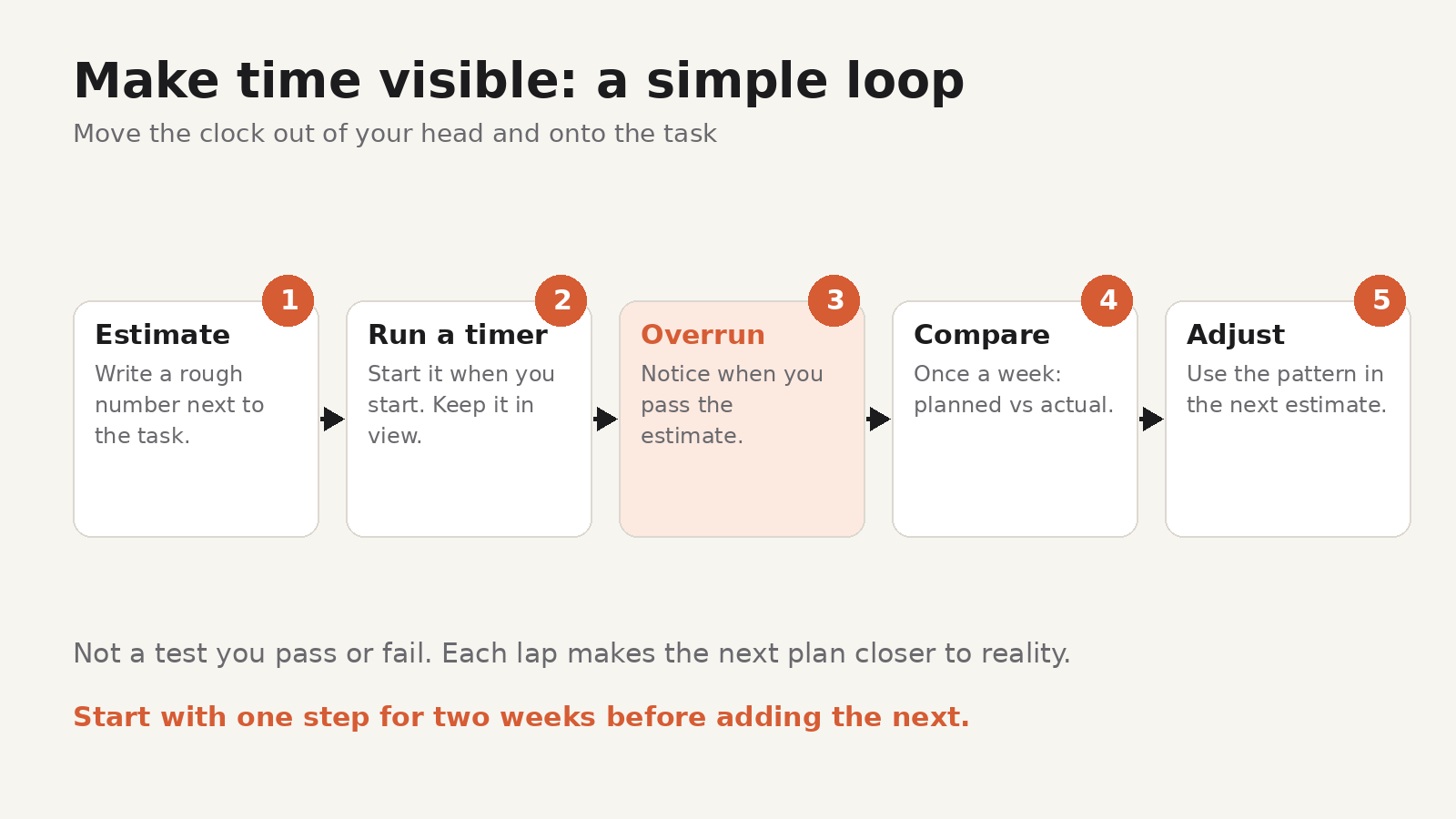
The common advice across sources like Stanford and the Attention Deficit Disorder Association comes down to one idea: externalise time. If your internal clock isn't reliable, move the clock outside your head.
Here are seven ways to do that at a desk.
1. Keep a clock in your line of sight
The simplest fix is a clock you can see without picking up your phone. Unlocking a phone to check the time often turns into five minutes of something else. A desk clock, a watch, or a clock widget that stays on screen keeps "now" in view.
2. Run a timer on the task you're doing
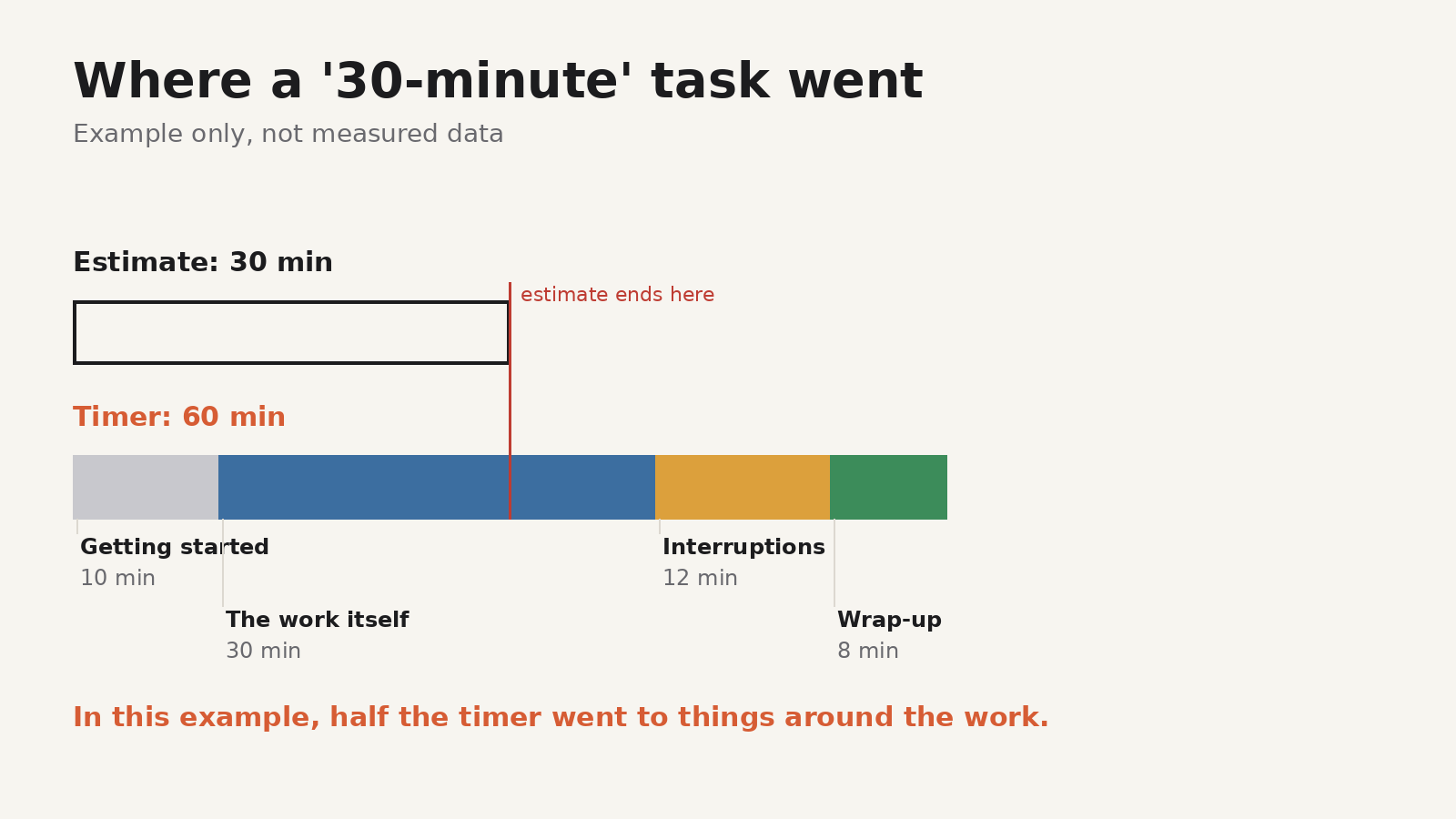
A clock tells you the time. A timer tells you how long this has taken. Start one when you start a task and stop it when you stop. You don't need to analyse the number yet. Just seeing "47 minutes" on something you meant to spend 15 minutes on is useful information.
If you work better in fixed blocks, the Pomodoro technique gives the timer a shape: 25 minutes of focus, a 5-minute break, and a longer break after four rounds. Stanford's guide suggests adjusting the length to what suits you, such as 20 or 45 minutes.
3. Write an estimate next to each task
Before you start, write down how long you think the task will take. It feels pointless at first, especially if your estimates are usually wrong. That's the point. An estimate turns "I'll just do this" into a number you can check.
Keep it rough: 10, 15, 30, 60 or 90 minutes. Precision doesn't matter; having a number does.
4. Get a warning when you go over
An estimate only helps if you notice when you pass it. Hyperfocus is the classic trap: you're deep in something, and the estimate you wrote an hour ago is long forgotten.
Set an alert for the end of your estimate, or use a tool that shows when a task runs past its estimate. A visible "you're over" signal gives you a choice: keep going on purpose, or stop and switch. Either is fine. Not noticing is the problem.
5. Set alerts for transitions, not just start times
Most calendars remind you when something starts. Time blindness usually bites earlier, at the moment you need to stop what you're doing, save your work and get ready.
Stanford's guide recommends alarms for key transitions and more than one alarm for a single event when needed, such as a "get ready" alarm 15 to 30 minutes before a meeting and another for when you need to leave. Label them with the action, such as "Save and close the draft", rather than a vague "Reminder". A reminder that gets louder or repeats until you deal with it is harder to dismiss by reflex.
6. Add buffers on purpose
If a meeting starts at 11:00 and you finish the previous task at 10:59, you have no slack for the things that always happen: a file that won't save, a missing link, a coffee refill. Put 10 to 15 minutes between commitments, and treat "wrap up" as its own block in your calendar.
This is especially useful after deep work. Coming out of focus takes time, and that time is usually invisible until you plan for it.
7. Compare what you planned with what happened
Once a week, look back at a few tasks: what you estimated, and what the timer said. The goal is to find patterns, not to grade yourself. Maybe emails take twice as long as you think, or writing is accurate but "getting started" adds 20 minutes every time.
Use the pattern in your next estimate. If replies usually take 18 minutes, plan 20. Our guide on estimated vs actual time goes through this comparison step by step, including a simple ratio you can work out by hand.
Start with one change
Don't install seven tools and set 20 alarms tomorrow. Pick the problem that costs you most:
- Time disappears while you work: a running timer on the current task (ideas 2 and 4).
- Your day is overbooked before it starts: estimates and buffers (ideas 3 and 6).
- You're late to switch: transition alerts (idea 5).
Try one change for two weeks before adding another, so you can tell whether it's helping.
Doing it in Todofy
Todofy is our task and calendar app for Windows, macOS and Linux. Several of the ideas above are built into it, according to its product page:
- A timer on the task. Each task has a stopwatch you can start, pause and stop, and there's a Pomodoro timer. Both keep running in the system tray, so you can see them while you work in other apps. Tracked time stays visible on a task after you complete it, which helps with the weekly look-back.
- Estimates with an overrun warning. You can add an estimate to a task, and Todofy shows a live warning on the task row and in the tray when you go over it.
- Reminders that are hard to ignore. Reminders fire from the tray with snooze, a custom sound and escalating volume.
- Tasks and time blocks in one place. A local calendar with month, week and day views sits alongside your tasks.
- Quick capture. A global quick-add bar (Ctrl+Alt+A) lets you capture a task from anywhere and parses the date, time, priority and label as you type, so a stray thought doesn't pull you out of what you're doing.
Todofy stores your tasks in a local SQLite database on your computer, and you can use its local features without an account or internet connection. Account sync and a one-way push to Google Calendar are optional. You can download it for macOS, Windows or Linux from the Todofy product page, which lists a SHA-256 checksum for every download.
The takeaway
You don't need to fix your sense of time. You need to stop depending on it. A timer you can see, an estimate you can check and an alert that comes before the deadline do the work your internal clock doesn't. Start with one, give it two weeks, and adjust from there.