Short answer: Arc stops working on Mac and Windows on December 22, 2026. If you're moving to Dia, its importer brings your setup across for you. If you're moving to Chrome or Firefox, you need to do three things yourself before that date: export your Spaces and tabs with Arc's Export Data option, export your saved passwords as a CSV file, and save any Easels you want to keep.
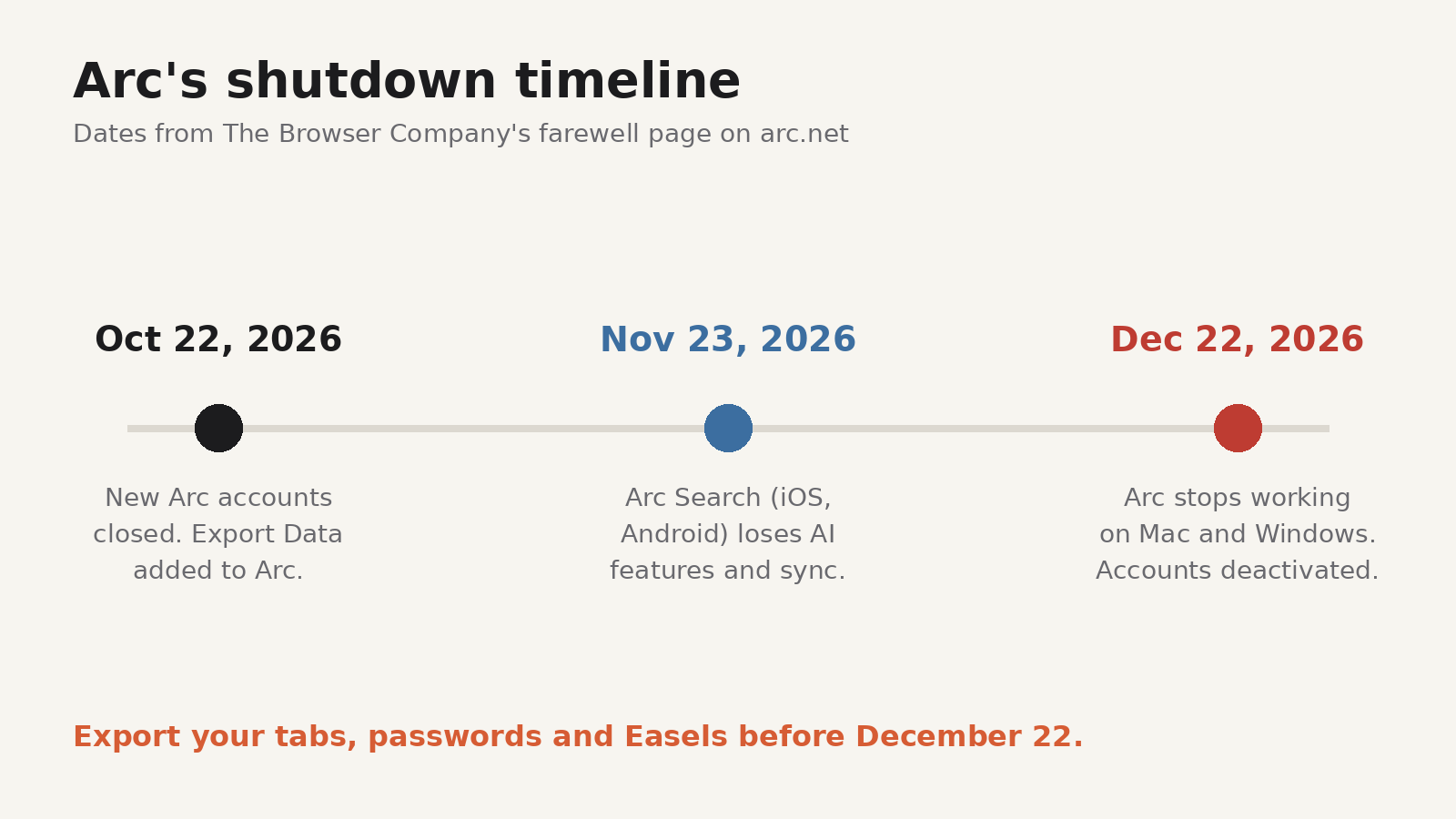
The Browser Company announced on October 22 that it is sunsetting Arc and moving its focus to Dia, its newer browser. New Arc accounts stopped that day. According to the farewell page on arc.net, there are two more dates to know:
- November 23, 2026: Arc Search on iOS and Android loses its AI features, and you can no longer sign in or sync tabs. It keeps working as a basic browser.
- December 22, 2026: Arc for macOS and Windows stops working. Arc accounts are deactivated, and their personal data is deleted within 30 days.
Arc keeps working normally until December 22, so there's no need to panic. But some data, such as Easels, only lives in your Arc account, and it disappears with it. Doing the export now, while everything still opens, is the safe move.
If you're moving to Dia
Dia is the replacement The Browser Company built, and it has a direct importer. Arc's guide to moving to Dia says it brings over Spaces, Favorites, pinned tabs, folders, bookmarks, history, passwords and extensions on both macOS and Windows. Keep Arc installed until the import finishes, because Dia reads your data through the Arc app. Easels and Boosts don't come across, so read the Easels section below either way.
The rest of this guide is for people moving to Chrome or Firefox, where there is no one-click import from Arc.
What comes across, and how
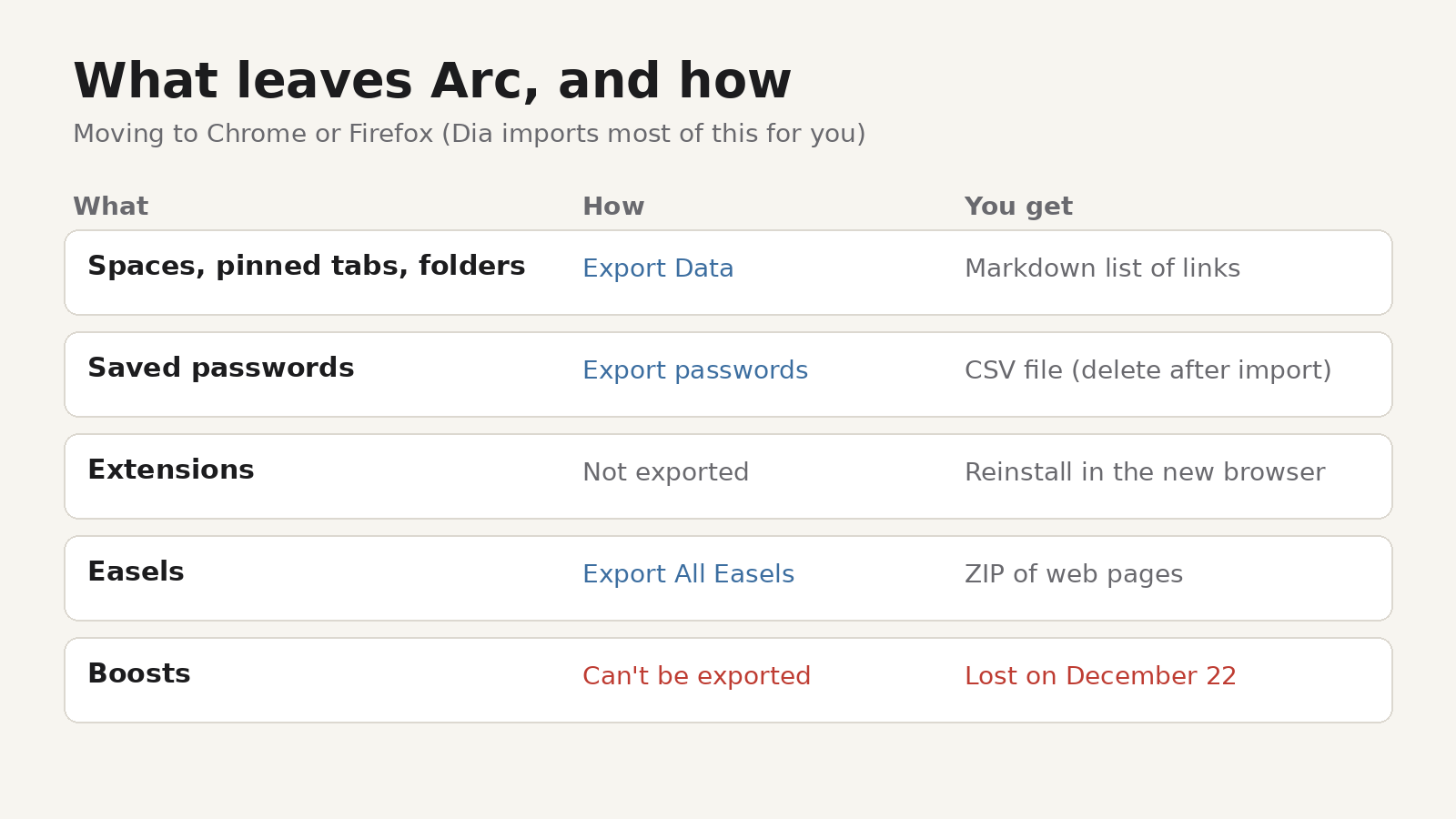
Not everything in Arc leaves the same way. Here's the map:
| What | How to get it out | Where it goes |
|---|---|---|
| Spaces, pinned tabs, folders, Favorites | Settings > Advanced > Export Data | A Markdown list of links |
| Saved passwords | Arc's password settings > Export passwords | A CSV file |
| Extensions | Not exported | Reinstall from the Chrome Web Store or Firefox Add-ons |
| Easels | Library > Easels > Export All Easels | A ZIP of web pages |
| Boosts | Can't be exported | Lost on December 22 |
Step 1: Export your Spaces and tabs
Arc added an Export Data option for the shutdown. Arc's help article on exporting your data gives these steps.
On a Mac:
- In the menu bar, choose Arc > Settings.
- Select Advanced.
- Select Export Data, choose where to save the file, then select Save.
On Windows:
- Open Arc's settings with Ctrl + , or from the Arc menu.
- In the Advanced section, find Export Spaces and tabs and select Export Data.
- Choose where to save the file, then select Save.
Arc saves a file called Arc Data Export.md. It has a section for each Space, with your Favorites, pinned tabs, folders and other sidebar tabs listed as links.
One catch: this file is a list of links, not a bookmarks file. Chrome and Firefox can't import it directly. Arc's own advice is to open it in a text editor and open or bookmark the links you want to keep. For one folder at a time, right-click the folder in Arc's sidebar and choose Copy All Links.
If you have hundreds of pinned tabs, third-party converters can turn the export into a standard bookmarks HTML file, which both browsers can import. If you use one, pick a tool that runs in your browser or on your computer rather than uploading the file, and check the result before you rely on it.
Importing a bookmarks HTML file
If you end up with a bookmarks HTML file:
- Chrome: open the three-dot menu, then Bookmarks and lists > Import bookmarks and settings, and select Choose file. Google's help page on importing bookmarks has the full steps.
- Firefox: open the Library with Ctrl + Shift + O (Cmd + Shift + O on a Mac), then Import and Backup > Import Bookmarks from HTML. Mozilla's guide to importing bookmarks from an HTML file covers it.
Imported bookmarks often land in a separate folder, such as Other bookmarks in Chrome. In Firefox, they go into the Bookmarks Menu folder. Check there first if you can't find them.
Step 2: Export your passwords
Arc's Export Data file doesn't include passwords. If you saved logins in Arc itself (not in a password manager extension such as Bitwarden or 1Password), export them separately.
Arc is built on Chromium, so it has the same password page as Chrome. Type arc://password-manager/settings in the address bar and, under Export passwords, select Download file. Your computer may ask for your system password first. Arc's help centre doesn't document this page, so confirm the option on your own install.
Then import the CSV file:
- Chrome: go to Passwords and autofill > Google Password Manager > Settings and choose Select file under Import passwords. See Google's help page on importing passwords into Chrome.
- Firefox: open about:logins, click the three-dot menu and choose Import from a File. Mozilla explains it in import login data from a file.
Delete the CSV file as soon as the import is done, and empty the trash. The file isn't encrypted, so anyone who opens it can read every password in it. If you used a password manager extension, skip this step: install the extension in your new browser and sign in.
Step 3: Save your Easels
Easels are stored in your Arc account, so they won't be reachable after December 22, and Dia doesn't import them. In Arc, open your Library, select Easels, then Export All Easels. Arc saves a ZIP file with each Easel you created as a web page, plus a page that lets you browse them in any browser. Easels other people shared with you aren't included.
Step 4: Reinstall extensions and check the gaps
Arc used extensions from the Chrome Web Store, so in Chrome you can reinstall the same ones. In Firefox, look for the same extension on Firefox Add-ons; many popular extensions have a Firefox version.
Before you uninstall Arc, open your new browser and check:
- Your most-used pinned tabs open from bookmarks.
- You can sign in to your main accounts with the imported passwords.
- The extensions you rely on are installed and signed in.
Keep the Arc Data Export.md file somewhere safe. It's a plain-text record of your sidebar, readable in any editor years from now.
Pinned tabs you were really using as a reading list
Many people used Arc's sidebar as a read-later pile: articles pinned for "later" that never got read. A bookmark brings back the link, but not the article itself if the page changes or disappears.
If that sounds familiar, Cairn, our free read-later extension for Chrome and Firefox, is one option. It saves pages, a clean readable copy of article text, highlights, images and links, and you can sort them with collections, tags and notes, then search across all of it. There's no account to create: your library stays in your browser, and you can export everything to JSON. Two limits to know: the library lives in the browser profile where you saved it, with no sync yet (Cairn mobile and desktop apps are coming soon), and Cairn sends usage data by default, tied to a random install ID. Our guide to saving web pages for offline reading shows how it compares with saving pages as files or PDFs.
A short checklist before December 22
- Export Data from Arc and keep the .md file.
- Export passwords to CSV, import them, then delete the file.
- Export all Easels.
- Note your extensions and reinstall them.
- Test your new browser for a few days before you uninstall Arc.
Arc keeps working until the shutdown, so you can do this at your own pace. Just don't leave it until December 21.