Short answer: Microsoft is retiring the To Do apps on 30 June 2027, on the web, Windows, Mac, iPhone and Android, for both work and personal accounts. Work and school users are being pointed to Planner, but existing tasks and lists won't be moved there. Personal account users get no replacement at all. Nothing disappears tomorrow, so you have time, but a few things are worth doing now: list what you have, note what doesn't carry over (reminders, shared lists, attachments), and choose where your tasks will live next.
What Microsoft announced
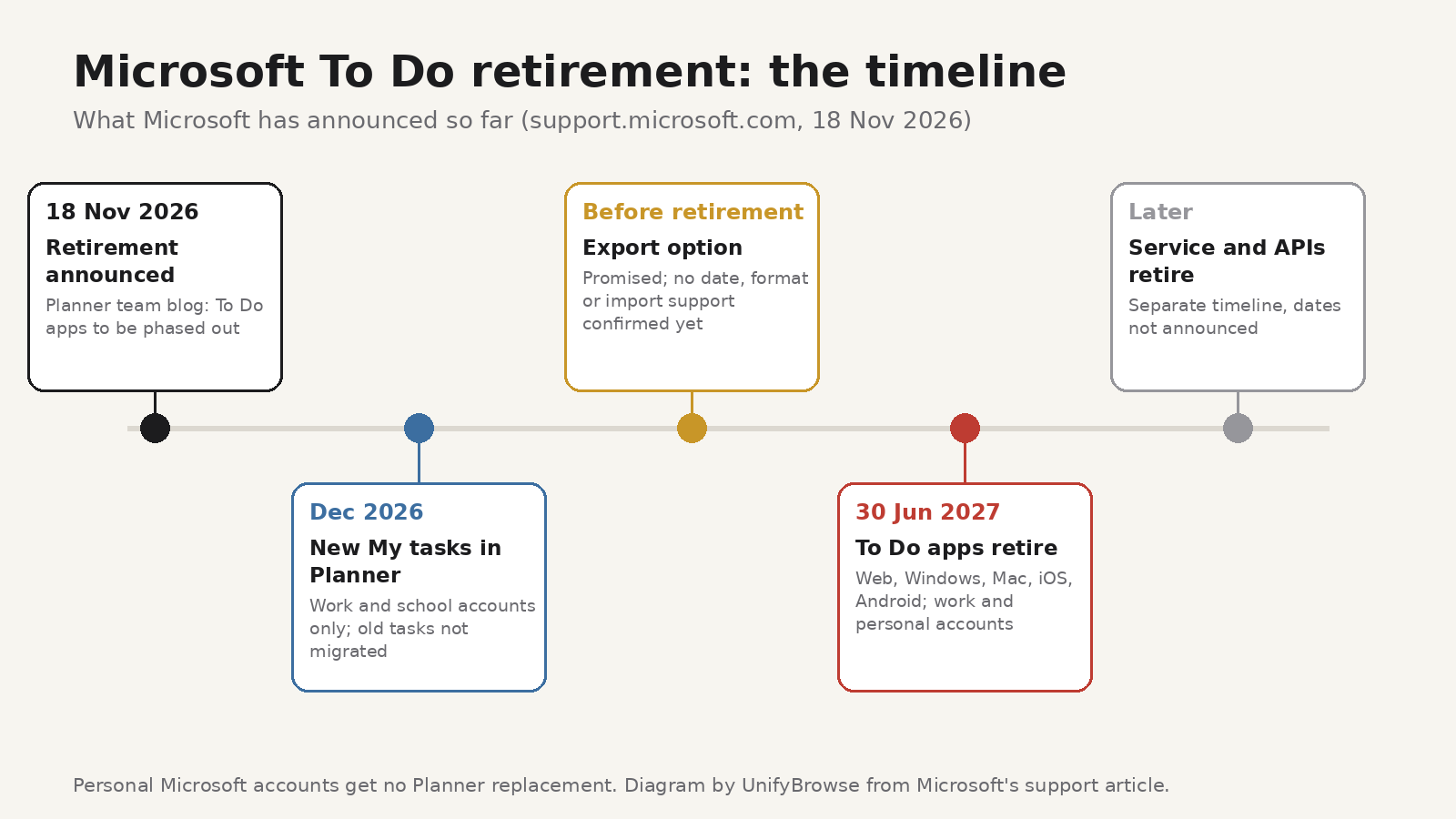
On 18 November 2026, Microsoft's Planner team published a post about "unified plans" for tasks across Microsoft 365. Near the end came the news many To Do users noticed first: "As we bring personal task management into Planner, we will phase out To Do. The To Do apps will retire on June 30, 2027."
Microsoft's support article on the move spells out the details:
- What retires: To Do on the web, Windows, Mac, iOS and Android, for work or school accounts and for personal Microsoft accounts, including Microsoft 365 Personal and Family.
- What replaces it at work: Planner. A redesigned "My tasks" experience in Planner starts rolling out in December 2026.
- What replaces it at home: nothing. Planner isn't available for personal Microsoft accounts, and Microsoft's advice is to "choose another task-management application."
- What happens to your tasks: existing To Do tasks and lists won't migrate to Planner. Work users can still see their old To Do tasks in Planner until 30 June 2027, and not after.
- Export: Microsoft says it will provide a way to export your To Do data before the apps retire, with instructions to follow. It also warns that an export "does not mean that the content can be imported into Planner or another application."
- Deletion: the app retirement doesn't itself schedule your data for deletion. The underlying To Do service, its APIs and sync have their own, later retirement dates, which Microsoft hasn't announced yet.
Tasks in classic Outlook are separate and, according to Microsoft, will keep working and syncing with Exchange.
Why "it moves to Planner" isn't the whole story
If you use To Do at work, it's tempting to assume Planner simply takes over. Microsoft's own comparison table lists several differences worth checking before you rely on that:
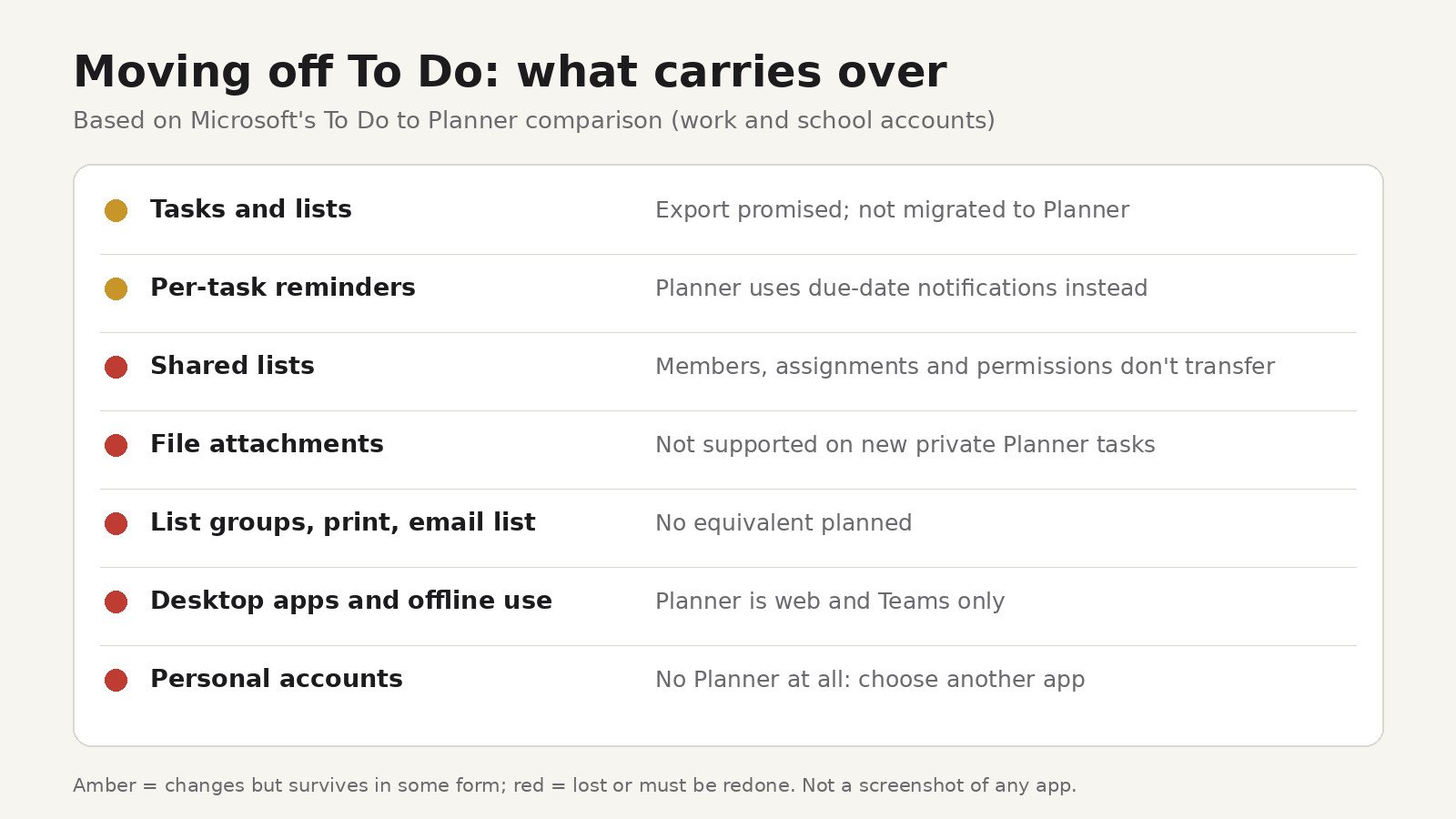
- No desktop apps. Planner runs on the web and in Teams. Microsoft says native Planner apps for Windows and Mac are "not planned as replacements," and the web and Teams versions don't offer equivalent offline use.
- Reminders work differently. Planner sends due-date notifications rather than the per-task reminders you schedule in To Do.
- Shared lists don't transfer. Membership, assignments and permissions on shared To Do lists won't carry over.
- No file attachments on tasks in the new private Planner plan, at least for now.
- No list groups, and To Do's print and email-a-list features aren't planned for the replacement.
This matters most if you depend on timed reminders, shared family lists or working offline on a laptop.
What to do now
You don't need to move today: the export tool doesn't exist yet and the apps work until the end of June 2027. A little preparation now still saves a rushed weekend next summer.
1. Take stock, account by account
If you use both a work and a personal Microsoft account, they're separate. Open each one and note your lists, roughly how many open tasks each has, and which lists are shared with other people. Microsoft recommends reviewing each account separately for exactly this reason.
2. Write down what an export won't capture
Make a short note of the things that live around the task text:
- tasks with reminders at a specific time,
- recurring tasks and their schedule (every Monday, the 1st of each month),
- lists you share, and who you share them with,
- tasks with files attached.
These are what you'll most likely need to set up again by hand.
3. Tidy before you move
A migration is a good excuse to clear out. Complete or delete tasks you're never going to do. A long list often shrinks a lot once the stale tasks are gone, and a short list is easy to re-create in any app.
4. Keep a plain copy of anything important
Until Microsoft's export arrives, you can still print or email a list from To Do, features Microsoft says won't exist in Planner's replacement. A printed or emailed copy of your important lists is a simple safety net that doesn't depend on any future tool.
5. Tell the people you share lists with
If you share a shopping list with a partner or a packing list with family, agree on the replacement together. A shared list only works if everyone moves to the same place.
How to choose a To Do replacement
Try one or two alternatives with real tasks in the next few months, not a demo list. A few questions narrow the field:
- Where do you work? Mostly on a phone means you need a strong mobile app; planning at a desk makes a fast desktop app with offline use more important.
- Do you share lists? If yes, sharing has to be a core feature, not an add-on.
- Where does your data live? Some apps store everything on their servers, others keep it on your device and make sync optional. Neither is wrong, but you should know which you're choosing.
- Can you leave again? Check whether the app exports to a standard format. Microsoft's retirement is a reminder that any app can go away.
- What does it cost? Many task apps are free for basic use and charge for sync or extras. Compare like with like.
Where Todofy fits
Todofy is our task and calendar app for macOS, Windows and Linux. It won't suit everyone leaving To Do: it's a desktop app, so if you mainly manage tasks on your phone or share lists with family, look elsewhere. If you plan your work at a computer and liked To Do's simplicity, it covers most of the same ground:
- Today, Upcoming and Inbox views, with overdue tasks rolled up so nothing slips.
- Quick-add from anywhere with Ctrl+Alt+A, even from the tray. Type a task with its date, time, priority and label in one line, and Todofy picks them out as you type. That also makes re-creating a list after export quicker.
- Recurring tasks that roll forward to the next occurrence when you complete them.
- Reminders from the tray with snooze, a custom sound and escalating volume.
- Subtasks, labels and P1 to P4 priorities, plus a local calendar with month, week and day views.
- A Pomodoro timer and per-task stopwatch if you like to track focus time.
Your tasks are stored in a local database on your device, and Todofy works without an account or internet connection. Account sync and a one-way Google Calendar push are optional. Todofy has a free plan, and Todofy Pro costs €3.99 a month or €39 a year.
Whatever you pick, Microsoft's note about exports applies: plan on re-creating your active tasks rather than expecting a one-click import. If you're facing a long list, our guide to getting started when you feel stuck has a few ways to make the first step smaller, and comparing estimated and actual time is a useful habit to start fresh in a new app.
FAQ
When exactly does Microsoft To Do stop working?
The apps retire on 30 June 2027. Microsoft hasn't announced dates for the underlying service, APIs and sync, which it says will retire later on separate timelines.
Will my tasks be deleted on 30 June 2027?
Microsoft says the app retirement doesn't itself schedule your data for deletion, and that data retention is handled separately. You won't be able to view or manage old To Do tasks in the apps, or in Planner, after that date, so don't wait to save what you need.
Can I move my To Do tasks into Planner?
Not automatically. Microsoft says existing tasks and lists won't be migrated to the new private Planner plan, and that its export tool isn't guaranteed to produce something Planner, or any other app, can import.
I have a personal Microsoft account. What's my option?
Planner isn't available for personal accounts, so you'll need another task app. Microsoft's guidance is to review your lists, choose a new app and use the export once it's published.