Short answer: On Friday 20 November 2026, Signal said it is restricting screenshots and built-in AI assistants from reading what's on screen in the app, because those assistants can capture chat content outside Signal's control. The protection is on by default on iPhone (Signal 8.37 or later, on iOS 27 or later). On Android (Signal 8.35.1 or later) it turns on the first time an AI assistant tries to read the Signal screen, or you can turn it on yourself. You can switch it off if you need a screenshot, with a short-lived option on iPhone. It does not yet cover Mac, and Signal calls the remedy incomplete.

What changed
Meredith Whittaker, Signal's president, wrote on 20 November that phone operating systems are building AI agents that "scan" whatever is on your screen. Once that happens, the contents of a Signal chat can end up in a local database or a remote server the assistant uses — including, in the case of Microsoft Recall, disappearing messages. That sits outside Signal's encryption and outside Signal's control.
Signal already blocked screenshots on Windows 11 last year to keep Recall from capturing chats, by default. The new step is aimed at the same problem on phones: "agentic systems built into iOS 27 and on Android versions where we can detect an AI assistant attempting to read your Signal screen." Whittaker names Google's Gemini Intelligence and Apple's Onscreen Awareness with Siri AI.
What it actually blocks
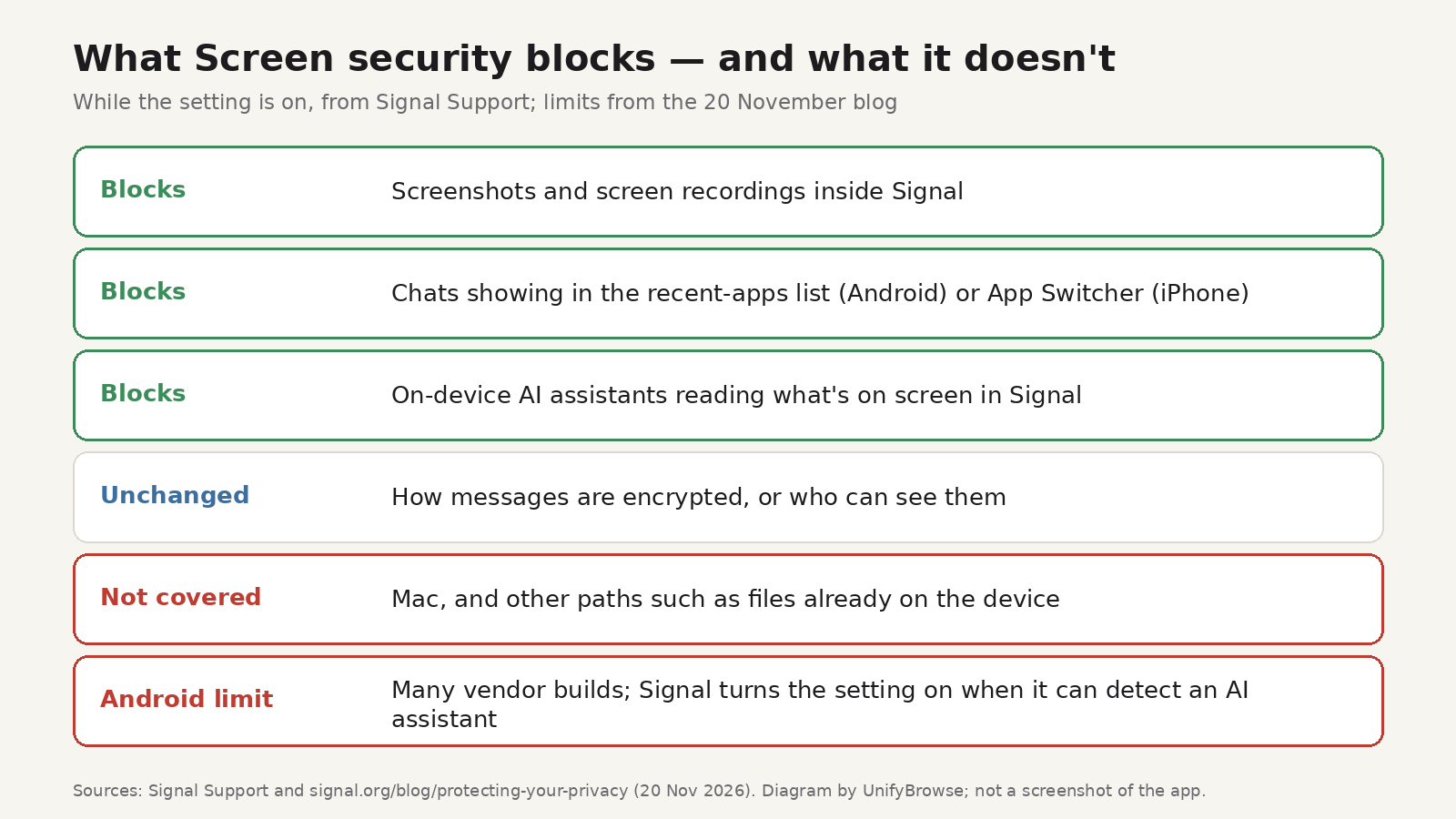
Signal's support article on Screen security is more specific than the headlines. While the protection is on, it blocks:
- Screenshots and screen recordings inside Signal
- Signal's content appearing in the recent apps list (Android) or App Switcher (iPhone)
- On-device AI assistants reading what's on screen in Signal
It does not change how messages are encrypted, who can see them, or any other Signal setting.
iPhone, Android, Windows and Mac
iPhone. You need Signal 8.37 or later, running on iOS 27 or later. "Block Siri AI" is on by default, under Settings → Privacy → Block Siri AI. If you try to take a screenshot, Signal shows a message that it was prevented, with options to turn the protection off for 10 minutes, turn it off, or leave it on. "Off for 10 Minutes" turns screen security back on automatically — useful if you genuinely need one screenshot. If you turn it off yourself in Settings, Signal says it will not remind you about it. A separate setting, Hide Screen in App Switcher, still controls whether chats appear there.
Android. You need Signal 8.35.1 or later. Screen security is not necessarily on from the first launch. Signal turns it on automatically the first time an AI assistant tries to read the Signal screen, and shows a message explaining what happened. You can also turn it on straight away under Settings → Privacy → App security → Screen security. The setting is either on or off. When it's on, your phone won't take a screenshot in the app.
Signal's blog is clear that this is harder on Android than a single "block all screenshots" switch: there are many vendor versions of Android, and for some of them Signal cannot reliably tell that a screenshot was attempted if screenshots are already disabled. So it focuses on detecting an AI assistant trying to access the screen, then enables Screen security. Enabling it also enables Hide Screen in App Switcher.
If you turn Screen security off from the in-app prompt, Signal will turn it on again after 90 days. If you turn it off yourself in Settings, Signal says it will not remind you.
Windows. Screenshot blocking against Recall on Windows 11 has been on by default since last year, according to the same blog post. Recall, Signal says, captures the screen every few seconds, extracts text with optical character recognition, and stores it in a searchable on-device database.
Mac. Signal cannot reliably block screenshots on macOS, so these new protections are not available there. For macOS 27, Signal's recommendation is to add Signal to the Excluded Apps list in System Settings > Siri, to protect message content from proactive access by Siri AI.
What it doesn't cover
Whittaker calls the remedy "incomplete". Blocking screenshots does not stop other ways an agent might get at data already on the device, such as through the filesystem. Signal also says it lacks good documentation from Apple, Google and Microsoft about how these agents actually access app data, and that developers don't have a simple, well-documented way to opt an app out of AI data access — screen reading, filesystem access, notifications and other OS features — without breaking the app. That's why Mac isn't covered.
The post also flags third-party agents, such as Meta's Muse, that can use deep permissions people grant during setup, including accessibility settings meant for people, as a "skeleton key" into app data.
Signal is asking Apple, Google and Microsoft for two things: an official opt-out for apps, and clearer technical documentation. It says it is talking to Google and Apple about how these systems should work with privacy-sensitive apps.
If you need a screenshot
Sometimes you do need one: a booking confirmation, a bug to report, a photo someone sent that you want to keep. On iPhone, "Off for 10 Minutes" is the least-lasting way to take it. On Android, you have to turn Screen security off, and if you did that from the prompt, it comes back after 90 days.
Before you turn the protection off, Signal asks you to confirm, because AI assistants may then be able to scan your Signal content. Whittaker's warning is sharper: turning it off can expose your chats and your contacts' chats to those agents, and breaks Signal's privacy guarantees. Treat that as a short, deliberate exception, then turn the protection back on.
And once you have the image, look at what's in the frame. Lock-screen notifications, a name in the status bar, a previous conversation, a QR code or an address in the background all travel with the screenshot. Crop to the one thing you meant to share before you send it.
Crop the frame before you share, with Image Resizer
Image Resizer is a browser extension for Chrome and Firefox, made by UnifyBrowse, that resizes, converts and compresses images in the browser. It will not stop an AI assistant reading a screen — that has to happen in the app or the operating system, which is the point of Signal's change. What it can do is help once you already have a screenshot of something you chose to share:
- Crop mode with a focal-point control, so you keep the receipt, the error message or the photo and cut the rest of the screen.
- Custom dimensions up to 16000 × 16000 pixels, or one of 22 presets for Instagram, Facebook, X, LinkedIn, YouTube and WhatsApp, if you're posting the cropped image.
- Aim for a target file size, if you're sending it over a chat app with a tight limit. The target isn't guaranteed, so check the final file size.
- Convert between JPG, PNG and WebP.
- Batch up to 5 images per run on the Free plan, and download one file or a whole run as a ZIP.
Image processing happens on your device, so the screenshots aren't uploaded for resizing. Pro, a one-time €7.99 purchase, removes the 5-image limit, keeps up to 20 profiles, adds multi-preset export packs, and activates on multiple browsers. The pricing page has the details, and the 1.0.0 release notes explain which features use the network, such as Pro license checks.
For more on what a browser extension can and can't see, we have a separate guide to what data browser extensions can see. For platform image sizes, see resizing images for social media.
FAQ
Can I still take a screenshot in Signal?
Yes, if you turn the protection off. On iPhone, you can turn it off for 10 minutes. On Android, Screen security is either on or off. Signal warns that turning it off can let on-device AI assistants read what's on screen in the app.
Does this mean my chats are no longer encrypted?
No. Signal's support page says the setting only affects screen capture and on-device scanning. It doesn't change how messages are encrypted or who can see them.
Why didn't my Android install block a screenshot today?
Two common reasons: your Signal version is older than 8.35.1, or Screen security hasn't been turned on yet. On Android it comes on automatically the first time an AI assistant tries to read the Signal screen, unless you enable it yourself in Settings.
I'm on a Mac. What should I do?
Signal cannot reliably block screenshots on macOS, so this protection isn't available there. For macOS 27, Signal recommends adding Signal to Excluded Apps in System Settings > Siri.
Will this stop every AI agent?
No. Signal calls the remedy incomplete. It doesn't cover filesystem access, it doesn't cover Mac, and it may not detect every assistant on every Android device. Third-party agents that people have granted deep permissions to are a separate problem Signal is also flagging.