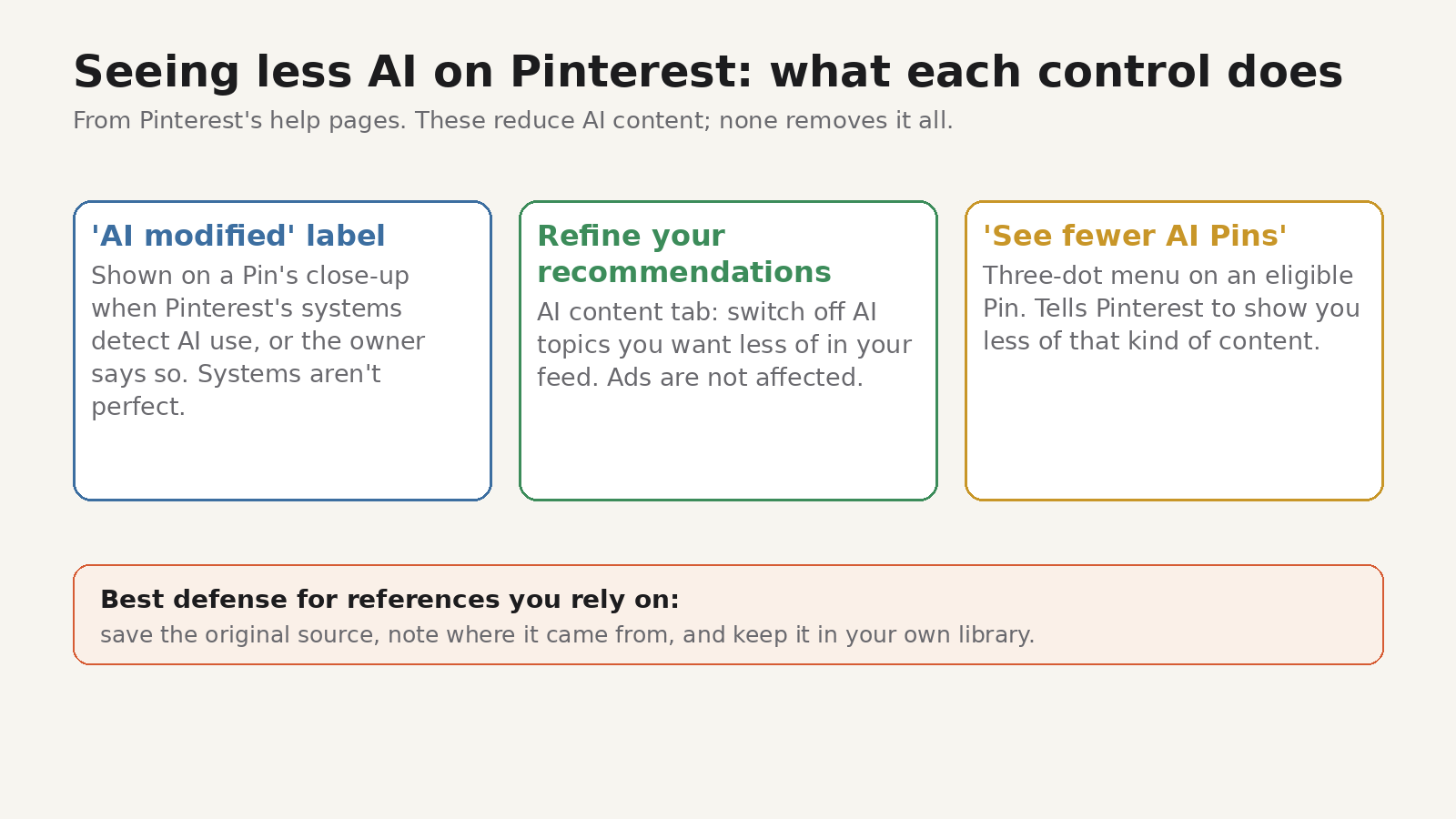
Short answer: Pinterest gives you three tools against AI images: an "AI modified" label on a Pin's close-up, an AI content tab under Refine your recommendations where you can switch off AI topics, and a See fewer AI Pins option in the three-dot menu of eligible Pins. They reduce AI content in your feed; none of them removes it entirely. For references you actually rely on, such as a haircut, an outfit, a room or a pose, the dependable fix is to trace each image back to its original source and keep it in a library of your own, with a note on where it came from.
What happened: a driver's license photo and a wall of AI
During a Weverse livestream on 21 November, BTS's V said he'd been searching Pinterest for reference photos for a new driver's license picture, trying to decide whether to wear black or white against a white background. Instead, the results were full of AI-generated images of BTS members, including pictures of them in school uniforms, as reported by K-POPIT and TenAsia. V said the faces in the AI images looked different from his actual appearance and called them "weird". Jin added: "AI is scary. People keep making weird things and uploading them," and described seeing his own face placed on Jungkook's body. After the stream, some fans asked others to stop making and sharing AI images of the members.
It's a celebrity story, but the experience is common. If you use Pinterest to find a hairstyle to show your hairdresser, a sofa that fits a small room or a pose for a portrait, an AI image can show you something that doesn't exist: a fabric that drapes impossibly, a haircut that ignores how hair grows, a room with no real dimensions.
Pinterest's own controls, and what they actually do
All of the following comes from Pinterest's help and creator pages.
The "AI modified" label
Pinterest shows a label on the close-up of an image Pin when the content owner says it was made or changed with AI, or when Pinterest's detection systems find it may have been. Those systems read image metadata under the IPTC Photo Metadata Standard and use classifiers that try to spot AI images without obvious markers. Pinterest's creator page is candid that "these systems aren't perfect", and creators can appeal a label they think is wrong. So treat the label as a useful hint. A Pin without it isn't guaranteed to be real.
Refine your recommendations: the AI content tab
In your settings, Refine your recommendations now has an AI content tab. There you can choose to see fewer AI Pins in certain categories, and switch individual topics on or off under Manage AI content by topic. Pinterest describes the categories as ones "highly prone to AI modification or generation", such as beauty, art, fashion and home decor. Changing these settings doesn't affect the ads you see.
- On desktop: click the more-options icon at the bottom left, choose Refine your recommendations, then the AI content tab.
- In the app: tap your profile picture, then the more-options icon at the top right, then Refine your recommendations.
"See fewer AI Pins" on a single Pin
When an AI image shows up anyway, open the three-dot menu on the Pin. If it's in a supported category, you'll see an option to see fewer AI Pins, which tells Pinterest to recommend less of that kind of content.
These controls shape your feed. They're worth switching on, but they won't clean up every search result, and categories outside the supported list aren't covered.
Five quick checks before you trust a reference image
No checklist catches every AI image, and detection gets harder as the tools improve. These habits still filter out most problems:
- Find the original. Open the Pin and follow the source link. A real photo usually leads to a photographer, brand, shop, museum or creator. If it leads nowhere, or to a page full of similar images with no author, be wary.
- Run a reverse image search. Google Lens or a similar tool will often show where an image first appeared and whether other versions exist.
- Look at the details AI still gets wrong. Hands, jewelry, text on signs and labels, reflections, and patterns that should repeat (tiles, stitching, piano keys).
- Check that it's physically possible. Does the haircut work with gravity? Does the furniture fit through a door? Would that fabric really fall that way?
- Prefer collections from real sources. A brand's lookbook, a stylist's portfolio or a museum archive is slower to browse than a feed, but the images are what they say they are.
Build a reference library you control
The deeper fix is to stop relying on a feed to hold your references. A feed changes every time you open it. Your own library doesn't.
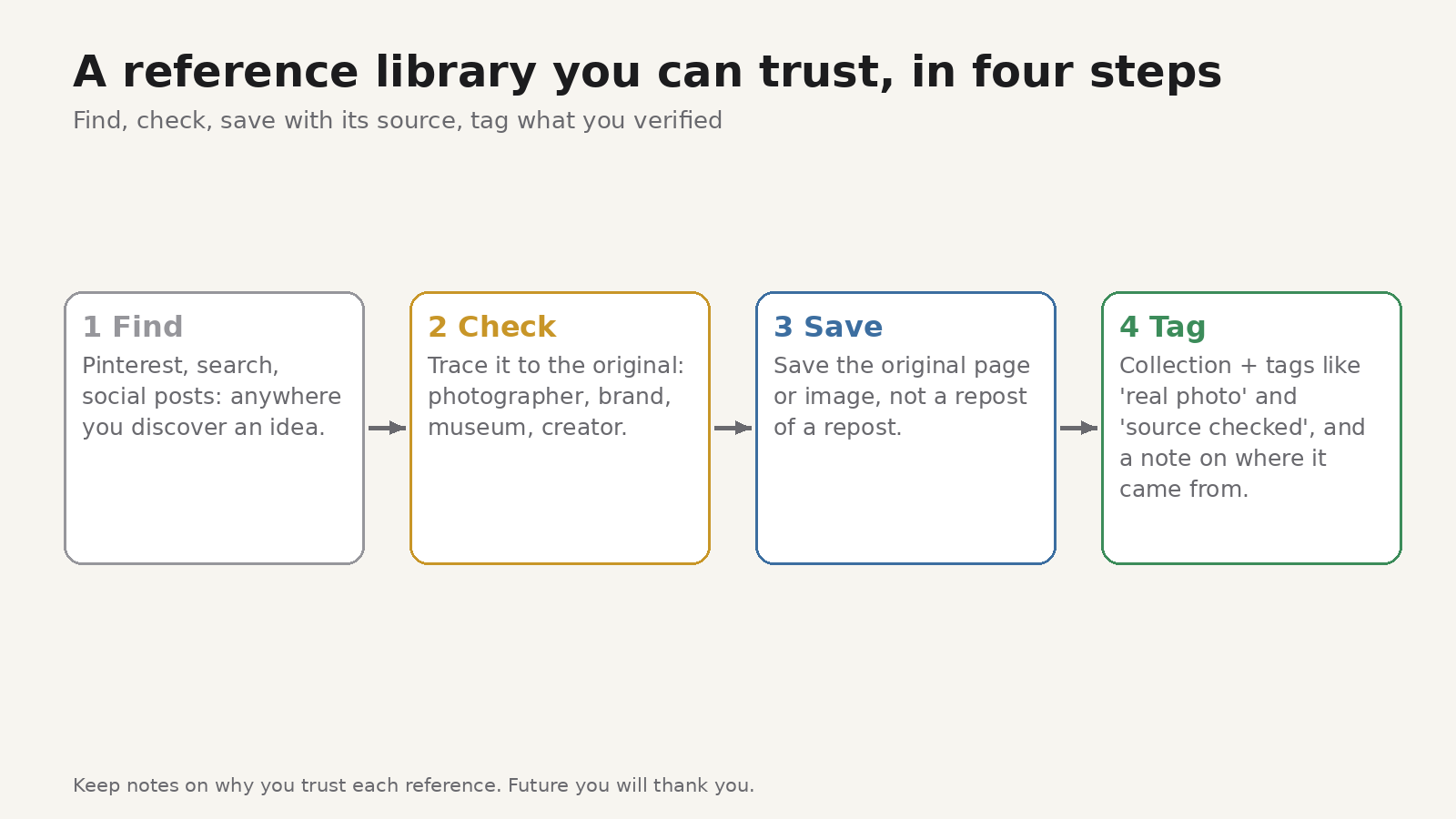
1. Find anywhere. Keep using Pinterest, search and social media for discovery. They're good at that.
2. Check before you save. Run the five checks above. It takes a minute per image, and you only do it for the ones you'll actually use.
3. Save the original, not the repost. Save the photographer's page, the product page or the museum record. If the original disappears later, you still know who made it.
4. Tag what you verified. Use a collection per project ("Kitchen redo", "Wedding hair", "Character poses") and tags such as real photo, source checked or AI, for mood only. Add a short note: who made it, why you trust it, what you like about it.
Doing this with Cairn
Cairn is our free browser extension for exactly this kind of library. It lets you save pages, articles, selected text, images and links from the right-click menu, popup or keyboard shortcuts. You can organize everything into nested collections with tags, notes and favorites, then search across titles, URLs, notes, tags and article text. Your library stays in your browser, with no account needed, and you can export everything to JSON whenever you like.
A simple setup for references:
- a top-level collection called References, with a sub-collection per project;
- tags for real photo, source checked and AI (mood only);
- a note on each saved image with the source and one line on why you saved it.
Save the original page as well as the image, add your note, and you keep the context that makes a reference trustworthy. If you're comparing tools, our Cairn vs Pocket vs Raindrop comparison and our guide to why saved links disappear cover the trade-offs.
A note on images of real people
The BTS story is also a reminder that AI images of real people affect real people. Two of the members said the images made them uncomfortable. If you collect references of a person, whether that's a celebrity's haircut or a friend's wedding look, use real photos from the original source, and don't create or share AI edits of someone's face without their consent.
FAQ
Can you turn off AI images on Pinterest completely?
No. Pinterest's controls let you see less AI content in your feed in supported categories, and you can flag individual Pins. Pinterest's help pages don't describe any setting that removes every AI image from search and feeds.
What does "AI modified" mean on Pinterest?
It means the Pin's owner said the image was made or changed with AI, or Pinterest's systems detected that it may have been. Pinterest says the systems aren't perfect, so some AI images won't be labelled and some real ones may be.
Do Pinterest's AI settings change the ads I see?
No. Pinterest's help page says turning recommendations on or off won't affect the ads in your home feed.
Is it safe to use AI images as references at all?
For mood and color, often yes. For anything you'll copy in real life, such as a haircut, a build or a measurement, use a real photo from a source you can check.