Short answer: On 23 November Google released a Chrome update that fixes one critical security bug, CVE-2026-134401, in a component called Variations. On Windows and Mac you need Chrome 158.0.8127.88 or .89 or later, and on Linux 158.0.8127.88 or later. Chrome downloads updates on its own, but the fix isn't active until you relaunch the browser. Open chrome://settings/help, let Chrome finish updating, click Relaunch, and check the version number. It takes about a minute.
What Google fixed
Google's Chrome Releases blog posted the Stable channel update on 23 November. It contains a single security fix, rated Critical: "CVE-2026-134401: Improper input validation in Variations," reported by Google's own team on 28 August. Critical is the highest severity Chrome uses.
As usual, Google is keeping the bug details restricted "until a majority of users are updated with a fix." That's standard practice: publishing the technical details before most people have the update would make it easier for attackers to build an exploit. Google's note doesn't say the bug is being exploited, but a critical-severity fix shipped as its own update, a week after a big release, is a good reason not to wait.
The update came six days after Chrome 158 reached the Stable channel on 17 November with 204 security fixes. If you've postponed relaunching your browser since mid-November, you're missing both.
What is Chrome "Variations"?
Variations is the system Chrome uses to switch features and experiments on for some users before they reach everyone. When Google tests a new feature, Chrome uses Variations to decide whether your browser is in the group that gets it. It works in the background, and you never see it directly.
"Improper input validation" means the code didn't properly check some data it received before acting on it. That's a broad category, and Google hasn't said more. You don't need the details to protect yourself: the fix is in the new version, and updating is the only thing you need to do.
Which version do you need?
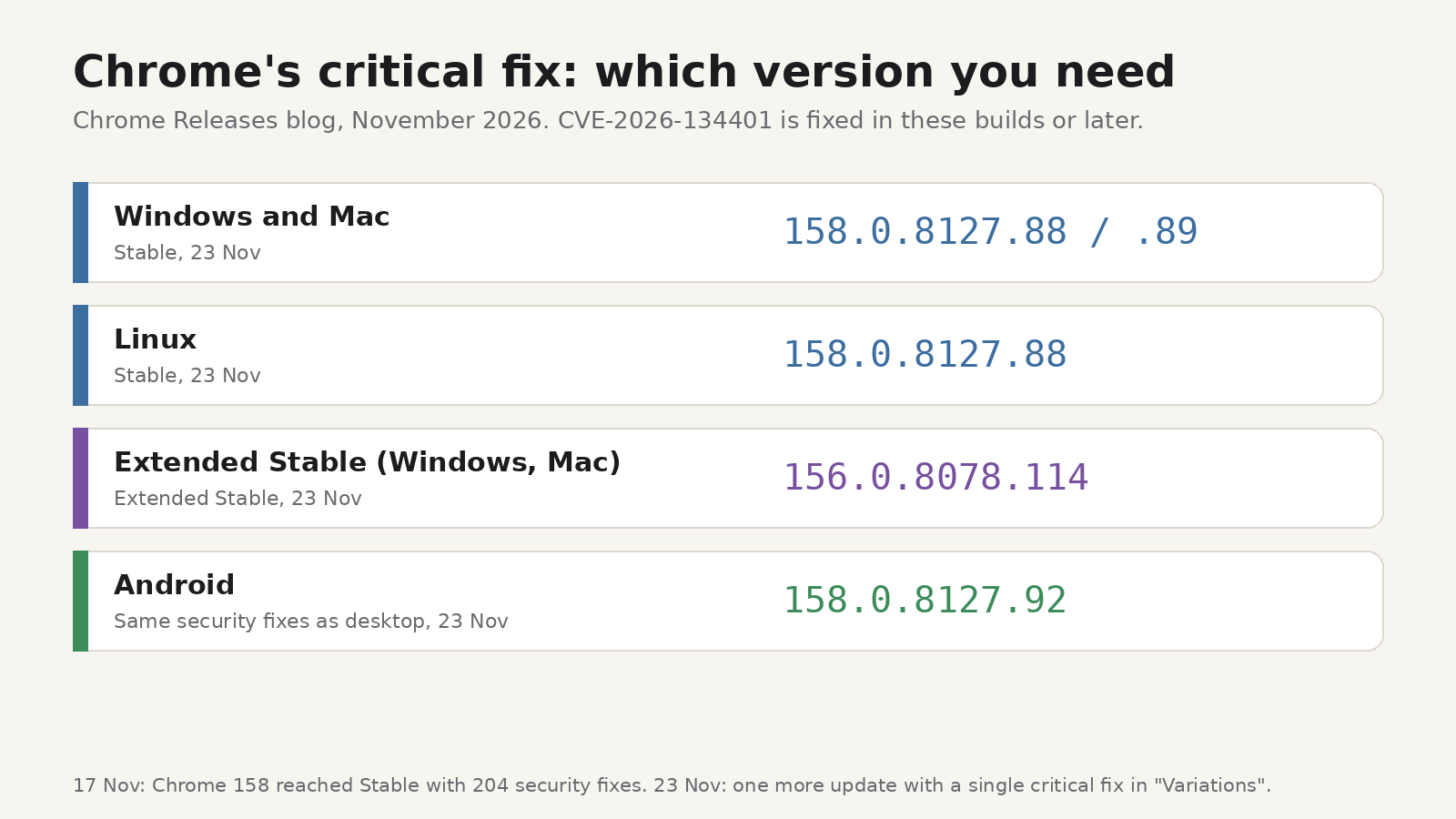
Google lists these versions as including the fix:
| Platform | Fixed in |
|---|---|
| Windows and Mac (Stable) | 158.0.8127.88 / .89 or later |
| Linux (Stable) | 158.0.8127.88 or later |
| Windows and Mac (Extended Stable) | 156.0.8078.114 or later |
| Android | 158.0.8127.92 or later |
On Android, Google says the 23 November release "contains the same security fixes" as the matching desktop release, and it rolls out through Google Play over a few days. ChromeOS moved to browser version 158.0.8127.98 on most devices the same week; Chromebooks update through the system update in Settings.
Extended Stable is the slower channel some companies use; if you don't know what it is, you're almost certainly on regular Stable. Some people already have Chrome 159, which Google started rolling out to a small share of desktop users on 24 November as an early Stable release. That's a newer version than 158, so you don't need to do anything special.
How to check and update Chrome on a computer
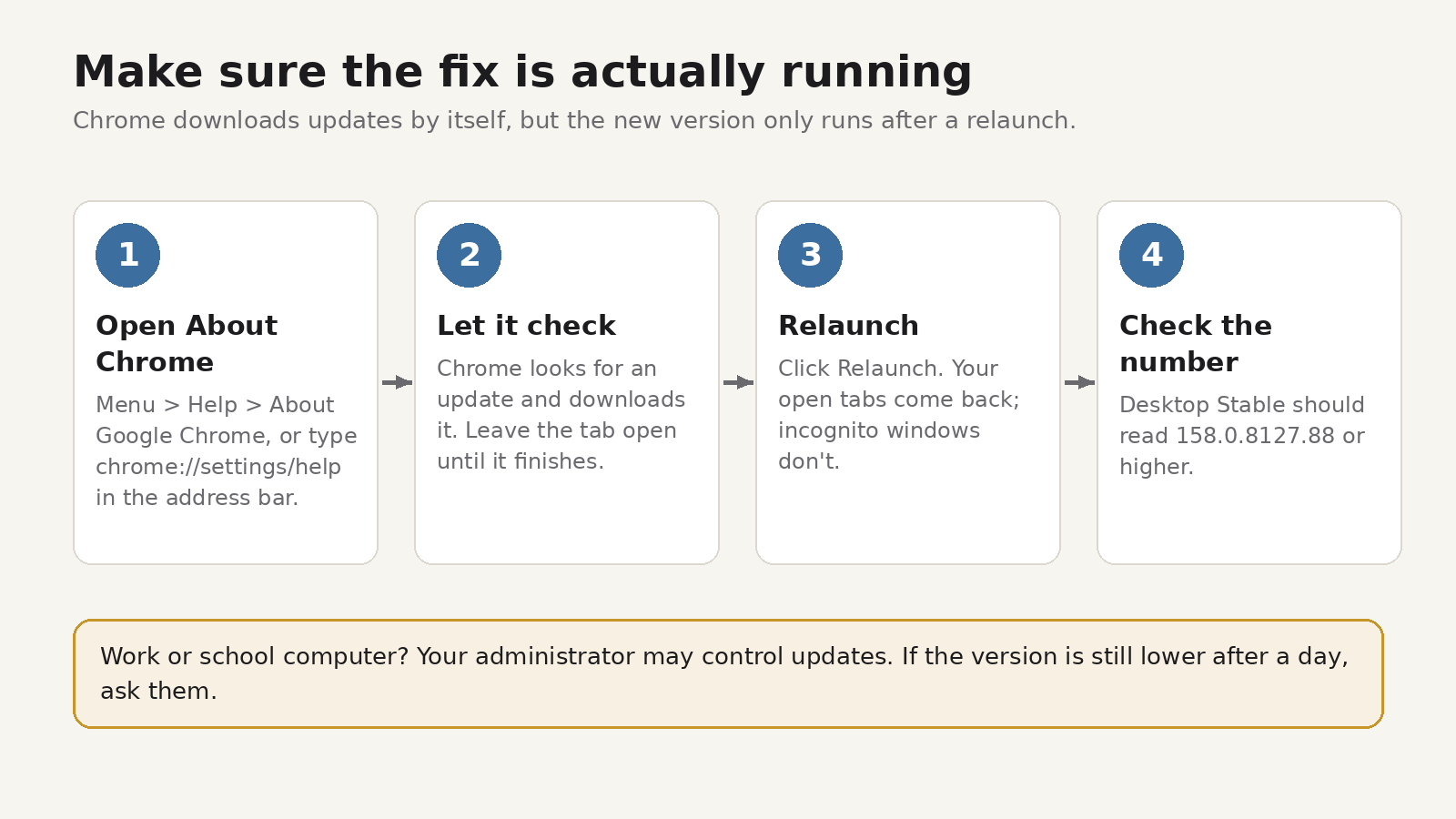
- Open About Chrome. Click the three-dot menu, then Help, then About Google Chrome. Or type
chrome://settings/helpinto the address bar. - Let it check. Chrome looks for an update as soon as the page opens and downloads it. Leave the tab open until it says the update is ready.
- Relaunch. Click the Relaunch button. Chrome closes and reopens with your normal tabs restored. Incognito windows won't come back, so finish anything you're doing in one first.
- Check the number. Go back to the About page and confirm the version matches the table above or is higher.
If you haven't restarted Chrome in a while, the menu button in the top-right corner may already show an "Update" label. That means Chrome has downloaded a new version and is waiting for you to relaunch.
Why relaunching matters
Chrome updates itself in the background, but the running browser keeps using the old code until it restarts. Many of us keep the browser open for days or weeks, put the computer to sleep instead of shutting it down, and never see the new version. Google rolls updates out gradually "over the coming days/weeks," so it's also normal for the About page to find nothing on day one and the update a day or two later. Check again tomorrow if you're still on an older version.
On a work or school computer
If your organization manages your browser, an administrator may control when updates arrive. If you're still on an older version a day or two after Google's release, let your IT team know. They usually want to hear about it.
On Android
Open the Google Play Store, search for Chrome, and tap Update if it's offered. To check your version, open Chrome, tap the three-dot menu, then Settings, then About Chrome.
Other Chromium-based browsers
Microsoft Edge, Brave, Opera, Vivaldi and other browsers built on Chromium release their own updates on their own schedules. Check their About page (in most of them it's under Help or Settings), install whatever update is offered, and relaunch.
Will updating affect my extensions?
No. Relaunching Chrome keeps your installed extensions and the data they store in the browser. Our own extensions, including the read-later library Cairn and SoundCloud Enhanced Pro, keep their saved data across a browser relaunch.
This is still a good moment for two small habits:
- Update your extensions too. Chrome updates extensions automatically, but you can force a check. Our guide to updating browser extensions after a security fix shows how.
- Back up anything you'd hate to lose. Browser updates almost never cause data loss, but local data lives only on your computer. If you use Cairn, its Settings let you export a full JSON backup (or Markdown, a Readwise CSV or bookmarks HTML). Keep that file with your other backups.
While you're on the extensions page, remove any extension you no longer use. Fewer extensions means fewer things that can go wrong. Our guide to what data browser extensions can see explains what to look for in permissions.
FAQ
Is Chrome safe to use right now? Yes, once you're on a fixed version and have relaunched. Until then, the safest move is to update before doing anything sensitive.
Do I need to reinstall Chrome? No. The normal update from the About page is enough.
Does this affect Chrome on iPhone and iPad? Google's notes for this fix cover Chrome on desktop and Android. On iOS, keep Chrome updated through the App Store as usual.
I updated, but the version number hasn't changed. You probably haven't relaunched. Click Relaunch on the About page, or quit Chrome completely and open it again. If the number still doesn't change after a day, your updates may be managed by an administrator.