Short answer: On 20 November, GL.iNet found that an attacker had used a flaw in GoodCloud, its cloud remote-management service, to install malware on some of its routers and KVM devices. The cloud flaw is fixed, but that doesn't remove malware already on a device. Install the latest stable security firmware for your exact model, and if your device was ever connected to GoodCloud, change the passwords and keys stored on it afterwards. If you download the firmware file yourself, compare its SHA256 with the one GL.iNet publishes before you install it.
What happened
GL.iNet makes routers, travel routers and remote-access KVM devices. According to GL.iNet's security notice, first issued on 20 November and updated on 23 November, the company found unauthorized access to some routers and KVMs connected to GoodCloud. An attacker exploited a vulnerability in the service and installed malware on some of those devices.
The notice describes the technical cause: GoodCloud's device-messaging service had a configuration error in message authorization, so a client could send management messages to other users' devices without permission. GL.iNet also lists a separate command-injection flaw in its AstroWarp/SD-WAN feature that could let management input run as root on affected routers, even with AstroWarp turned off, and a third issue in the remote-terminal (RTTY) component. GL.iNet has submitted CVE reports; at the time of writing the identifiers are still pending.
GL.iNet says it blocked the attack path on 20 November and has released security firmware that disables the known malware and removes its files. It is also clear about the limits. The cloud fix can't undo past access, and the firmware cleanup is "not a general malware scan or a complete integrity check".
Are you affected?
GL.iNet's notice is careful here, and it's worth following its wording rather than assuming the worst:
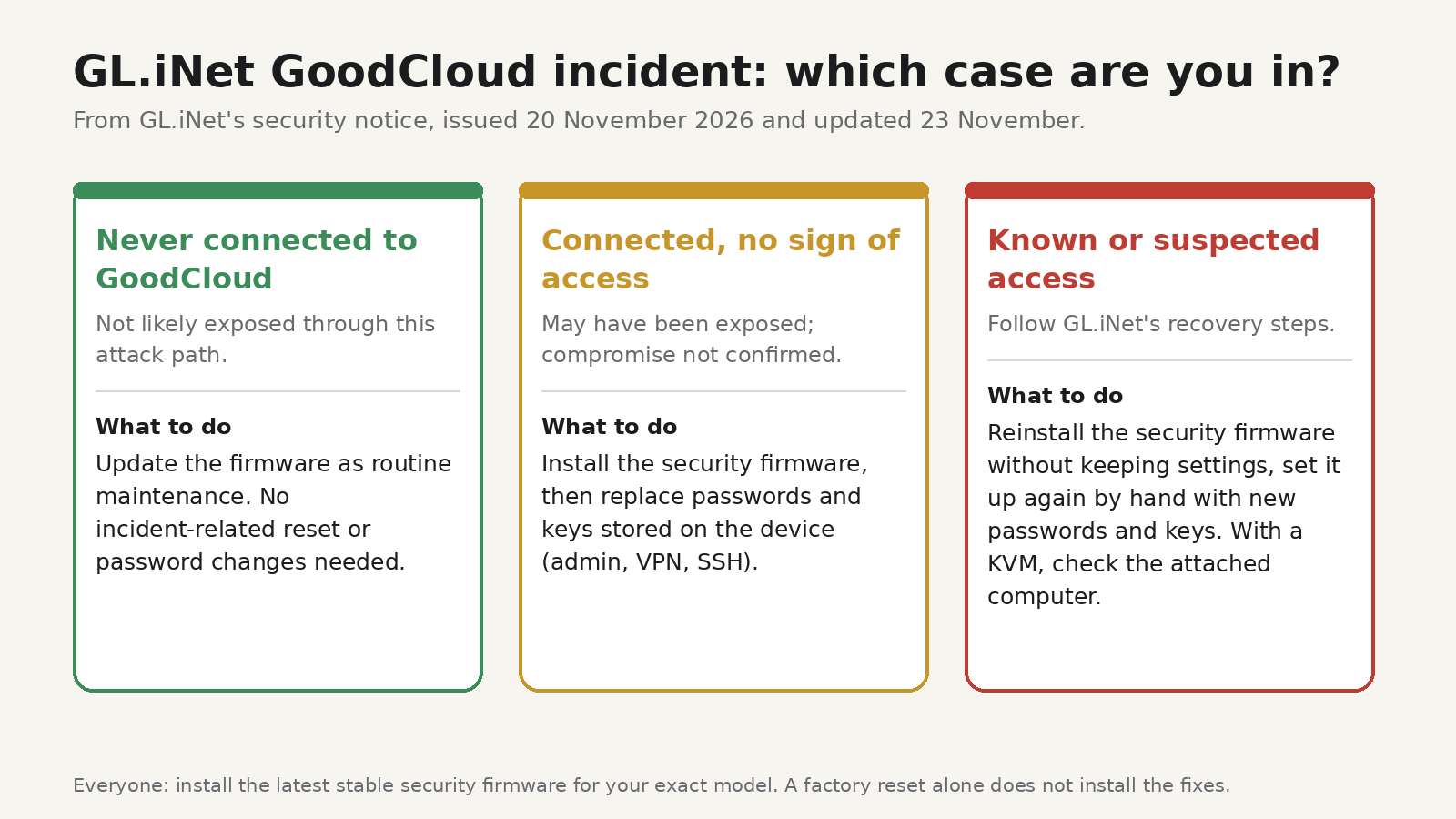
- Your device never connected to GoodCloud. It was not likely exposed through this attack path. Update the firmware as routine maintenance. GL.iNet says this incident alone isn't a reason to reset the device or replace passwords and keys.
- Your device connected to GoodCloud, but you've seen no sign of unauthorized access. It may have been exposed, but compromise isn't confirmed. Install the security firmware, then replace passwords and keys stored on the device as a precaution.
- GL.iNet told you your device was affected, or you suspect access. Follow the recovery steps below.
Two details are easy to miss. Some KVMs have cloud service enabled before you link them to an account, so "I never made a cloud account" is not proof the device never connected. And GL.iNet says it will email customers whose devices it identifies as affected, but not getting an email doesn't mean you're in the clear. Don't wait for one before updating.
Step 1: Install the security firmware
For everyone with a GL.iNet router or KVM, the main action is the same: install the latest stable firmware for your exact model. You can do it from the device's admin page, and you don't need to run any terminal commands first. The notice lists minimum security versions. A few examples:
| Models | Minimum security version |
|---|---|
| GL-MT3000 (Beryl AX), GL-MT6000, GL-MG1300 | 4.11.1 |
| GL-BE3600, GL-BE9300 | 4.10.2 |
| GL-AX1800, GL-AXT1800, GL-SFT1200, GL-X3000, GL-XE3000 | 4.8.4 |
| GL-MT2500 / GL-MT2500A, GL-X2000 | 4.7.14 |
| KVM: RM1, RM1V2, RM10, RM10RC, RM1PE, RM4PE | 1.10.3 |
| KVM: RMQ1 | 1.8.7 |
The full list, with older models such as the GL-AR750 and GL-MT300N-V2 (4.3.31), is in the notice. GL.iNet stresses that the table is a list of models with security releases, not a list of compromised models. If your model isn't listed, check the Download Center or ask support@gl-inet.com, and never install firmware made for a different model.
If you want to run a check for signs of the malware first, do it before restarting or updating, because a reboot or update can wipe the traces. GL.iNet points to an independent, community-maintained check script and says to use its check-only mode. A clean result doesn't prove the device was never accessed.
Step 2: If you suspect access, reinstall without keeping settings
If access looks ongoing, GL.iNet's advice is to disconnect the device from the internet if you can do so safely and contact support from another device. For recovery, the strongest option it describes is to install the official security firmware without keeping settings, then set the device up again by hand with new passwords and keys. On a router that means turning Keep Settings off during the upgrade; on KVMs that offer it, clearing Save current configuration. Don't restore a backup taken from a device that may have been compromised.
Keeping your settings is still allowed, for example to keep remote access to a router you can't reach physically. The update still cleans up the known malware. But GL.iNet notes it may leave other unauthorized changes in place, and community testing found an added startup script and SSH key that survived a settings-preserving upgrade on one test KVM. A factory reset on its own doesn't install the fixes.
Step 3: Replace passwords and keys
If your device ever connected to GoodCloud, change the credentials stored on or reachable from it after you update, even if a check finds nothing. GL.iNet's examples are the admin password and, if you use them, VPN and SSH keys. An update can't revoke a key that has already been copied.
For other computers, GL.iNet's line is measured: replace credentials if they were stored on the GL.iNet device, reused there, or if you have reason to think the other device was accessed. Simply being on the router's Wi-Fi doesn't mean a laptop's passwords were exposed. If you use an affected KVM, also check the computer attached to it for unfamiliar accounts, software, browser extensions or startup items, and run a full scan.
How to check the firmware file you downloaded
If you update online from the admin page, the device fetches the firmware itself. If you download a firmware file yourself, for example to reinstall without settings or because the device is offline, take one extra minute to confirm the file is exactly what GL.iNet published.
GL.iNet's Download Center shows a SHA256 checksum for each firmware file. A checksum is a fingerprint of the file's contents: change a single byte and it comes out completely different. For example, on 24 November the Download Center listed this checksum for the GL-MT3000 4.11.1 .tar file:
d511cc5c9158af69c9a0eb1ea988ea0156f64f541c60eca9d03b9a19003795da
Your model and file will have their own value, and GL.iNet may publish a newer build, so always copy it from the Download Center page you downloaded from, not from an article.
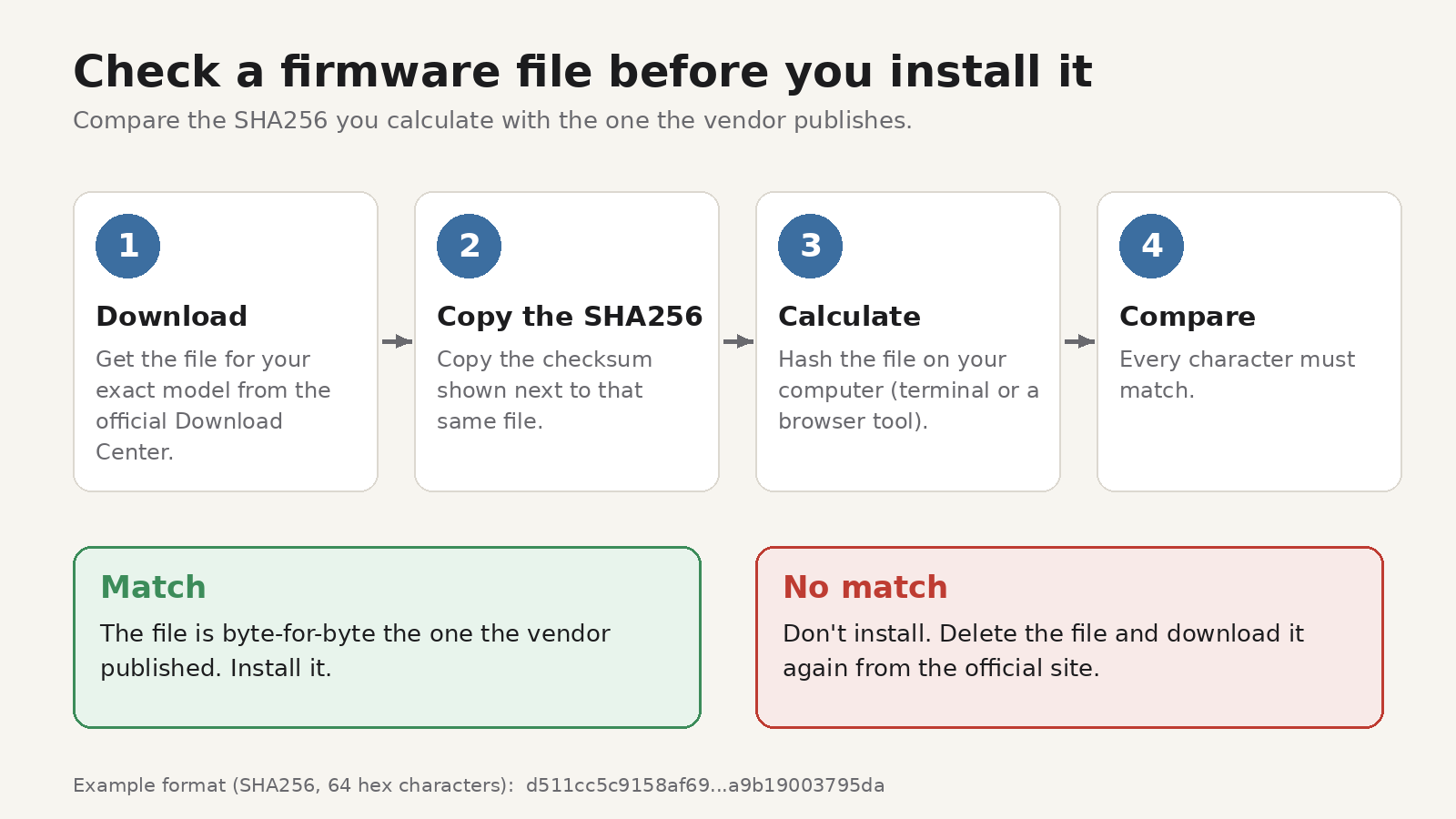
To calculate the checksum of the file on your computer:
- Windows (PowerShell):
Get-FileHash .\your-firmware-file.tar -Algorithm SHA256 - macOS:
shasum -a 256 your-firmware-file.tar - Linux:
sha256sum your-firmware-file.tar
If the values match, the file is the one GL.iNet published. If they don't, don't install it: delete it and download it again from the official Download Center. A checksum can't tell you whether GL.iNet's own build is safe, but it does rule out a corrupted download or a file swapped somewhere between their server and your disk. For more on reading checksums, see our guide to verifying a SHA256 checksum.
Checking it in the browser with HashLens
If you'd rather not use the terminal, HashLens is our free Chrome extension for identifying, generating and verifying hashes. Its File Hash Verifier opens in its own tab: pick the firmware file, paste the SHA256 from GL.iNet's page, and it tells you whether they match. The hashing happens in your browser, so the firmware file isn't uploaded anywhere. We used the same check for installers from fake download sites.
A short checklist
- Find your model and current firmware version in the admin page.
- Install the latest stable security firmware for that exact model.
- If you download the file yourself, compare its SHA256 with GL.iNet's before installing.
- If the device ever used GoodCloud, change its admin password and replace VPN and SSH keys afterwards.
- If you suspect access, reinstall without keeping settings and set it up again by hand.
- With an affected KVM, check the computer behind it too.
FAQ
Does updating the firmware remove the malware? GL.iNet says the security firmware disables the known malware from this incident and removes its related files, including when settings are kept. It's targeted cleanup, not a full integrity check, which is why the notice recommends reinstalling without settings if you suspect access.
I never used GoodCloud. Do I need to do anything? Update the firmware as routine maintenance. GL.iNet says devices that never connected to GoodCloud weren't exposed through this attack path and don't need incident-related resets or password changes. Remember that some KVMs connect before account linking.
What does a matching SHA256 prove? That the file you have is byte-for-byte the file GL.iNet published a checksum for. It protects you from corrupted or swapped downloads, not from problems in the vendor's own build.